
This article outlines the installation in a Microsoft environment. The Google Workspace setup is more straightforward and instructions can be found here: PRB installation manual for Google Workspace
Prerequisites
The supported Exchange Server and Outlook versions can be found in the compatibility matrix.
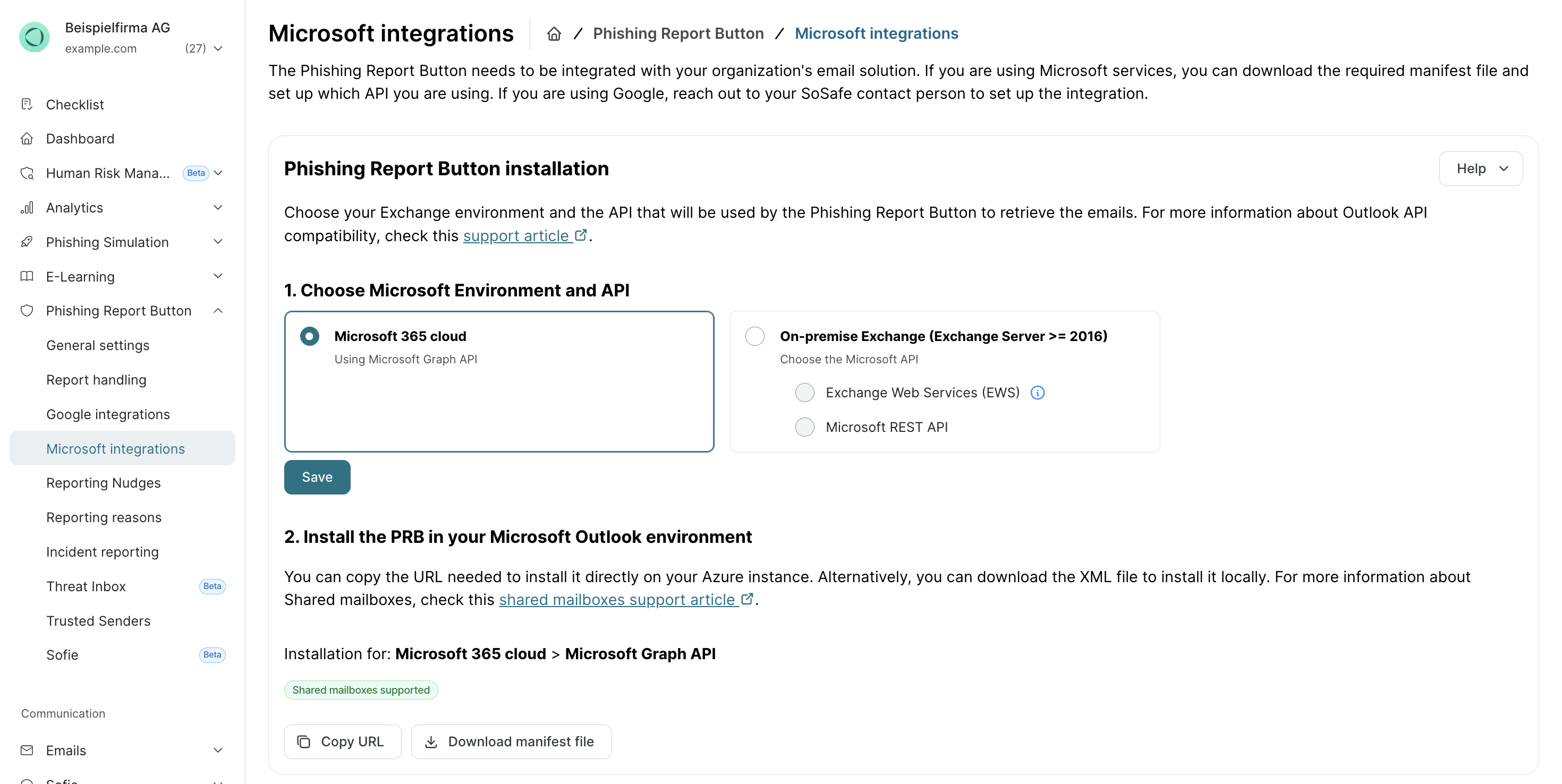
To install the button, you need a manifest file (XML format). You can download this in the SoSafe Manager.
Preparation
-
In the SoSafe Manager, navigate to Phishing Report Button / Microsoft integrations.
-
Find the section Phishing Report Button manifest and download the appropriate file for your environment. Alternatively, if your Exchange server has a connection to the internet, you can add the manifest later on in the process from a URL. In this case, select Copy URL and store it securely until you need it.
-
You must ensure that the email program can access the following URLs. These URLs should not be blocked by a firewall or similar:
-
https://api.sosafe.de -
https://reporter.sosafe.de -
https://appsforoffice.microsoft.com/ -
https://ajax.aspnetcdn.com/ -
https://sentry.sosafe.de1
1 Recommendation: When unexpected errors occur, system information and error logs are sent to the SoSafe server. This allows errors to be detected and resolved at an early stage.
-
Installation
Here you can find the installation manual that applies to your specific setup:
Installation manual for Exchange
Installation manual for Microsoft 365
Helpful links
Upcoming API Changes: Transitioning to Microsoft Graph for hybrid and cloud environments
Button migration from REST API to Graph API
Microsoft - Office Add-ins documentation
Microsoft - Determine if centralized deployment of Office Add-ins works for your organization