
You can configure the SoSafe Phishing Report Button to forward reported emails (including the .EML file) to an abuse mailbox, MS Defender and/or SoSafe’s in-house triage tool - Threat Inbox.
Abuse mailbox
Compatibility
-
Outlook: all APIs are supported
-
Google Workspace: not supported
How it works
When users report suspicious emails, the Phishing Report Button can forward these message to a specified abuse mailbox. Your sandbox system of choice can then monitor this mailbox and analyze incoming emails for threats such as phishing links or malware. If a threat is detected, it can automatically quarantine the corresponding email and remove any forwarded copies from user inboxes.
Setup
-
Set up an abuse mailbox in your security solution. For detailed instructions, refer to your provider’s documentation.
-
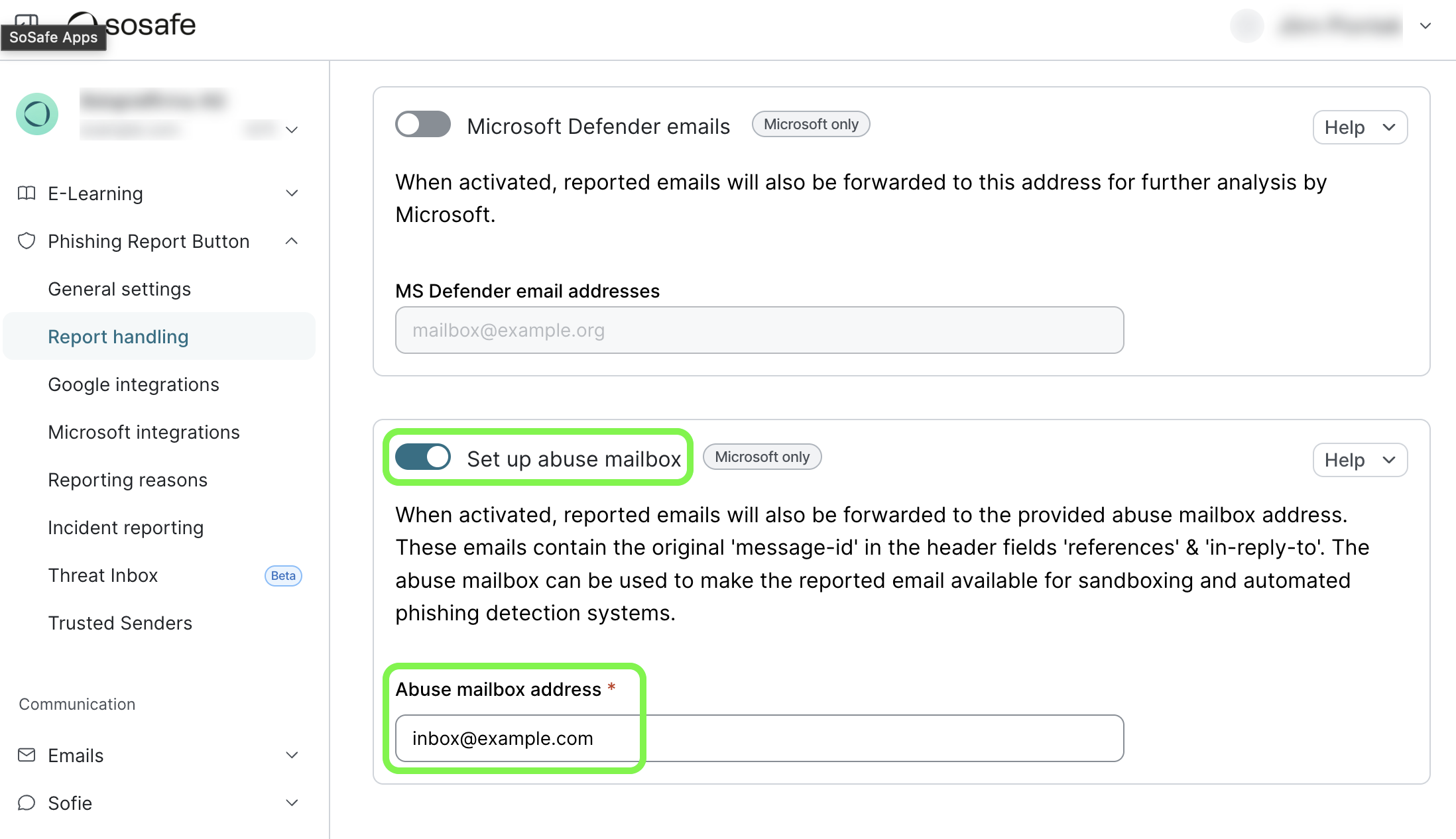
In the SoSafe Manager, navigate to Phishing Report Button / Report handling and scroll to the Set up abuse mailbox section. Activate the toggle.
-
Enter your abuse mailbox address and select Save to confirm.
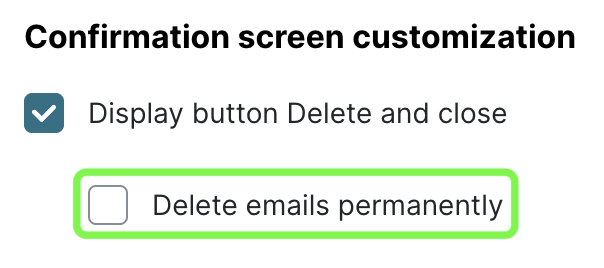
Important: Make sure that the option Delete emails permanently after reporting, available under Phishing Report Button / General settings, is not checked. If emails are deleted, sandbox systems cannot retrieve or analyze them.
Technical details
-
Forwarded emails include special headers (
referencesandin-reply-to) that link back to the original email. This allows security tools to track conversations and analyze the message trail. -
The forwarded email does not contain the original email as an attachment.
-
Instead, the forwarded email contains basic plaintext metadata of the original email.
MS Defender
You can integrate the Phishing Report Button with Microsoft Defender for report handling. This means emails reported with the PRB show up in your SOC team’s submissions dashboard in Defender. If you are on the Microsoft Defender for Office 365 Plan 2, you can also trigger an Automated Investigation and Response (AIR) for both analysis of the reported email and remediation suggestions. Learn more about this capability athttps://learn.microsoft.com/en-us/defender-office-365/air-auto-remediation.
Requirements and limitations
All APIs available for the PRB are supported. However, Exchange Web Services (EWS) limits the size of attachments to 500kB, meaning that we cannot attach the original email as an .eml file if it is too large. In these cases, while the reports are sent to the user submission inbox, they will not appear in the Microsoft Defender user submission dashboard. We therefore not recommended to use this integration with the EWS API.
Microsoft Defender submissions do not work when reports are submitted from an on-premise mailbox or from outside the organization. Reporters must be on the same Azure instance of MS Defender.
Setup in Microsoft Defender
-
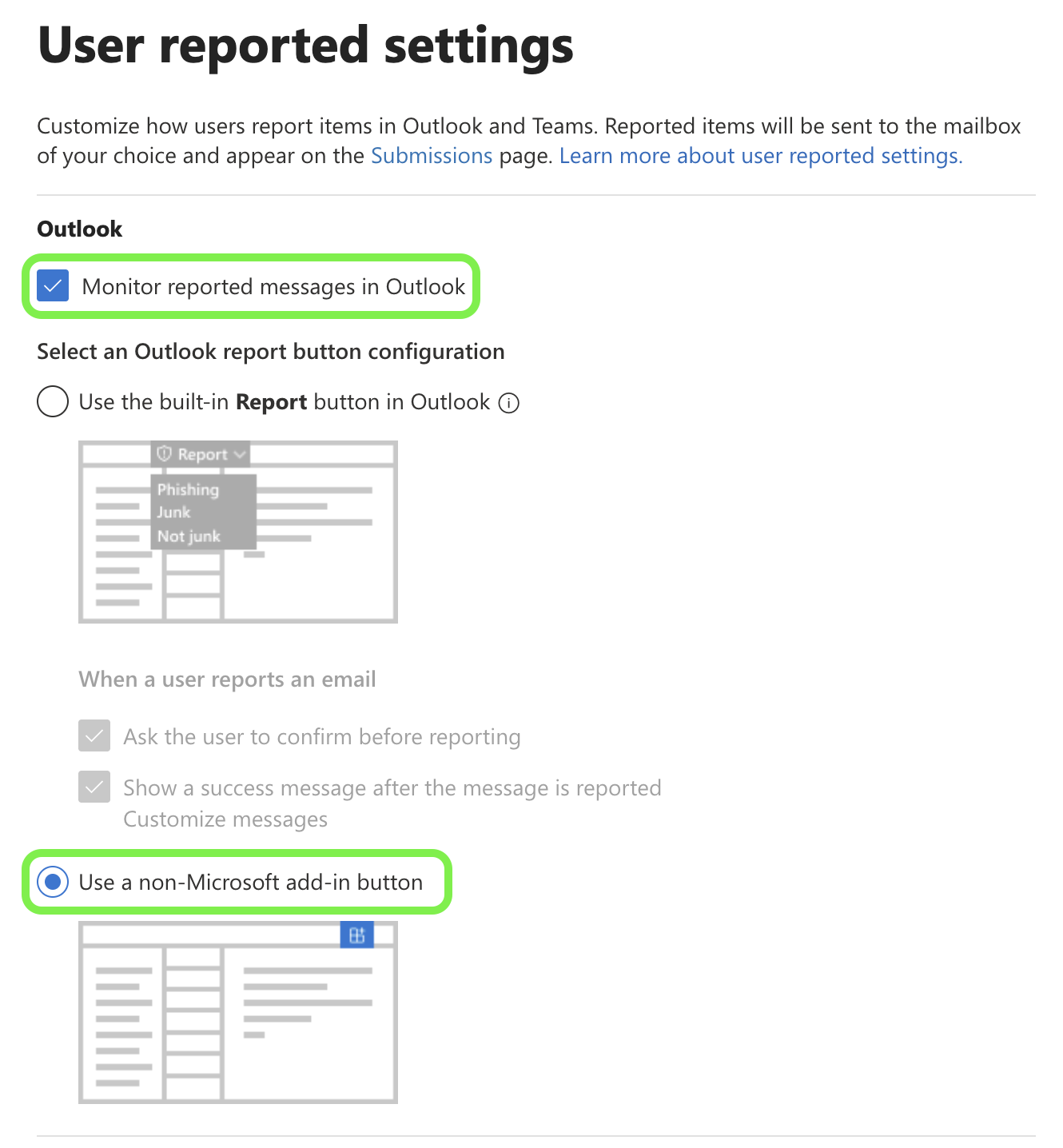
Go to the Microsoft Defender portal. Navigate to System / Settings / Email & collaboration / User reported settings. You can also go to this page directly: https://security.microsoft.com/userSubmissionsReportMessage
-
Make sure the checkbox for Monitor reported messages in Outlook is checked.
-
Select Use a non-Microsoft add-in button.
This setting also means that the integrated Microsoft Defender Report button will no longer be shown. Change this only if the PRB is rolled out to all users and is working correctly.
-
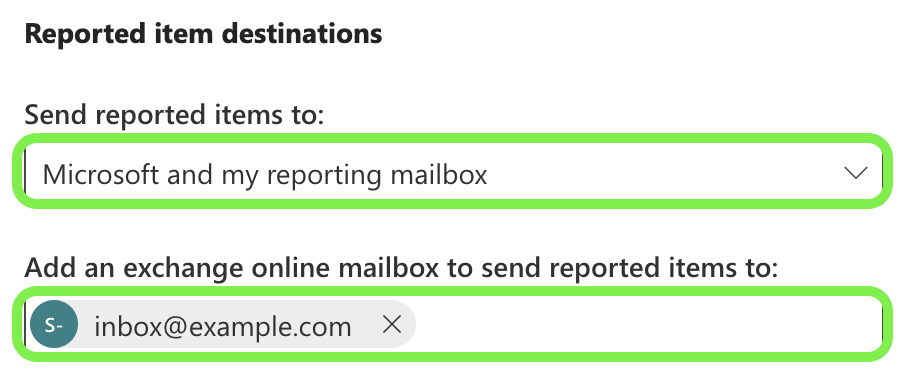
Under Reported message destinations, make sure Send reported messages to: is set to Microsoft and my reporting mailbox.
-
Under Add an exchange online mailbox to send reported messages to:, enter the inbox you want to use.
Note that you must use a SecOps mailbox. Learn more about how to set up such a mailbox in Microsoft’s documentation.
Setup in the SoSafe Manager
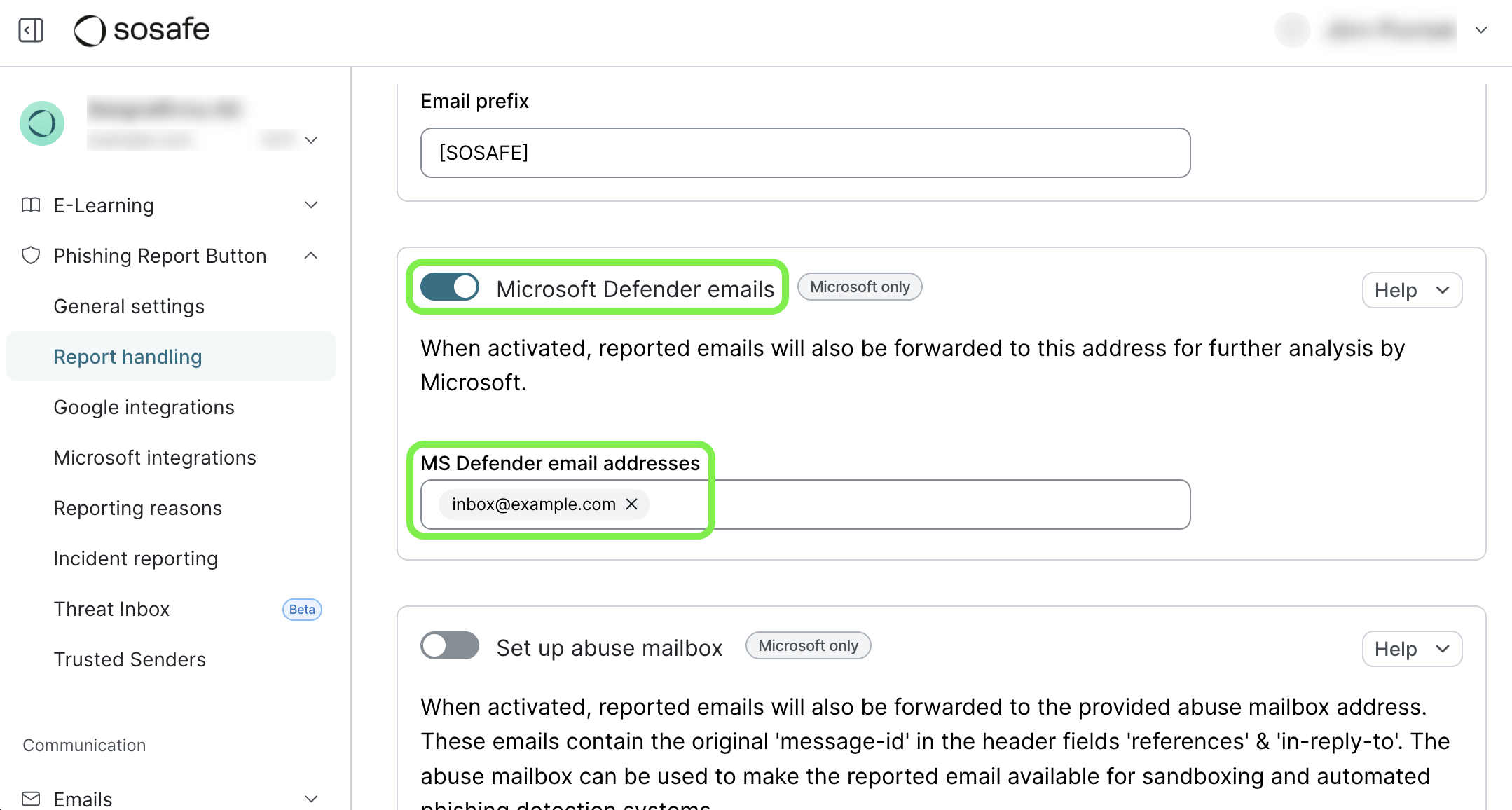
In the SoSafe Manager, navigate to Phishing Report Button / Report handling and find the section for Microsoft Defender emails. Select the toggle to activate it and enter the same inbox you specified earlier. Select Save to confirm.
User-reported emails will now be forwarded to your User submissions dashboard in Defender (navigate to Investigation & response / Actions & submissions / Submissions. You can learn more about what you can do there on Microsoft’s support pages. Simulated phishing emails sent by SoSafe will not be forwarded.
Threat Inbox
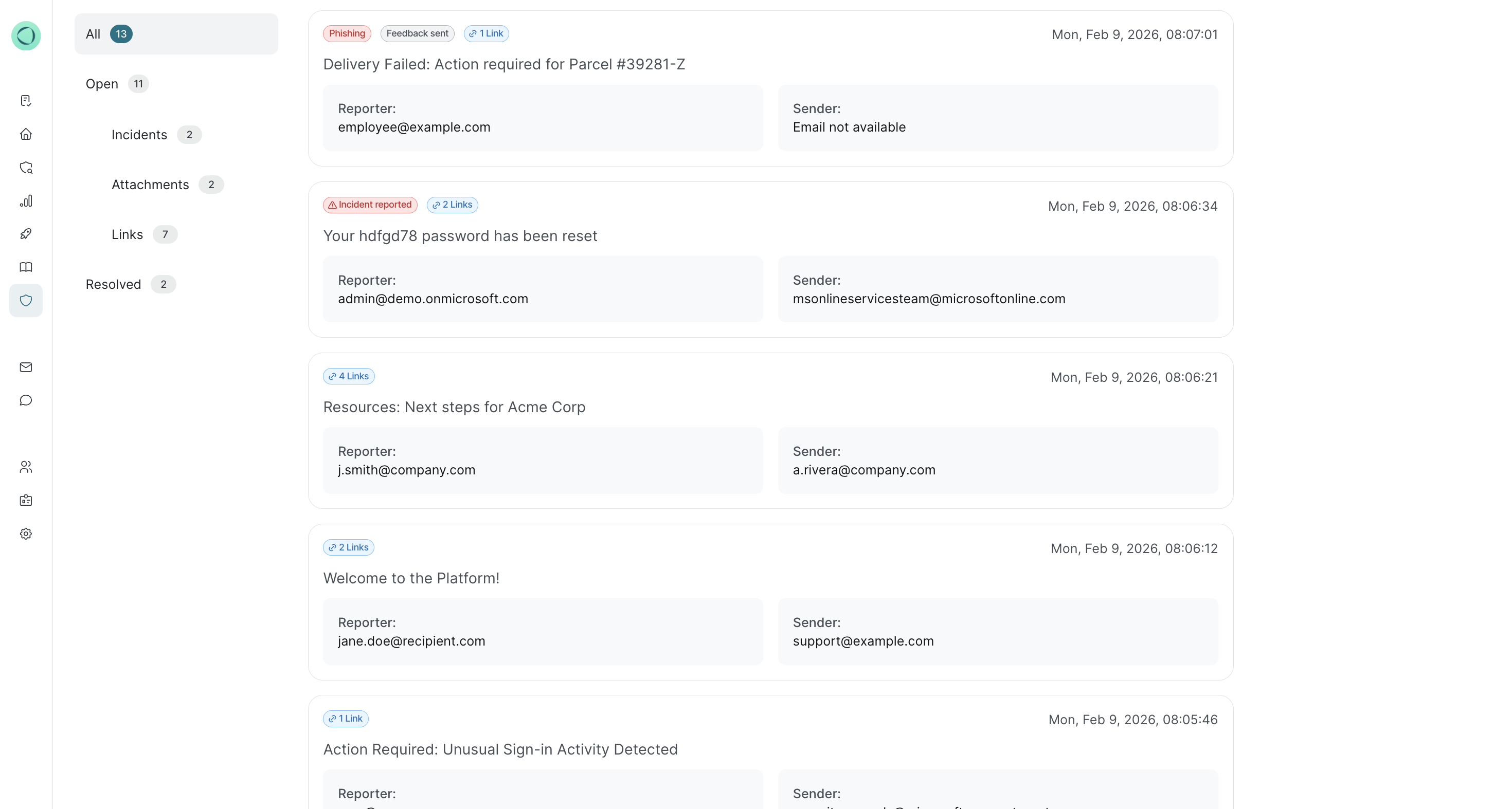
Threat Inbox is your central hub for triaging reports submitted by your users via the Phishing Report Button (PRB). Rather than managing reports through a standard email inbox, Threat Inbox provides a dedicated environment to filter, review, and classify potential threats.
Centralizing the reporting funnel facilitates pattern recognition by your security team. It also makes it easier to provide meaningful feedback to employees, reinforcing secure behaviour across your organization.
Key features
Threat Inbox allows you to perform deep-dive investigations into reported emails directly in the SoSafe Manager.
-
Detail views: Access high-level context including the reporter’s identity, timestamp, and full sender details.
-
Technical deep dives: Review full email headers, link destinations, and attachment details.
-
File inspection: For emails with attachments, you can quickly view file details and copy file hashes for further cross-referencing in your internal security tools.
Smart filtering & triage
To help your team stay organized, Threat Inbox provides several views to help you prioritize the most critical threats:
|
View |
Purpose |
|---|---|
|
Open |
Displays all incoming reports that have not yet been resolved. |
|
Incidents |
Specifically highlights reports where a user flagged that they interacted with the email. |
|
Attachments |
Filters for all open reports containing files or attachments. |
|
Links |
Filters for reports containing URLs for quick link-scraping analysis. |
|
Resolved |
An archive of all reports that have been classified and closed. |
Closing the feedback loop
Providing feedback to users turns a closed ticket into a teaching moment and provides motivation for further reports. When you select Resolve on a report, you can classify the email into one of four categories: Non-malicious, Phishing, Spear phishing, or Spam.
-
Automated feedback: Each classification is linked to a unique feedback email that explains the classification to the employee.
-
Behavioral reinforcement: Sending these updates ensures users feel heard and valued, which improves future reporting rates and data quality.
-
Admin flexibility: While feedback is sent automatically by default to save your team time, you can easily opt-out by deselecting the Send feedback email checkbox for specific cases.
Access
To access the hub, navigate to Phishing Report Button / Threat Inbox within the SoSafe Manager. If the feature is not yet active, you will find an activation toggle directly on that page.
Third-Party Integrations
While the Threat Inbox is designed to be a complete investigation solution, we understand many teams use external ticketing systems. If you prefer to triage reports through tools like Jira or ServiceNow, you can configure these connections under Settings / Integrations.