
How to manage a running E-Learning training
-
You can manage or view an E-Learning training from the following locations:
-
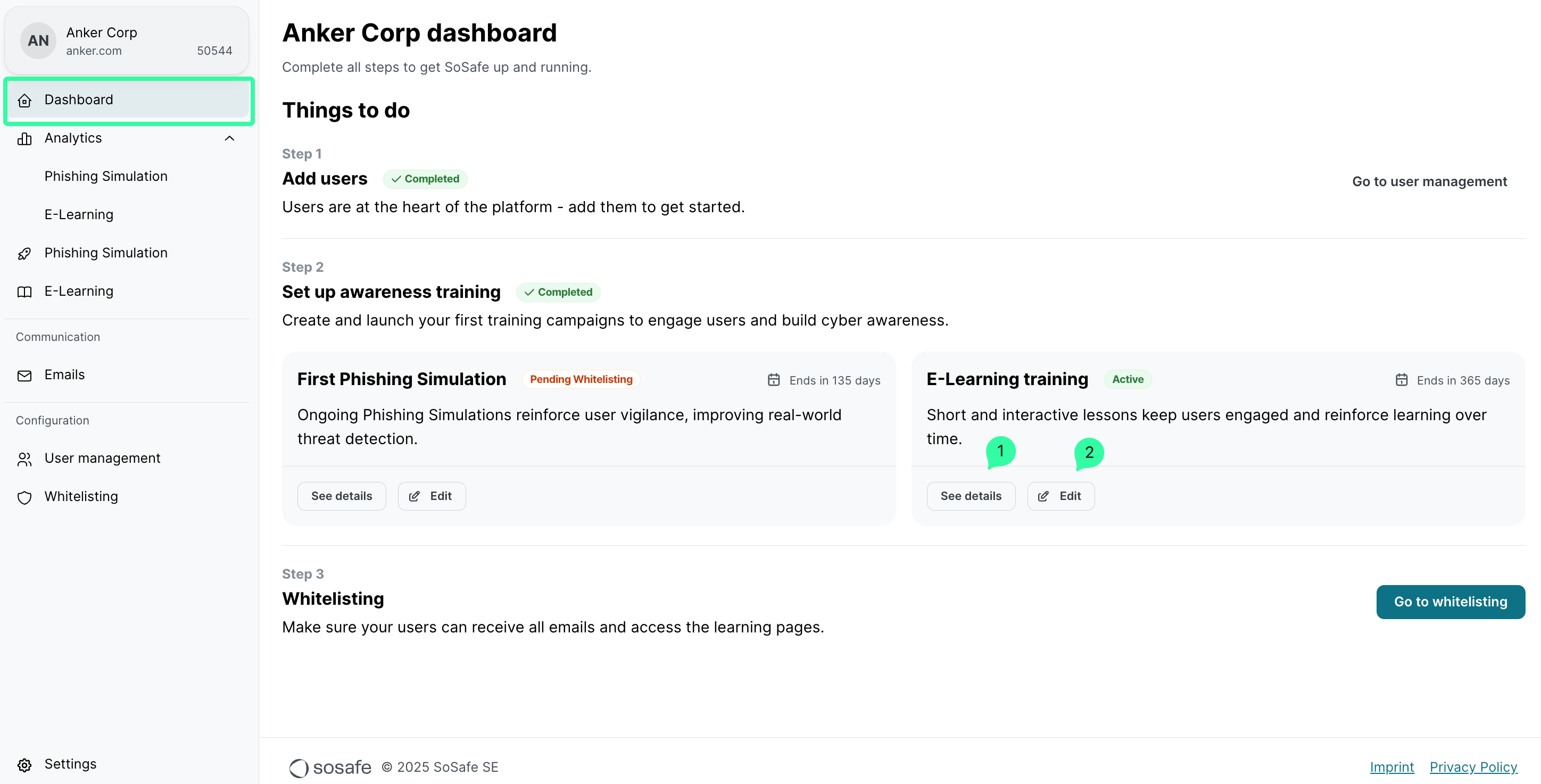
Go to the Dashboard menu item on the left side, under E-Learning training, click See details (1) to get a summary of the running training, or click Edit (2) to open the editing pane.
-
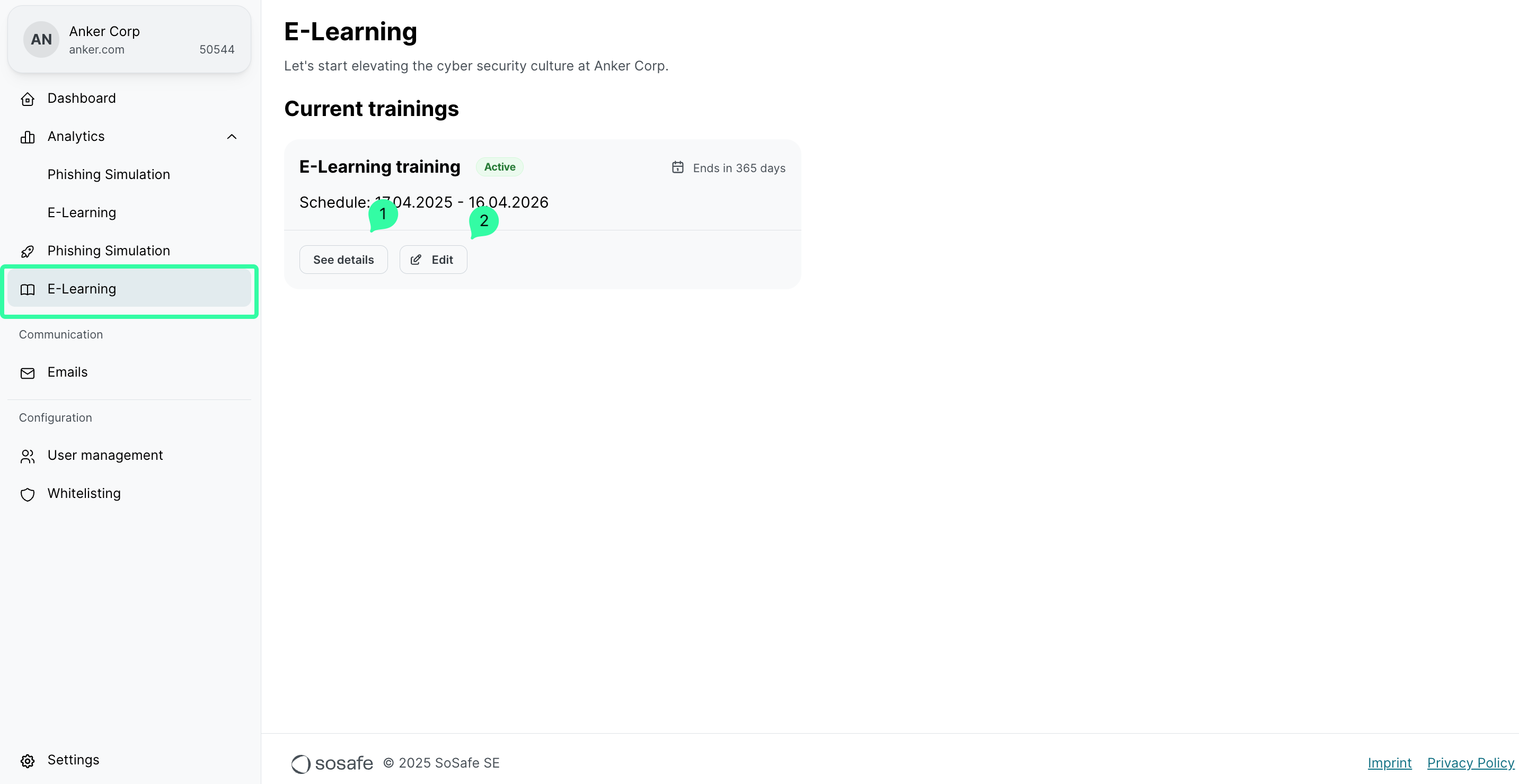
b. Go to the E-Learning menu item on the left side, under Current trainings, click See details (1) to get a summary of the running training, or click Edit (2) to open the editing pane.
-
On the Edit name and dates page:
-
Update the start and end dates for an unstarted E-Learning training.
-
Click the checkbox End training on the subscription end date to prefill the training end date automatically. Note that the end date should not exceed the subscription end date.
-
click Next
-
The start and end dates can only be modified for E-Learning training that has not yet started.
The name of the E-Learning training cannot be changed at this time.
-
On the Select E-Learning lessons page, select and deselect the lessons as needed.
Check the article Magenta Security Awareness: How to set up E-Learning for detailed recommendations on how to distribute the E-Learning lessons content catalog.
Any lessons added to or removed from the awareness training will trigger a recalculation, which will increase or decrease the number of monthly lessons per user and adjust the content distribution over the training duration.
.png?cb=1f3084417f87eda2d7e3340c5ecd2e8c)
-
Click the Next button when you have finished editing the E-Learning lessons.
-
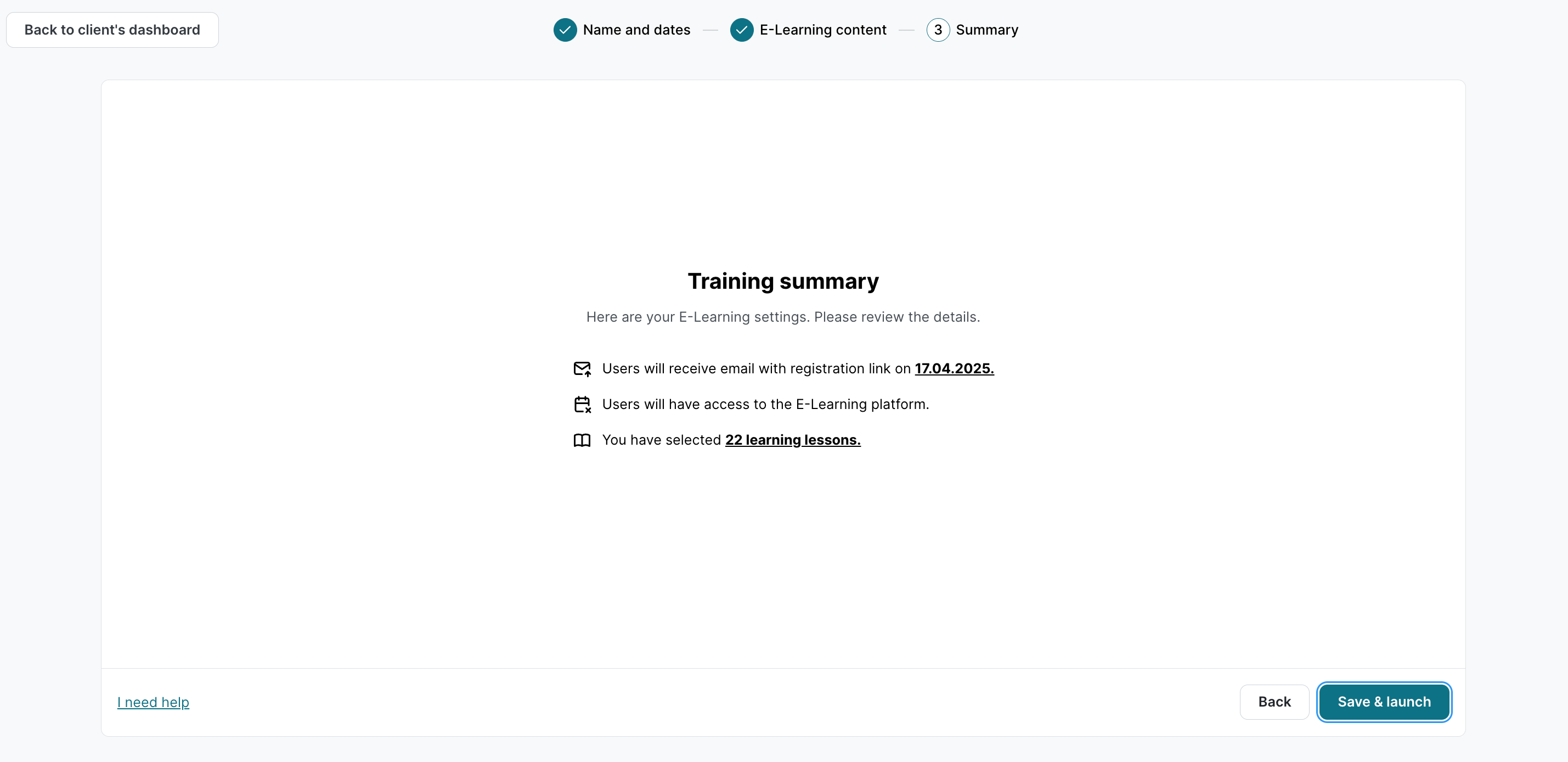
On the Training summary page, click the Save & launch button to make the E-Learning training changes effective.
How to change the list of E-Learning training participants
To change the list of E-Learning training participants, check the article Magenta Security Awareness: How to manage users.
All new users will be automatically enrolled in the running E-Learning training as soon as they are marked as Active in the User Management section.
How to create another E-Learning training
It’s not possible to create multiple E-Learning trainings at this time.
E-Learning training status
Depending on the start date, end date, and specific configurations, each E-learning training can fall into one of several potential statuses.
The following table describes each of the possible statuses in detail:
|
Status |
Description |
|---|---|
|
Active |
The training is currently running, and its end date has not been reached yet. |
|
Starts soon |
The training is scheduled to begin on a future date. |
|
Completed |
The training ran as scheduled and has reached its end date. |