
Read this article in: Deutsch
Several steps are required to allow our simulated phishing emails to reach your employees' inboxes (whitelisting or allowlisting). This process also enables employees to access the correct learning and simulated landing pages when they open links in these emails.
Initiate this process early, after completing the simulation setup. The email templates you select during setup provide the specific information, such as sender domains or IPs, needed to whitelist successfully.
Before starting, ensure you understand your current email security system and have the necessary permissions to configure its settings. Following these steps allows only our simulated phishing emails to bypass your email filters.
Where to find whitelisting information?
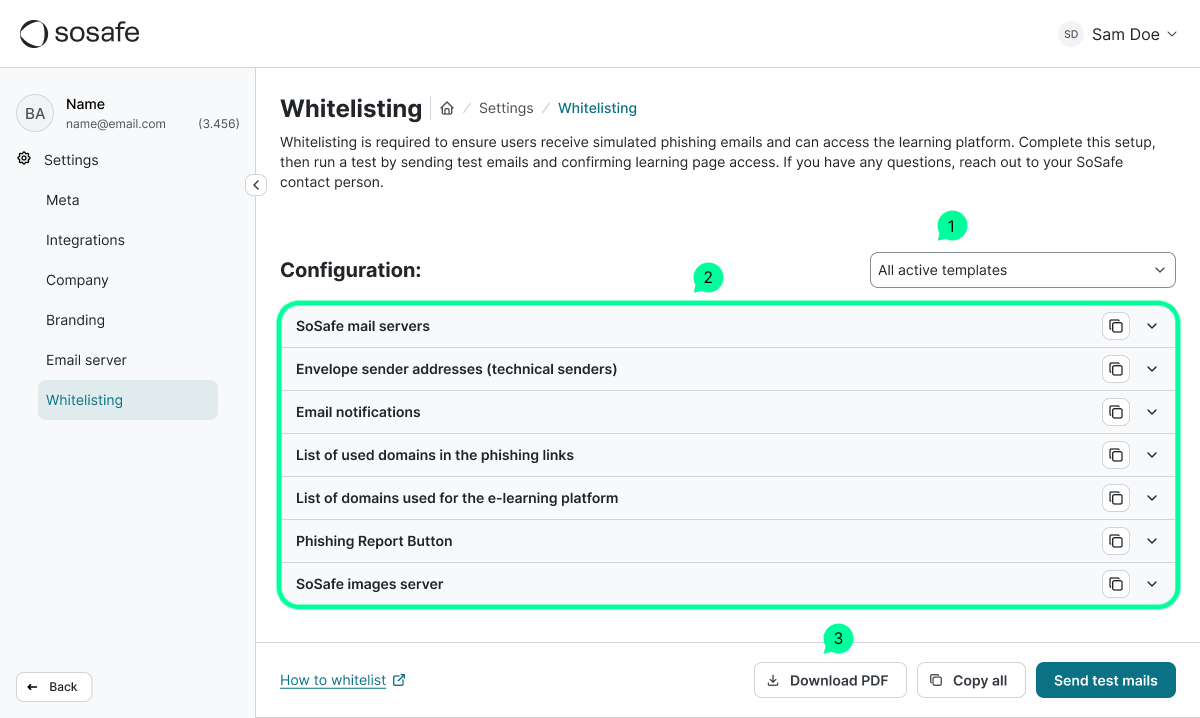
You'll find this configuration overview in Settings under Whitelisting:
-
Filter by simulation
Use this dropdown filter to select the simulation campaign data to display. It controls the information shown in the whitelisting entries (2), the PDF (3), and the test emails you send. Select All active templates when preparing your first simulation campaign. For re-implementations or later campaigns, select only the upcoming simulation phase to view the required whitelisting entries. -
Whitelisting entries
This area displays the required technical entries for the components you must whitelist in the next steps. -
Download PDF
Download a document listing all the data shown above. The PDF content updates based on the filter (1) and any templates selected in your simulations. Generate a new document after each change.
Choose your email platform
The detailed, step-by-step instructions depend entirely on your email system. Select your platform to proceed:
Microsoft 365
Google Workspace
Apply these whitelisting steps in your main email system (M365/Google). You may also need to adjust settings in any third-party security or spam protection tools.