
Read this article in: German
We recently introduced a new, improved Single Sign-on (SSO) experience for new customers. It is powered by Auth0 and provides a more secure, scalable, and user-friendly way for your E-Learning and Manager users to access SoSafe.
Following positive feedback, we are now making it easier to make the switch for existing customers. This article helps you prepare for the migration to avoid any potential issues.
Why migrate to the new SSO?
The new Auth0-based solution offers several benefits over our legacy setup:
-
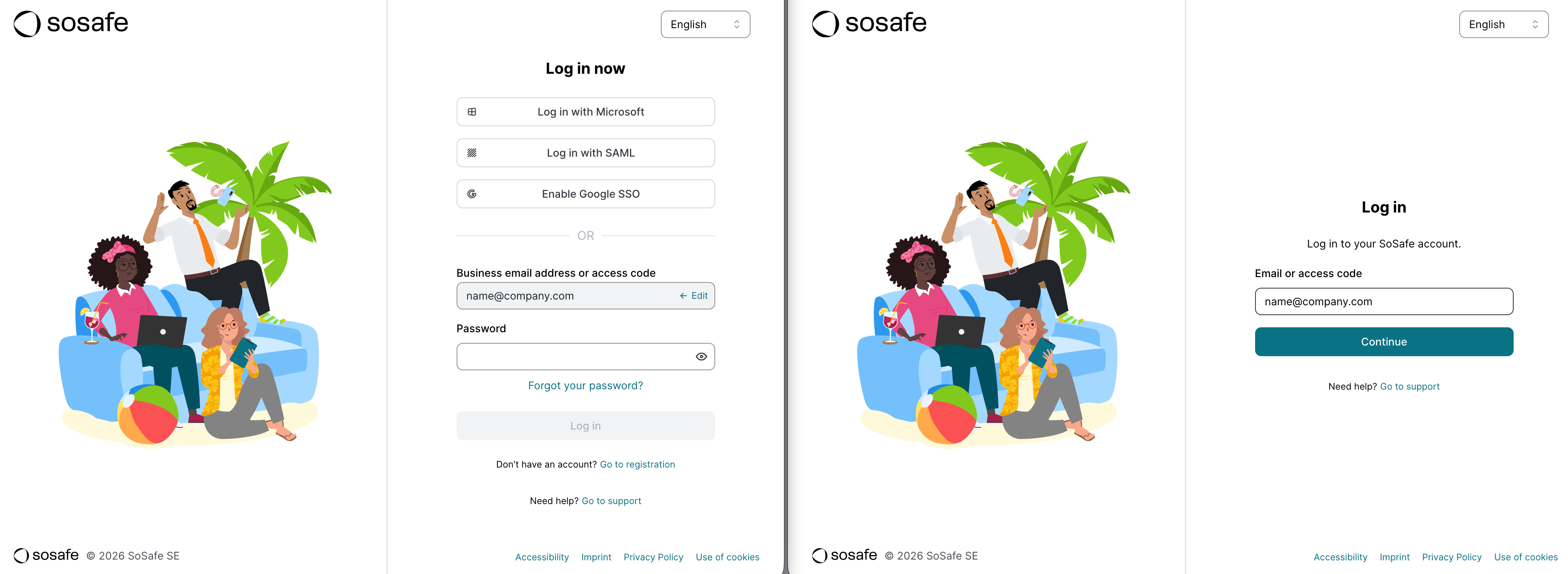
Better user experience: A more reliable and faster login process for your E-Learning and Manager users. Specifically, they will no longer have to remember how they have to log in. They simply enter their email address and if your organization uses SSO, they will be logged in directly or be prompted to sign into their work account.
-
Improved security: Benefit from industry-standard protocols and robust token management.
-
Support for multiple providers: You can now connect multiple identity providers (e.g., Entra ID and Google Workspace) simultaneously. If relevant, people logging in will be prompted which identity provider the want to use. Note that this only affects authentication to the platform, not user provisioning.
-
Self-service setup: A guided wizard in the SoSafe Manager makes the configuration easier than ever.
E-Learning progress and Analytics will not be affected as long as user email addresses stay the same.
What you need for the switch
Before you begin the migration, ensure you have the following:
-
Admin access to your Identity Provider (IdP): You will need permissions to create or modify applications in your IdP (e.g., Microsoft Entra ID, Google Workspace, or Okta).
-
Access to the SoSafe Manager: You must have admin rights within the SoSafe Manager to access the migration page.
-
A maintenance window: Plan for a short period where SSO login will be unavailable (see following note).
How to migrate
Please note: Between the time you disconnect the old connection and complete the new one, your learners will not be able to log in to the e-learning platform via SSO. We recommend performing this switch during a time of low platform activity to minimize disruption.
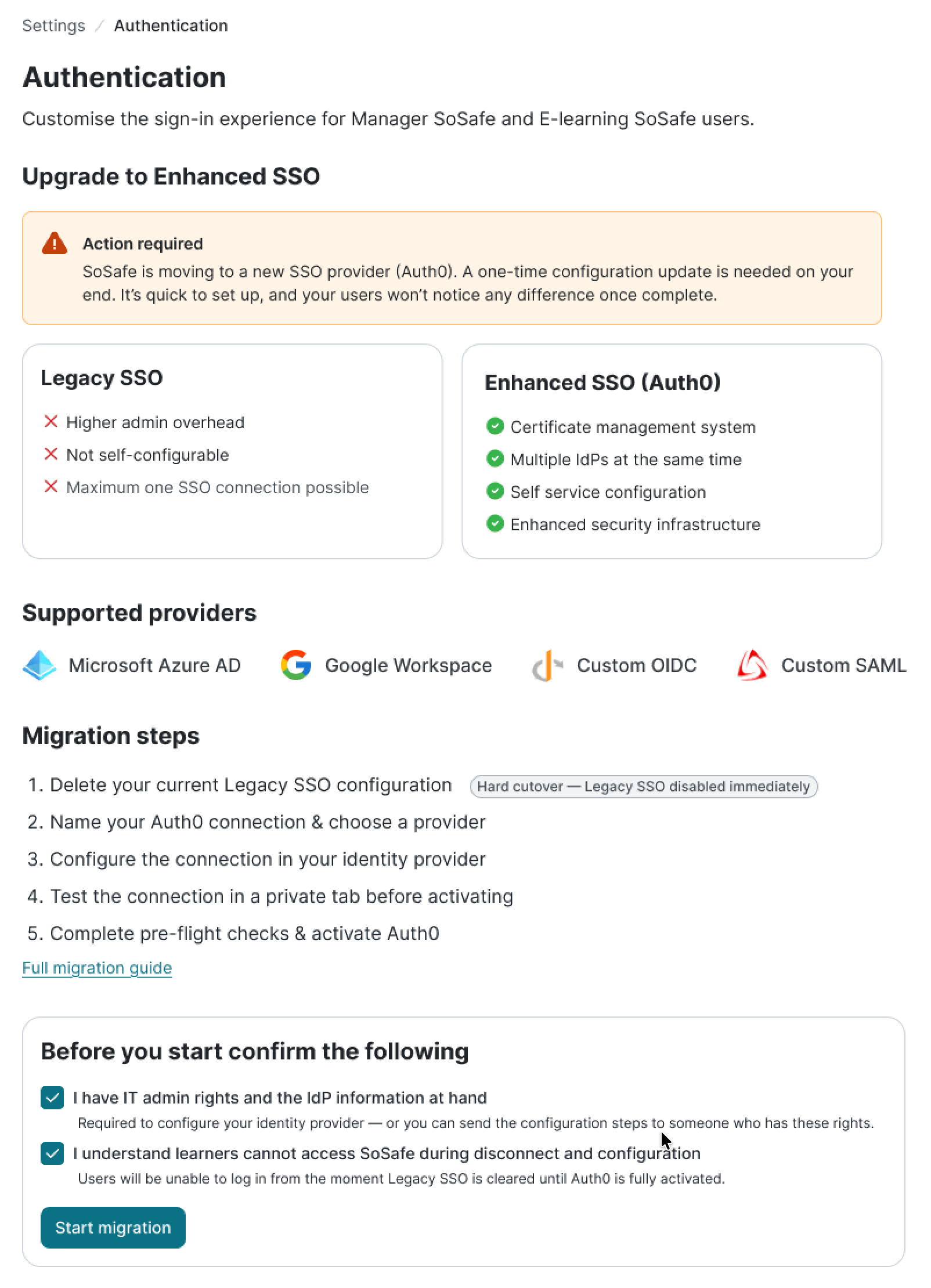
The migration process is designed to be straightforward. You will be prompted to make the switch in your Onboarding dashboard or the Checklist. Alternatively, you can navigate to Settings / Authentication.
-
Confirm that you are aware of the consequences of the disconnection and have the required credentials to set up the new connection. Select Start migration to proceed.
-
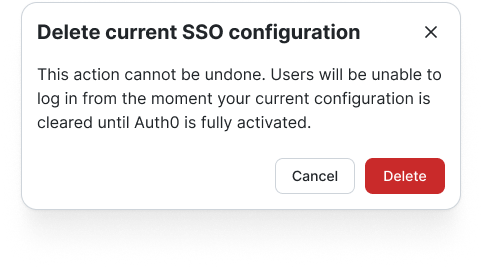
In the warning modal, select Delete to confirm.
-
Follow the guided wizard to set up your new Auth0 connection. For detailed, step-by-step instructions on the new setup, please refer to our SSO setup guide.