Read this article in: German
This article covers creating a campaign for Premium customers. If you’re on the Professional plan, some options might be limited.
Setting up your own E-Learning course is an easy 6-step process that will only take a few minutes to complete. Let’s go!
-
Course details
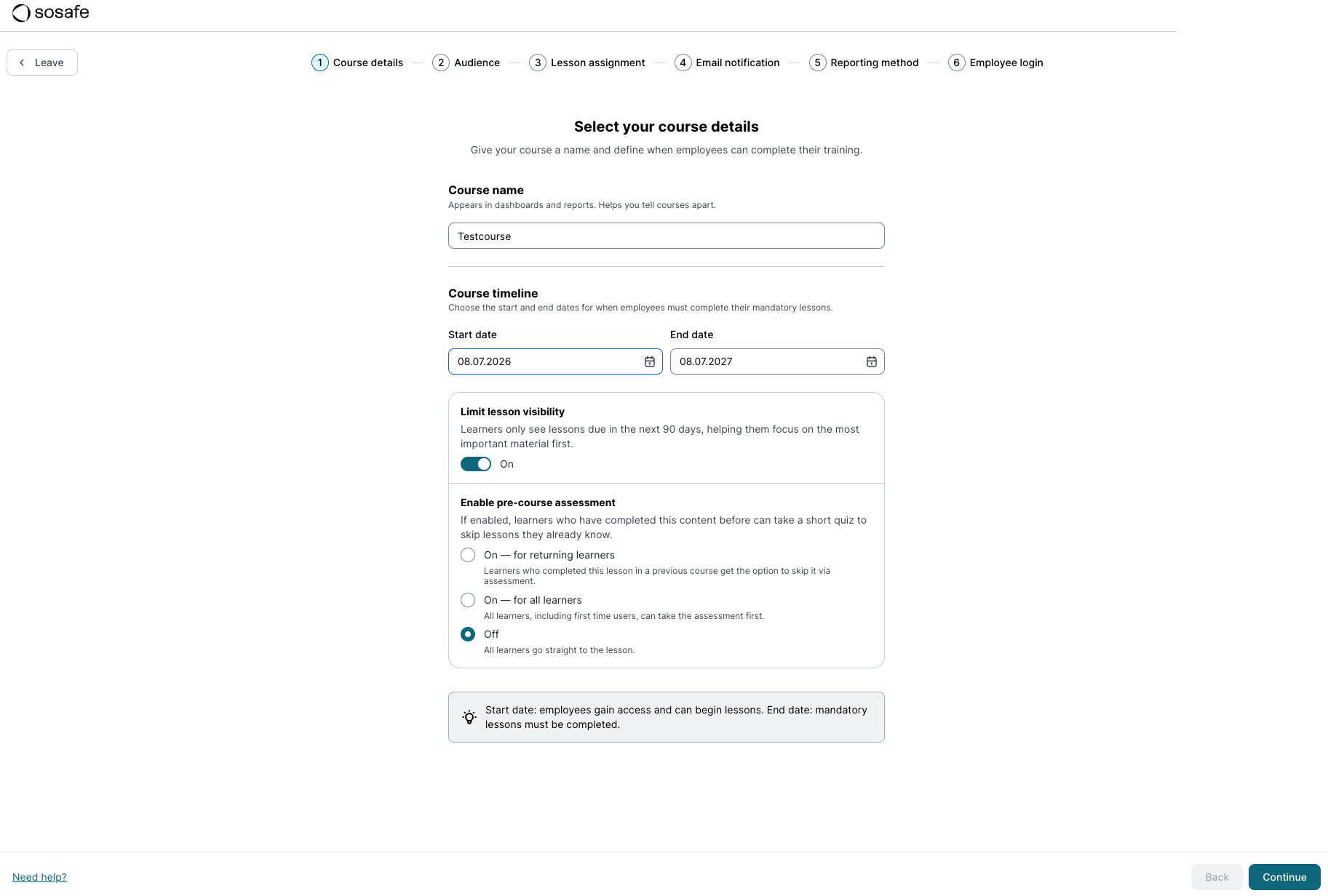
Give your course a name and select the start and end date. We recommend a 2-week window before the course start date to give you time to communicate the upcoming e-learning to employees.
In addition, you can limit lesson visibility. This means that learners will only be shown lessons that are due within the next 90 days. The purpose of this setting is to focus learner efforts on what is most critical and to support continuous, sustainable engagement instead of a one-time learning rush.
You also have the option to activate a pre-course assessment. Pre-course assessments are short knowledge checks on the contents of selected lessons. These are designed within our system to allow lessons to be skipped if learners successfully complete the corresponding pre-course assessment.
Several options are available for this setting:
-
On – for returning learners: This option is suitable if you are launching a second or a follow-up E-Learning course and some lessons from the previous course are repeated. Learners who have already participated in the previous course can test their existing knowledge of the familiar content via the pre-course assessment and skip the lesson if applicable.
-
On – for all learners: All learners are given the opportunity to complete the pre-course assessment in advance to skip lessons directly if they possess the relevant prior knowledge.
-
Off: No pre-course assessment will be presented, and all learners proceed directly to the lesson.
-
Audience
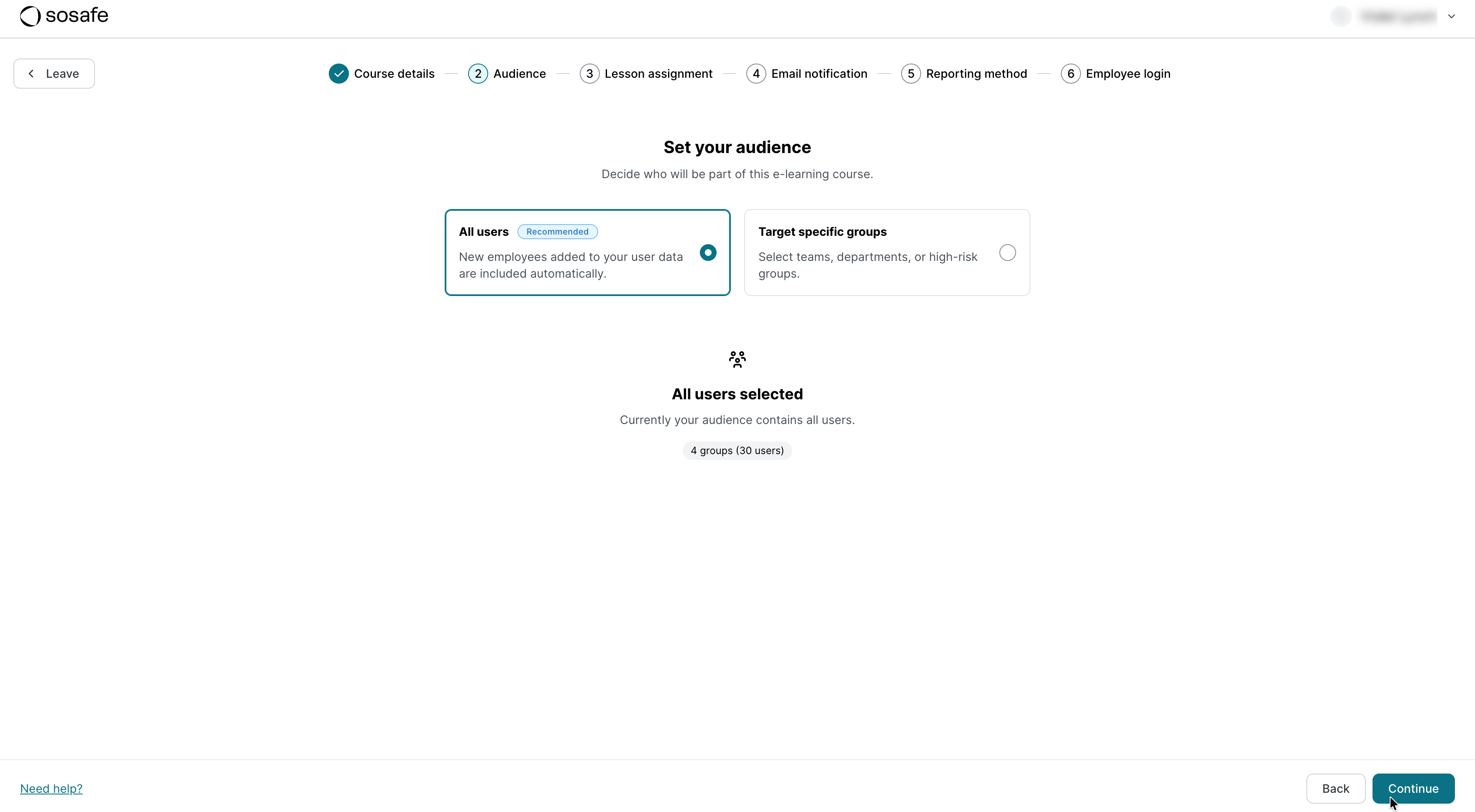
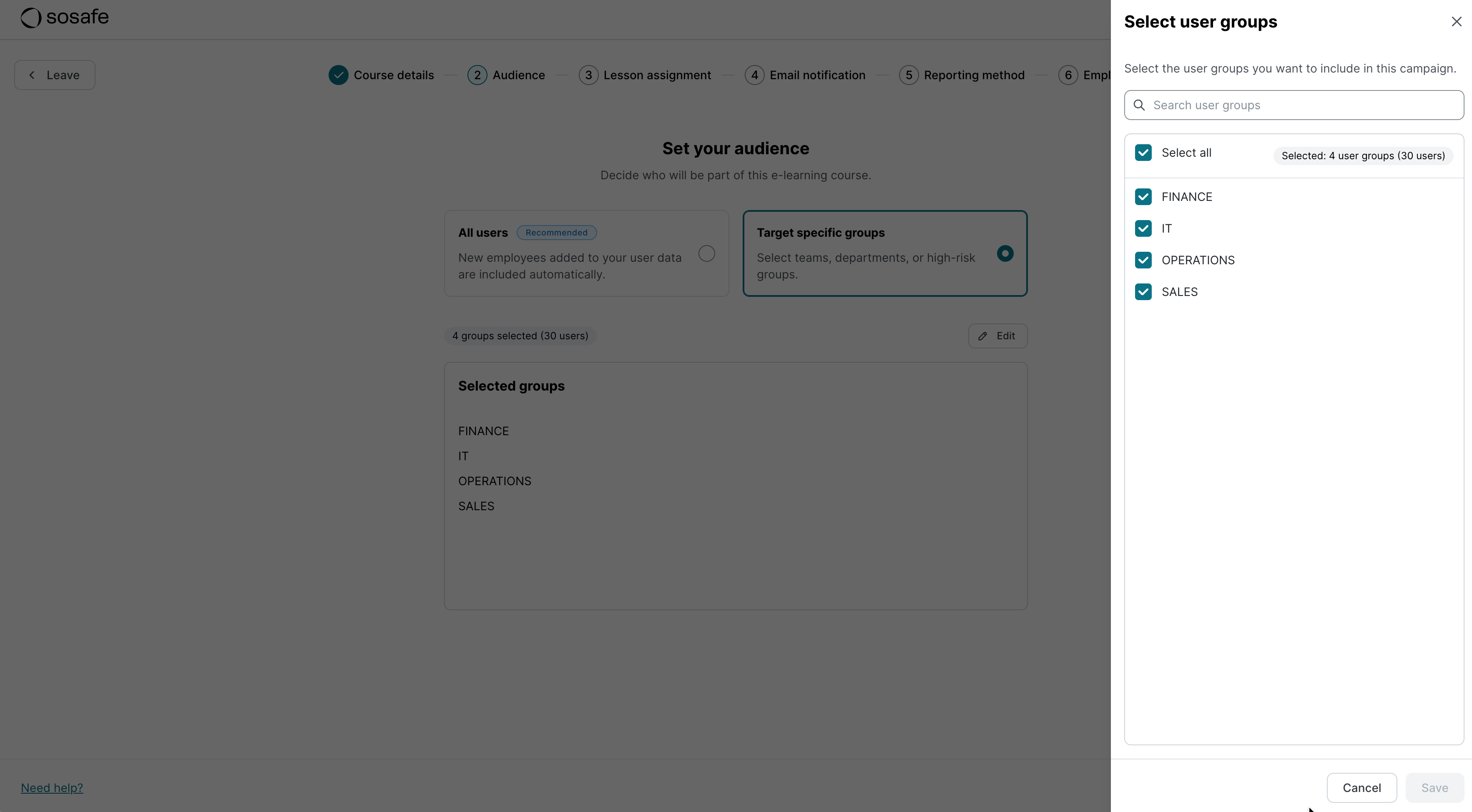
The course can include either all users or only the user groups of your choice. Either way, this screen will show you how many employees will be part of the course. Select Save changes to proceed.
-
Lesson assignment
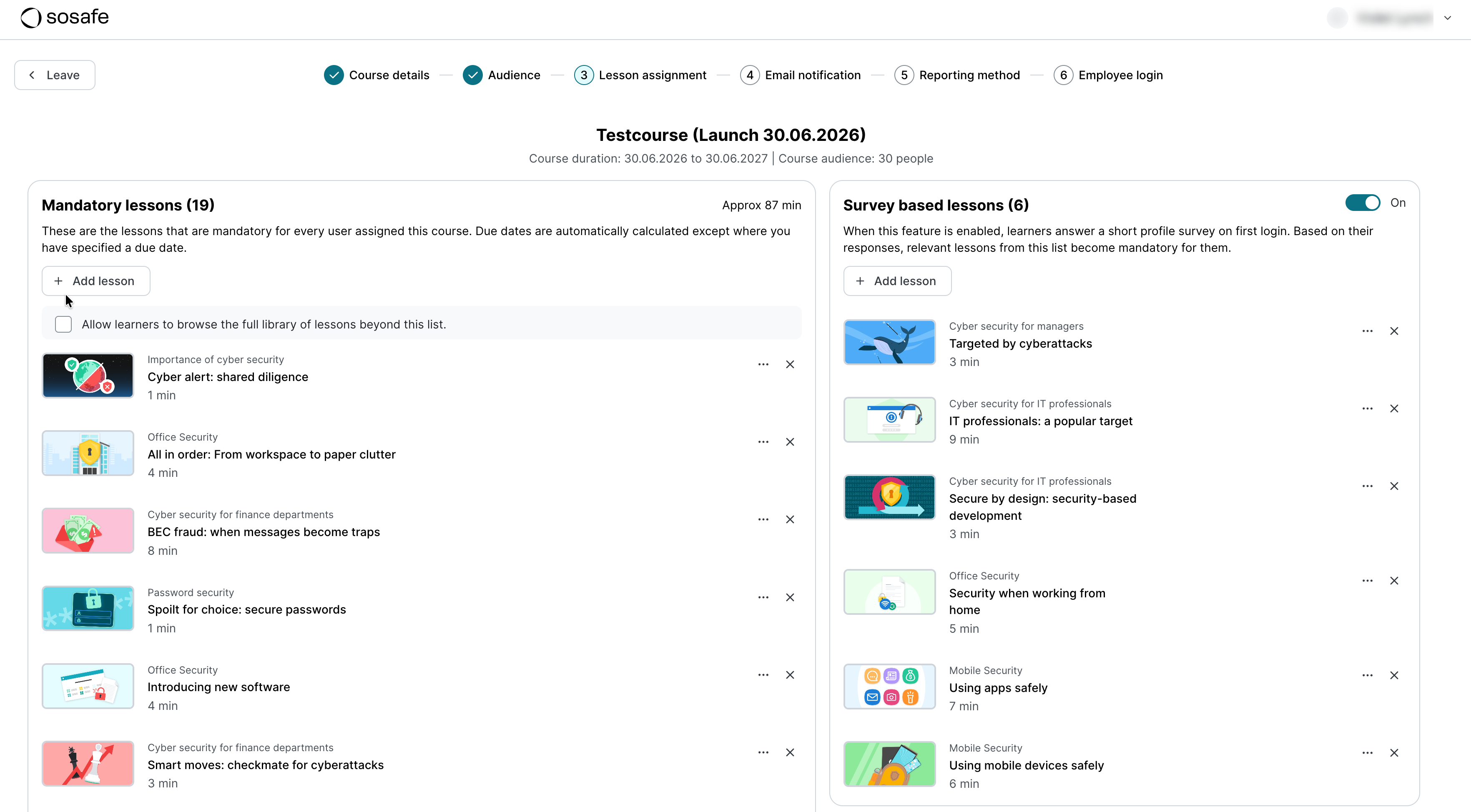
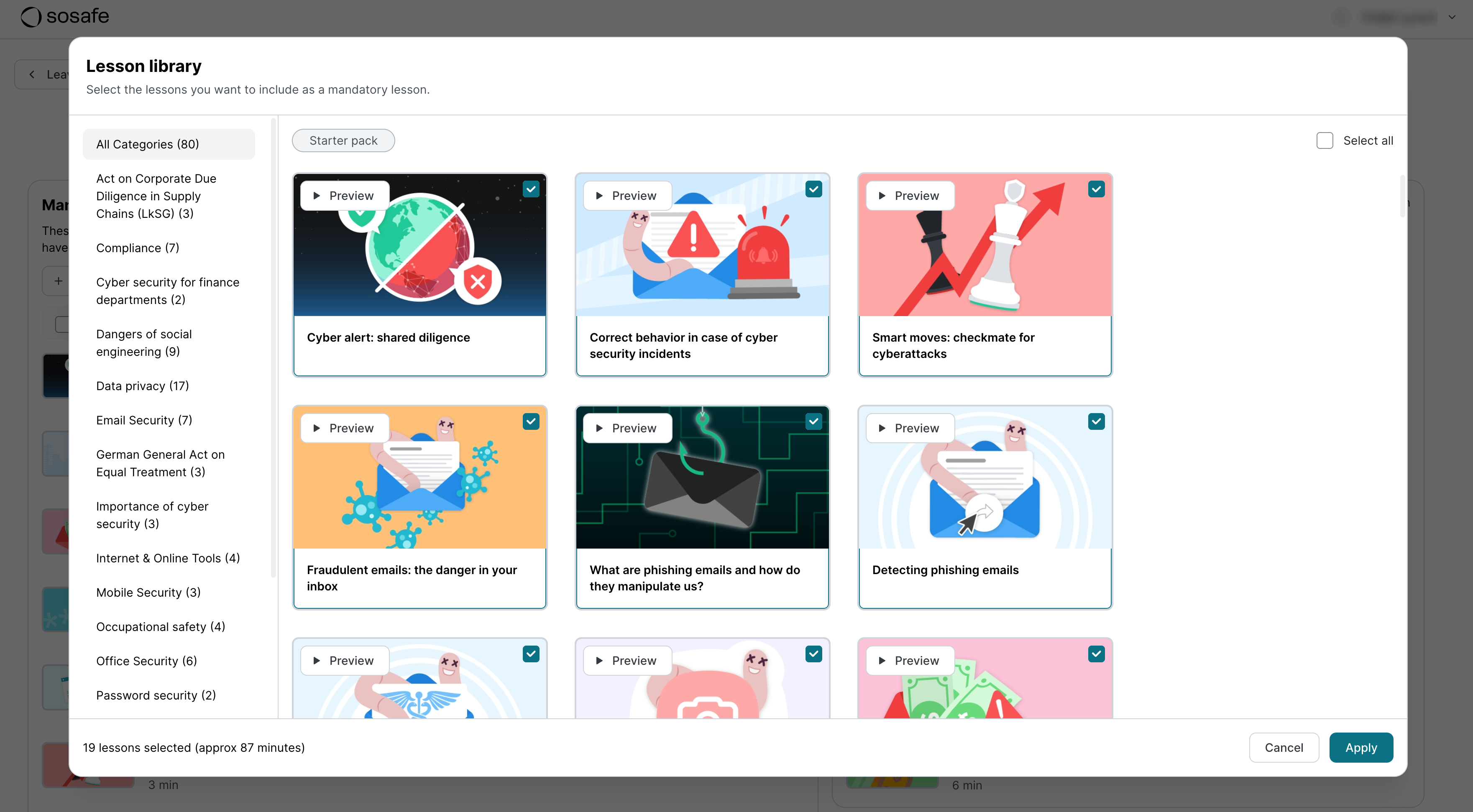
Here you can choose from all lessons available to you. The default selection will be our starter pack, consisting of 19 lessons, as well as up to 6 survey-based lessons. The starter pack covers the most important basics of secure behavior. The survey-based lessons, meanwhile, provide additional content based on relevancy. When employees first log in, they will see a brief survey asking them if they work from home or use a company phone, for instance. If they answer ‘Yes’ to some of these questions, the corresponding lessons will be added to their learning path.
Note that you can add further mandatory modules from our lesson library by selection Add lesson. Note that any lessons you deselect in the dialog window that opens will also be removed from your mandatory lesson selection.
You can also preview individual lessons or set specific due dates by selecting the 3 dots (…) next to the corresponding lesson.
-
Email notifications
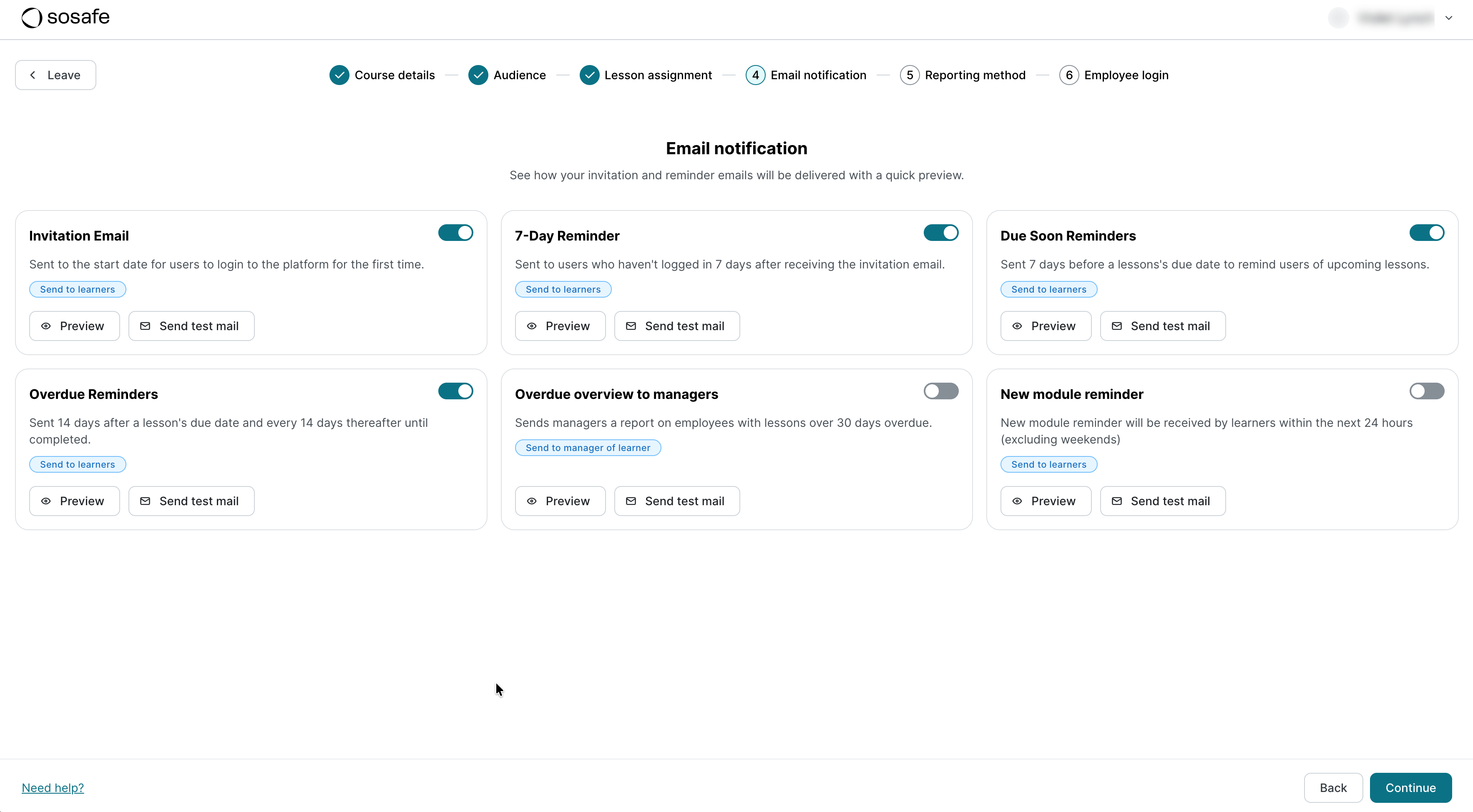
Here you can set which type of email notifications should be sent to employees. Select the toggle to activate or deactive individual reminders or select Preview to see how they will look.
-
Reporting method
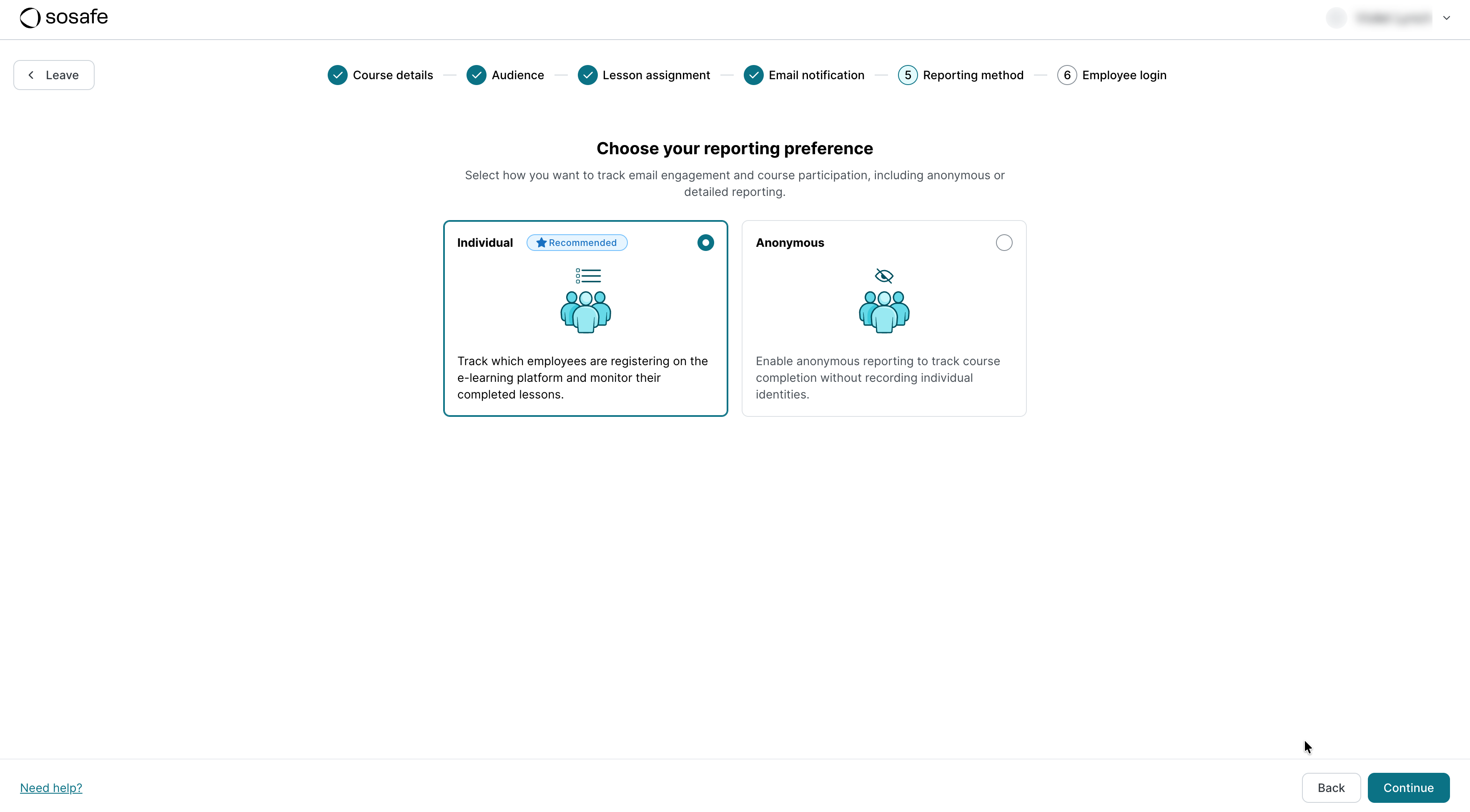
Individual reporting allows deeper insights into individual employee learning success. Anonymous reporting still allows you to track completion across your company. Note that this setting has data privacy implications.
-
Employee login
By default, employees will be using their email address to log in. If you aren’t using single sign-on (SSO), your users will have to register an account. If you’re using SSO, they only have to enter their email address.
If you’re still using SSO through a SCIM/SAML connection: In this step you will be asked whether you want to enable SSO logins for this course.
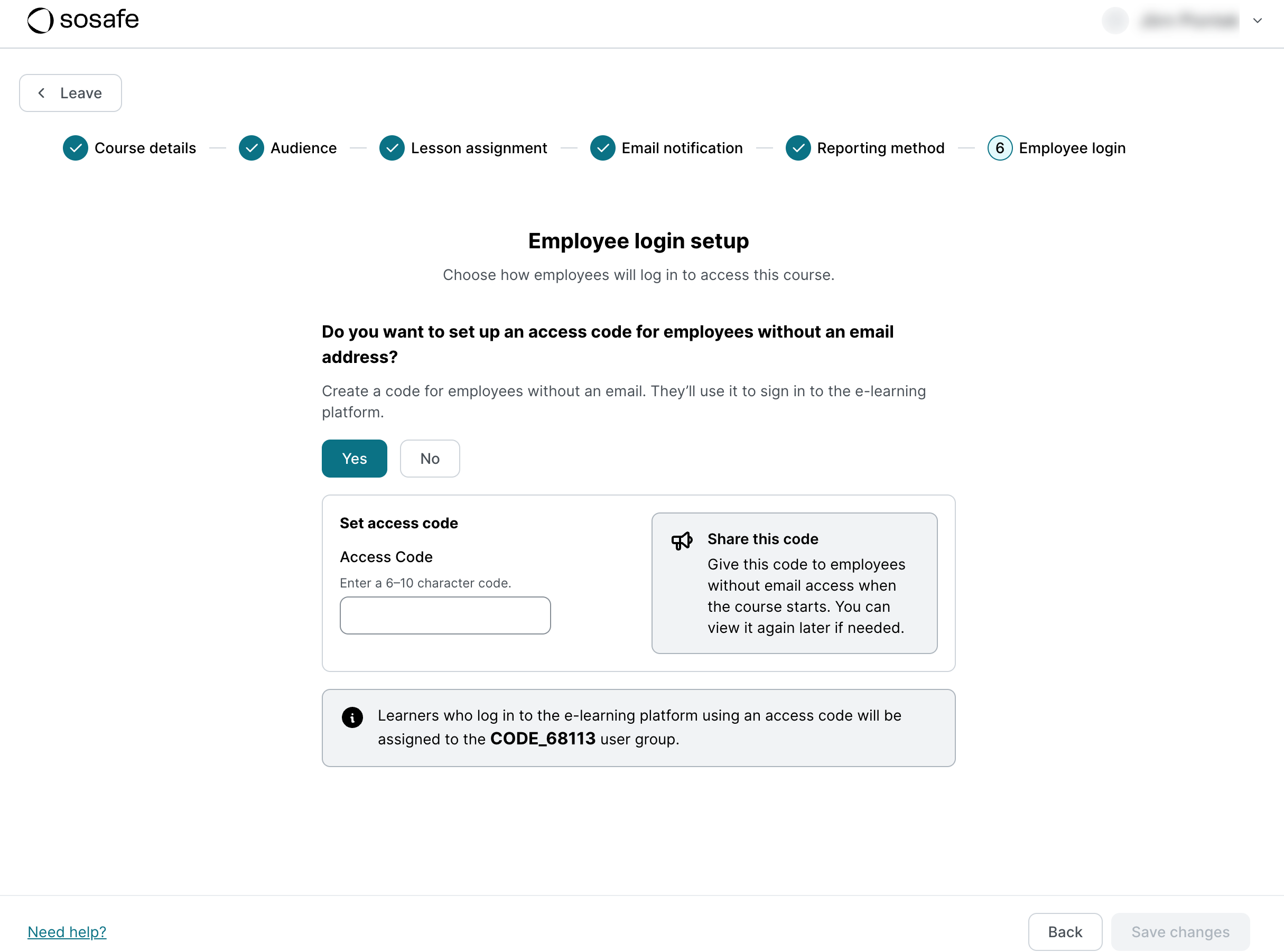
You can also enable access to the course using a code that you can specify. To do so, select Yes and enter a code. This is a great solution for employees without a dedicated email address. See https://support.sosafe.de/ADOC/access-code-users for more details.
-
Overview & launch
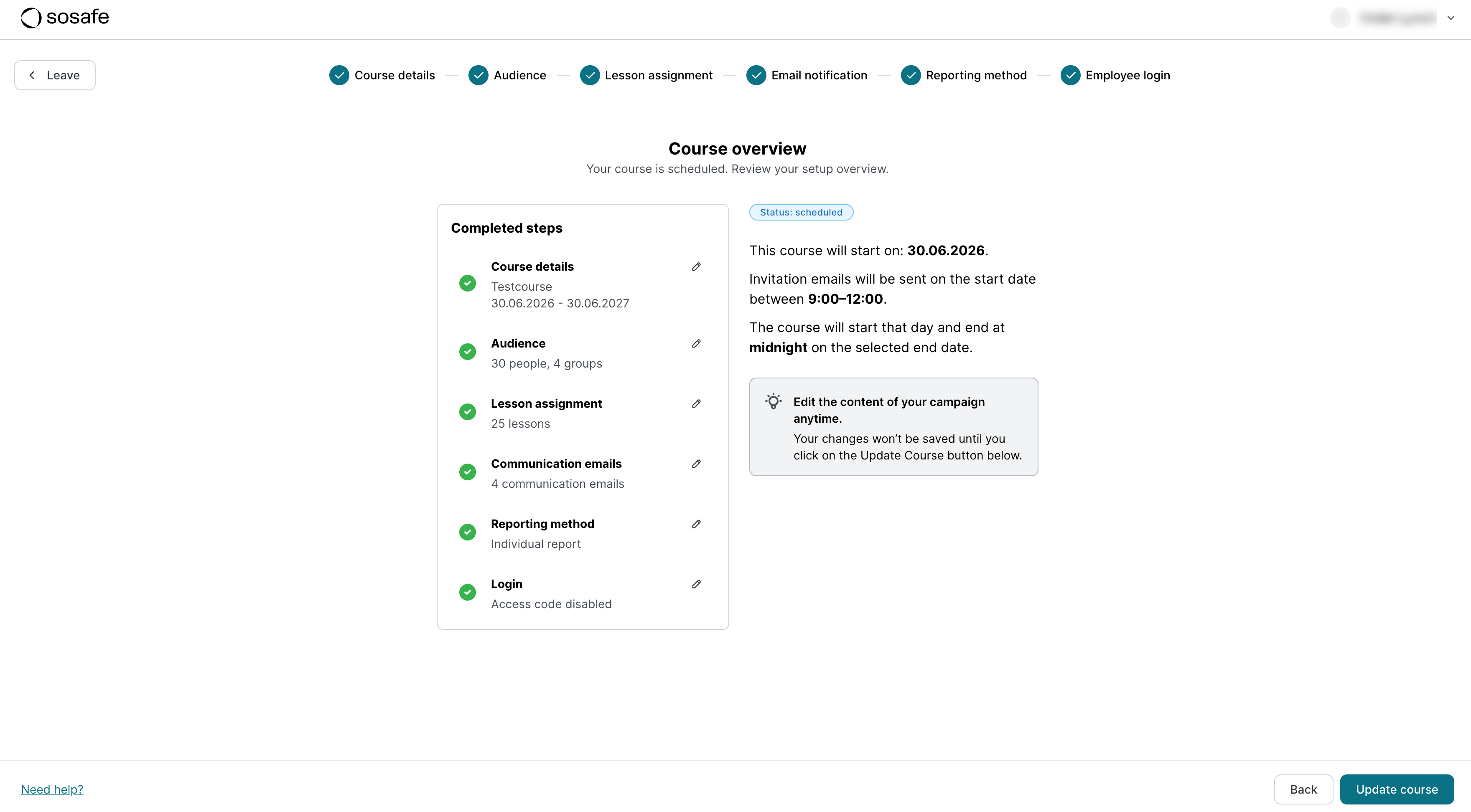
On this final screen, you will see an overview of your settings. You can go back to any of the steps and make edits as you wish. If you’re happy with your settings, select Launch course. Congrats!
You can update your settings at any time, even after your course launches.