
This guide describes the steps to integrate the Open Content Network (OCN) provider SoSafe into the SAP SuccessFactors Learning Management System (LMS). The guide covers the necessary preparations, configurations, and the connection to SAP Identity Authentication Service (IAS) and SuccessFactors (BizX). Note that while we have worked hard to make this document as thorough as possible, your personal SAP SuccessFactors implementation might require you to deviate from this guide. You may thus need an SAP SF expert (internal or third-party partner) for assistance with this. Any costs or arrangements for your SAP SF configuration are handled directly between you and your chosen partner.
1. Overview
These will be the key steps:
-
Preparation and information gathering
-
Creating roles and permission groups in BizX:
-
OCN_ADMINS -
OCN_API_USERS
-
-
Creating the following users in BizX:
-
SOSAFE_OCN_ADMIN -
SOSAFE_OCN_API_USER
-
-
Creating roles in LMS
-
Creating administrators in LMS
OCN_ADMINS are used to log in to BizX and LMS. They are LMS administrators. This access is used in development and testing environments to perform and verify integration. In production, this account can be omitted. OCN_API_USERS are used for accessing the OCN and BizX APIs.
1.1 Preparation and information gathering
Before starting the integration, the following information about your system is required:
-
System overview: Existing SuccessFactors modules and their configuration
-
Is Employee Central (EC) used?
-
User synchronization: Check whether LMS is directly synchronized with BizX or if all LMS-relevant permissions are assigned only within LMS. If permissions are configured exclusively in LMS, the OCNADMIN can be created as an "empty" user in BizX without roles (CSV import).
-
-
Authentication mechanisms: Review of OAuth2 and IAS configuration
1.2 Different setups of user provisioning and SSO implementation
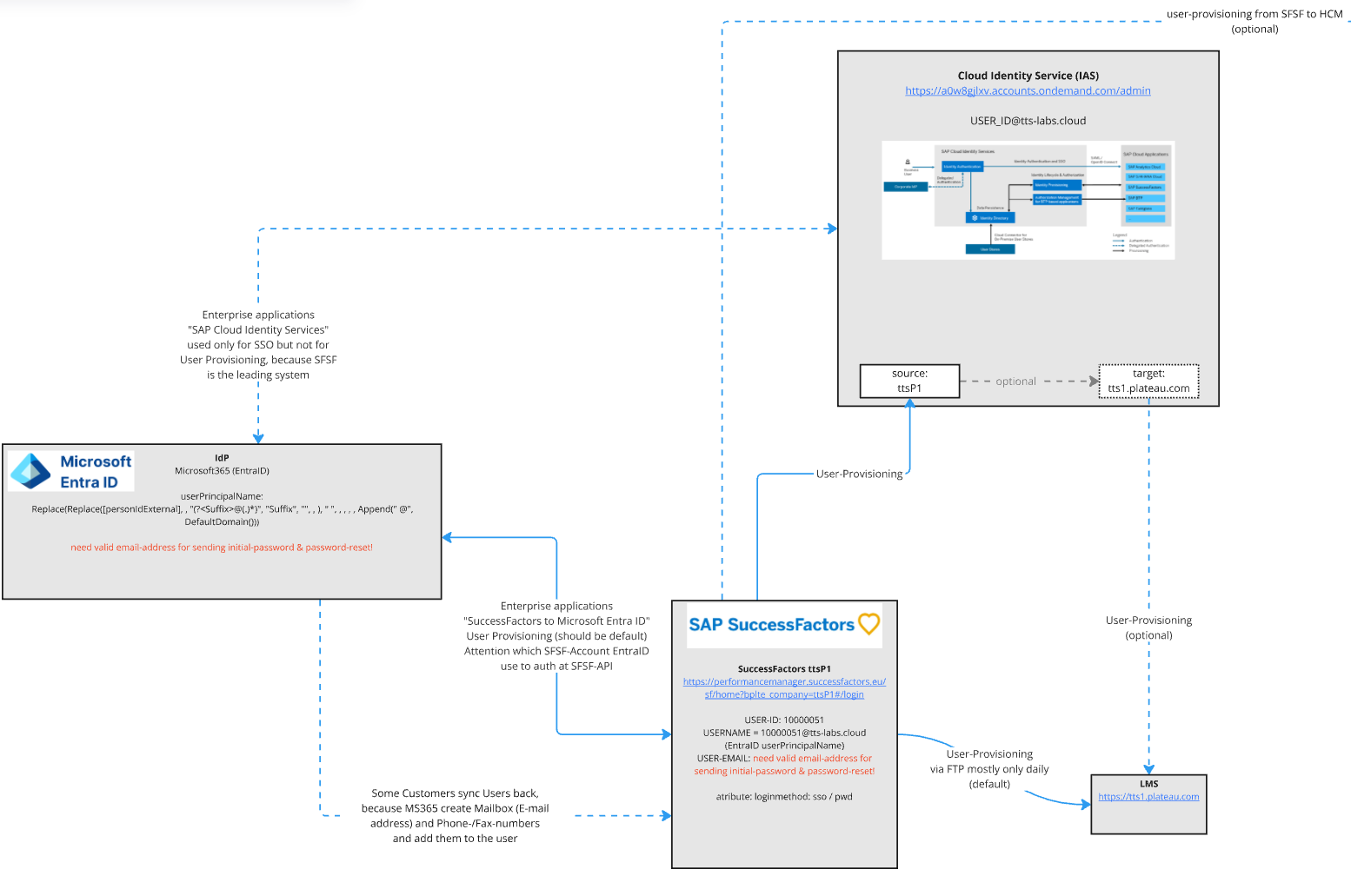
There are various ways user provisioning can be implemented in your environment. It can affect the usernames used in Single Sign-On (SSO) and where the application obtains its token from and must be registered as an OAuth application. This guide assumes that SuccessFactors (BizX) is always the leading system, and that the external application is registered there as an OAuth2 application. There may be other scenarios where the token must be obtained from Cloud Identity Service or EntraID.
1.3 Checking user synchronization in the Integration Center

2. Configuration of SuccessFactors (BizX)
Process overview:
-
Create permission groups
-
Create permission roles
-
Create users
-
Register OAuth2 client application
2.1 Creating users
Importing users via CSV
Creating the CSV template
-
Log in to BizX as an administrator and navigate to Admin Center → Employee Export.
-
Select the Export Template button. The other two buttons, Export User Fil and Export External 360 Raters, are not used.
-
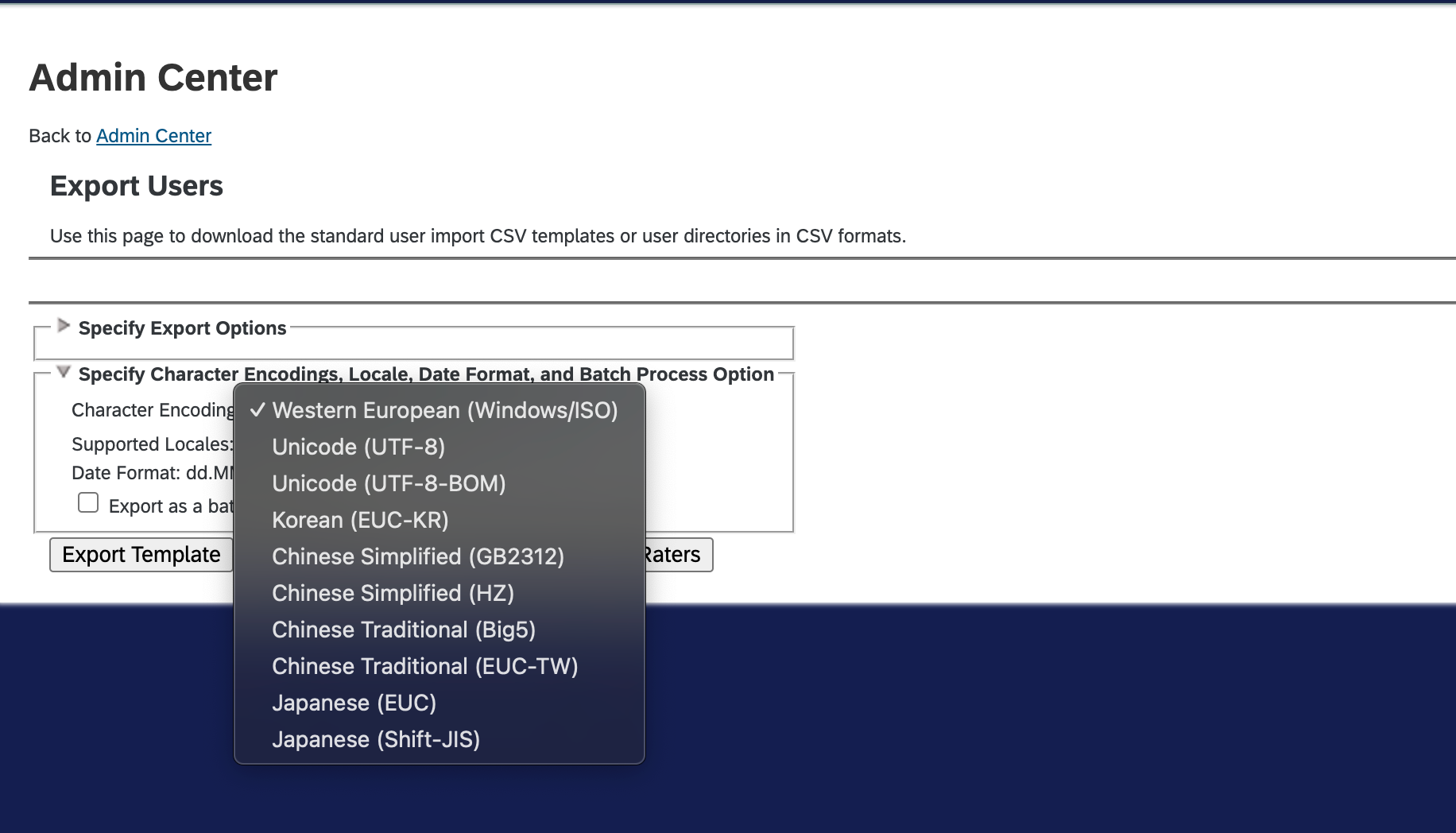
Pay attention to possible settings and adjust them according to your operating system and CSV editor (Excel, OpenOffice, Numbers), as special characters (such as umlauts) may not display correctly otherwise.
-
Open the exported csv-template and add the following users:

-
|
Status |
USERID |
USERNAME |
FIRSTNAME |
LASTNAME |
MANAGER |
HR |
DEFAULT_LOCALE |
|---|---|---|---|---|---|---|---|
|
active |
SOSAFE_API_USER |
SOSAFE_API_USER |
SOSAFE |
API_USER (TU) or (TA) |
NO_MANAGER |
NO_HR |
en_US (or de_DE) |
|
active |
SOSAFE_OCN_ADMIN |
SOSAFE_OCN_ADMIN |
SOSAFE |
OCN_ADMIN |
NO_MANAGER |
NO_HR |
en_US (or de_DE) |
-
Save the file and export it as a CSV file.
-
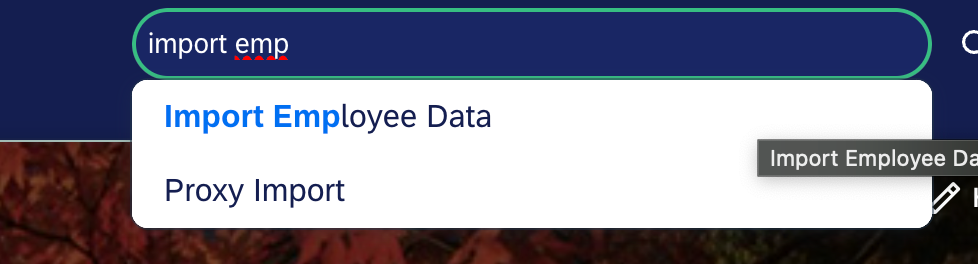
Navigate to BizX → Admin Center → Import Employee Data
-
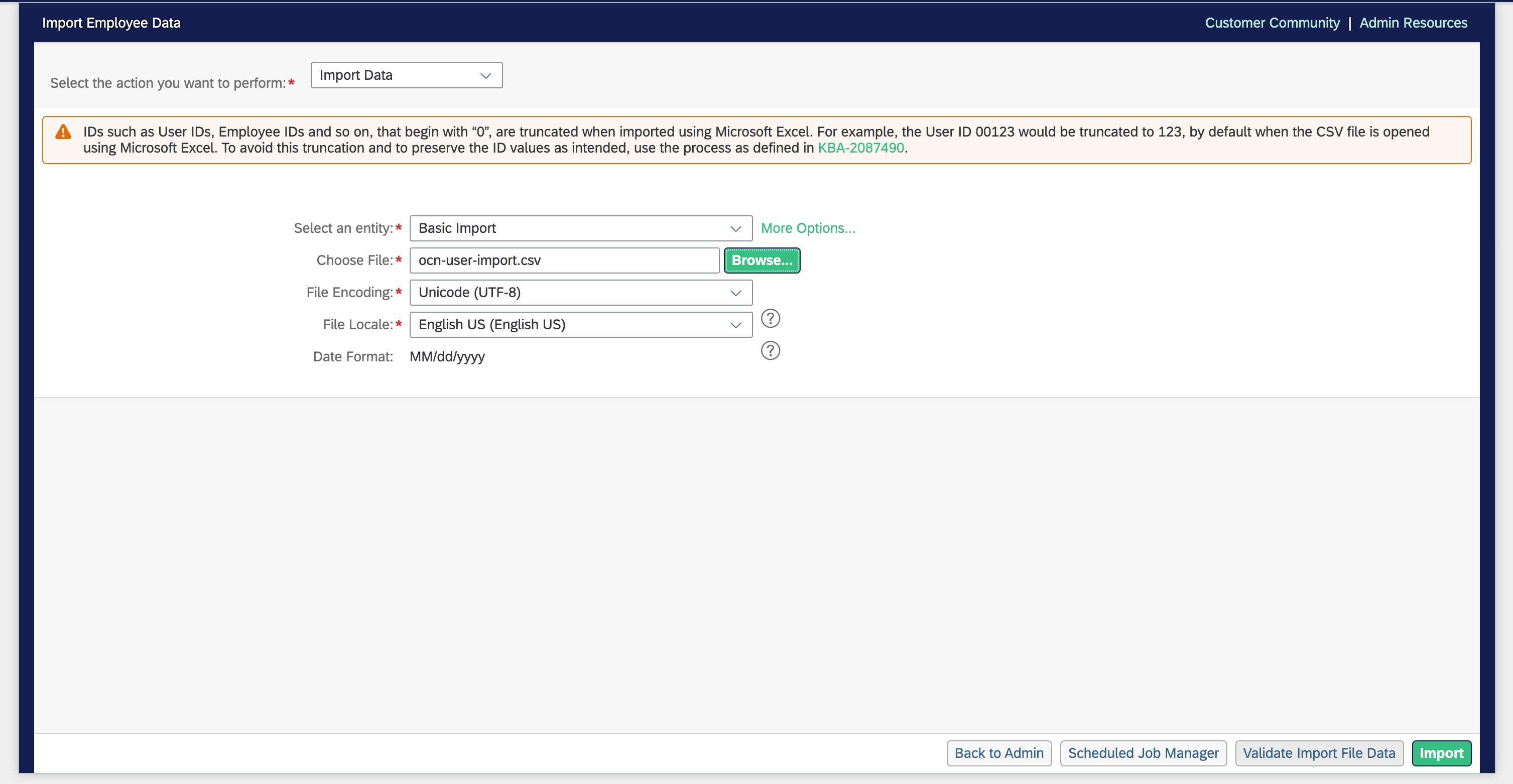
Select Import Data under Select the action you want to perform
-
Choose Basic Import under Select an Entity
-
Select the previously exported CSV file under Choose File
-
Adjust File Encoding and File Locale to match the export settings.
-
Select Validate Import File Data at the bottom of the page. Adjust the CSV file until the validation is successful.
-
Finally, click Import.
-
-
Verify that the two users were created:
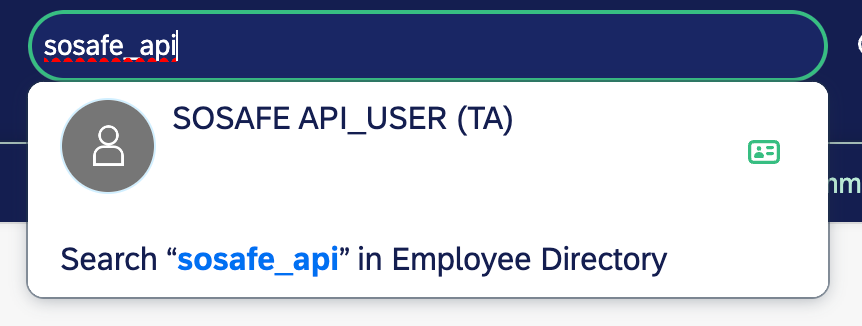
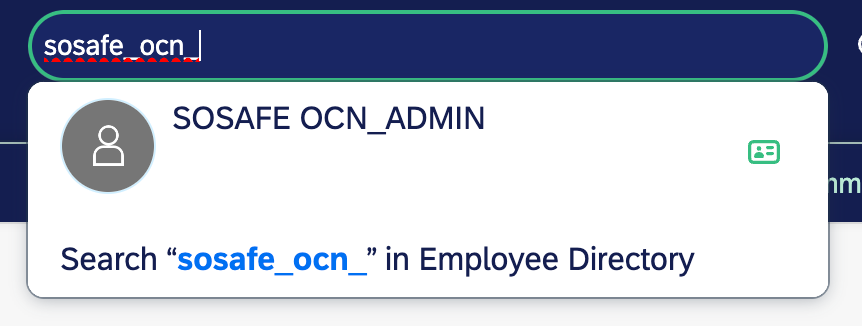
-
Verify that the users are synchronized from BizX to the LMS:
-
Open Integration Center and click on My Integrations.
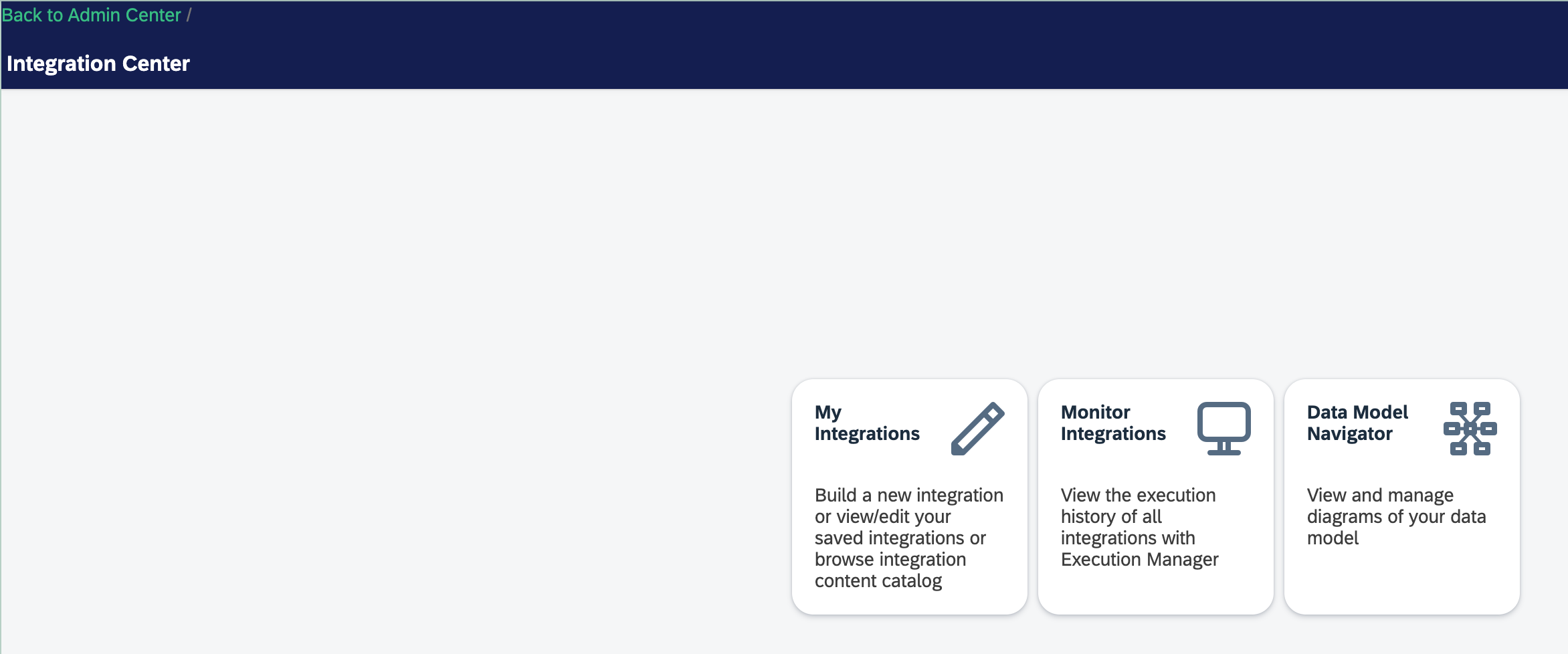
-
Depending on the synchronization interval, the job may need to be run manually.
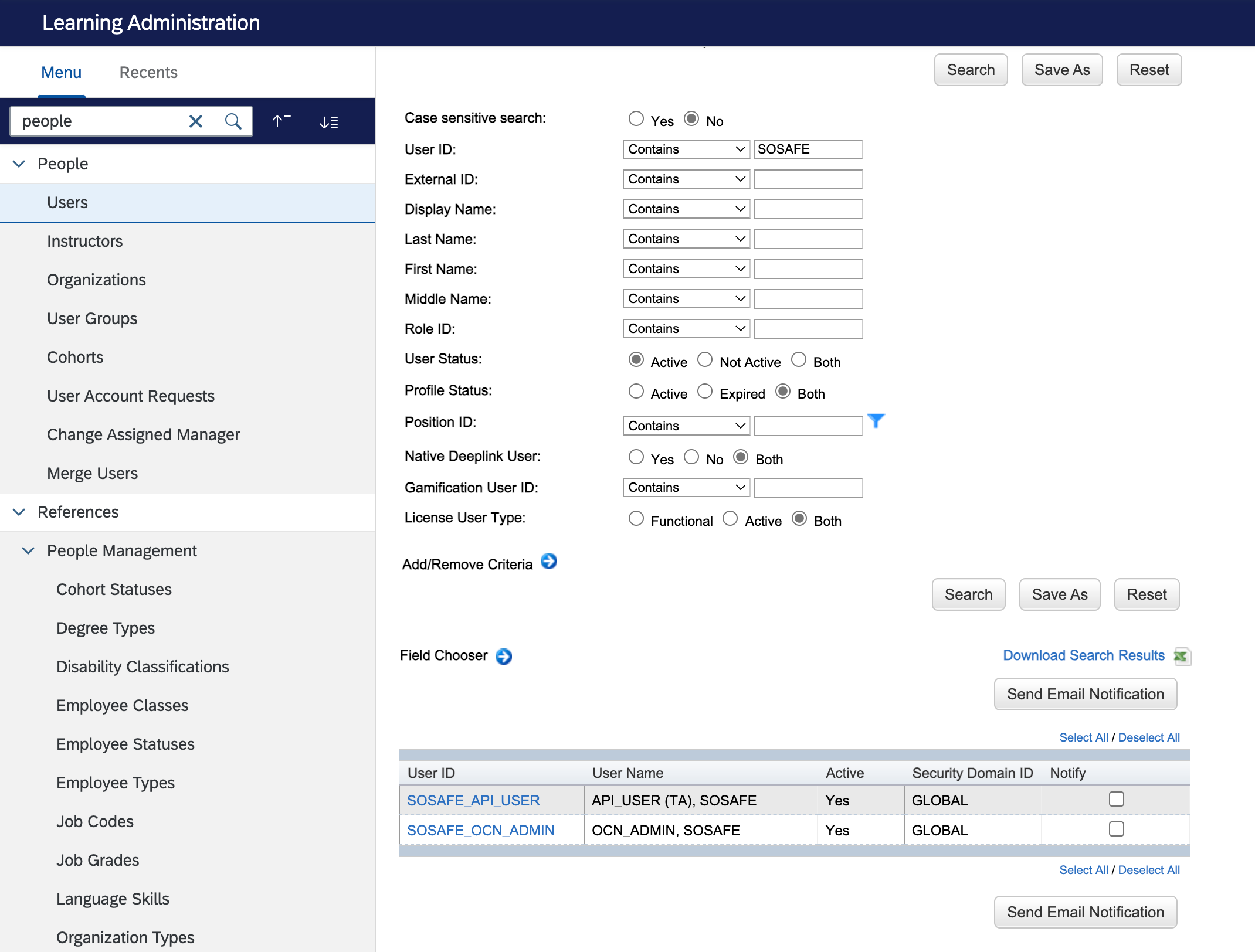
-
Afterwards, check the LMS admin area to confirm that users were created successfully.
-
Manually creating users in BizX
-
Manually create OCN admin user in BizX
-
First Name:
SOSAFE -
Last Name:
OCN-ADMIN -
Assign Permissions: OCN_Integration_Admin_Role
-
-
Manually create API user in BizX
-
Username:
SOSAFE_API_USER -
Assign Role:
SOSAFE_API_USER_ROLE
-
Setting a Password for the added users
A password is not required for SOSAFE_API_USER because API calls use OAuth2 authentication with SAML Bearer Assertion. For SOSAFE_OCN_ADMIN, a password is only set in BizX if NO identity provider (IAS / EntraID) is used.
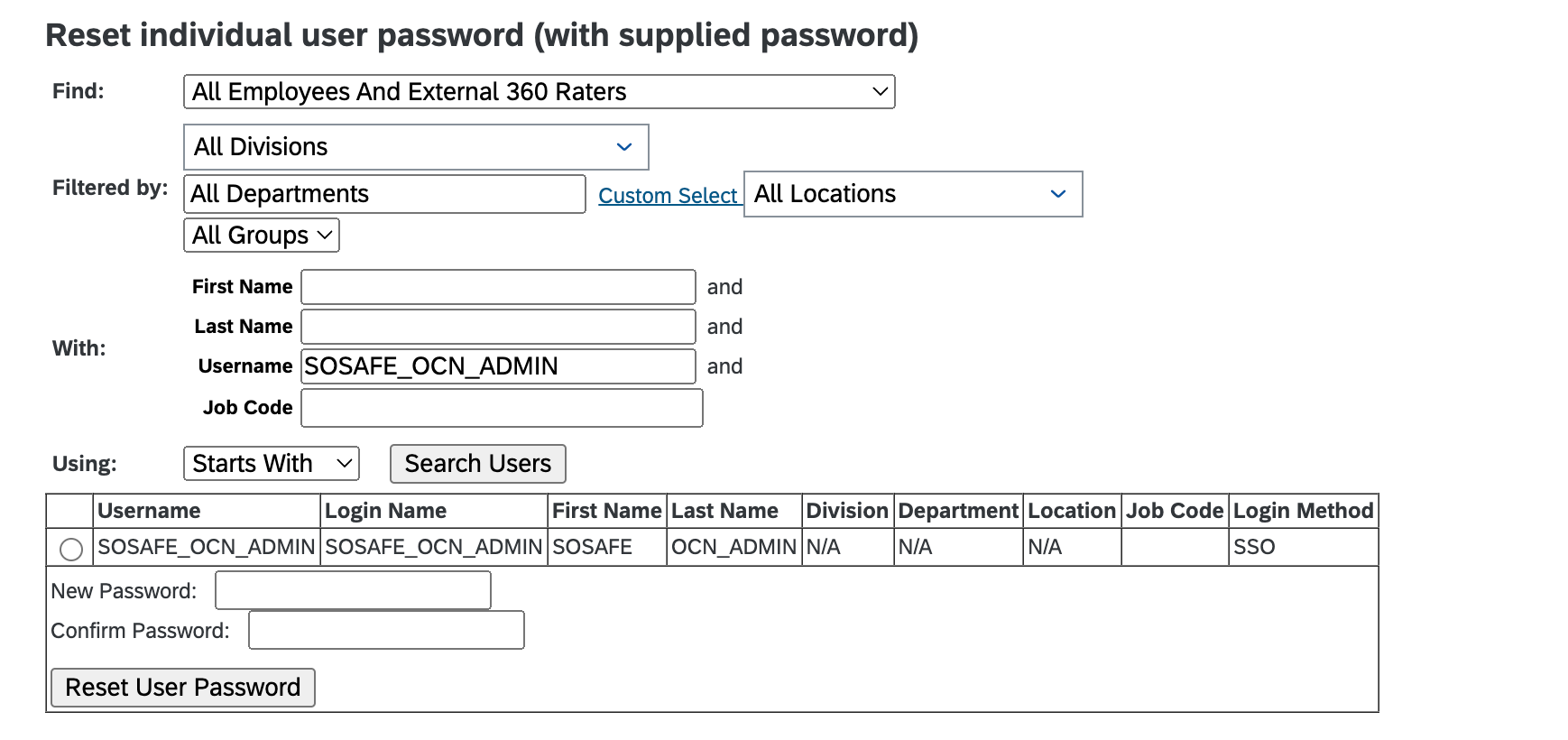
Setting password in BizX
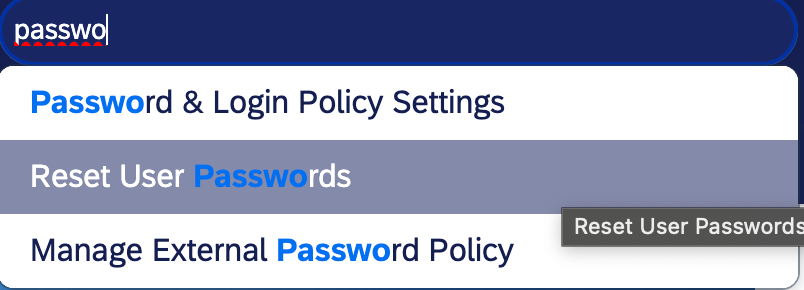
Please note that for SSO users, the new password entered here only impacts basic authentication and token-based SSO. To reset passwords for SSO users, go to the identity provider administrator panel.
Sretting password in IAS
-
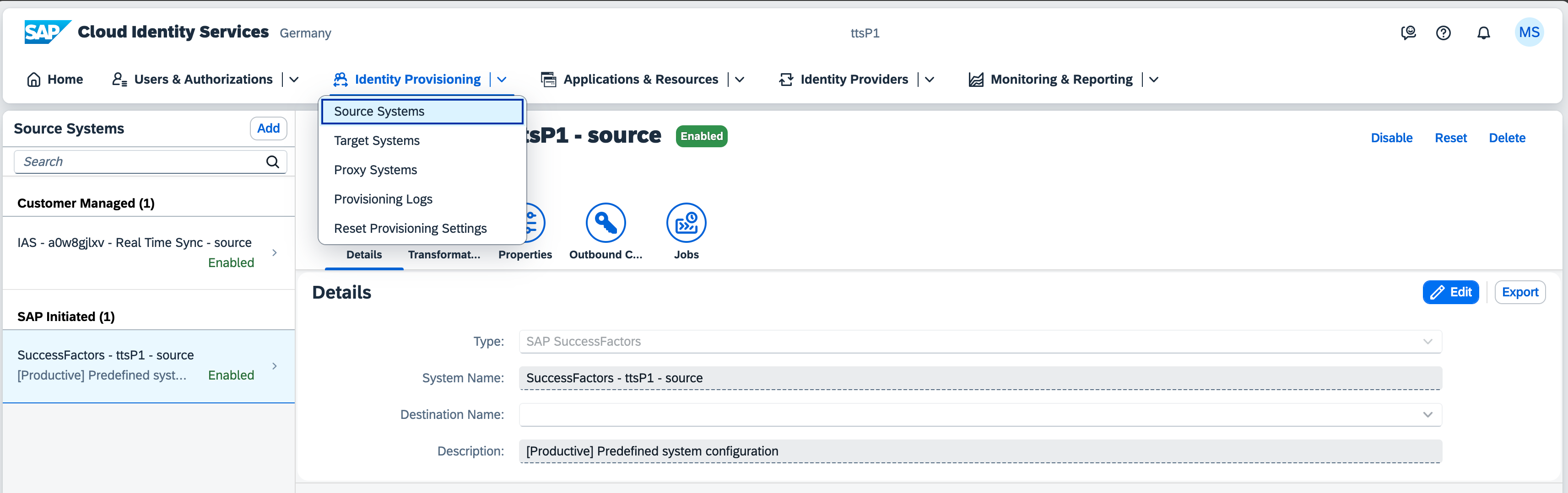
Open IAS (Example: https://a0w8gjlxv.accounts.cloud.sap/admin)
-
Navigate to Identity Provisioning → Source Systems
-
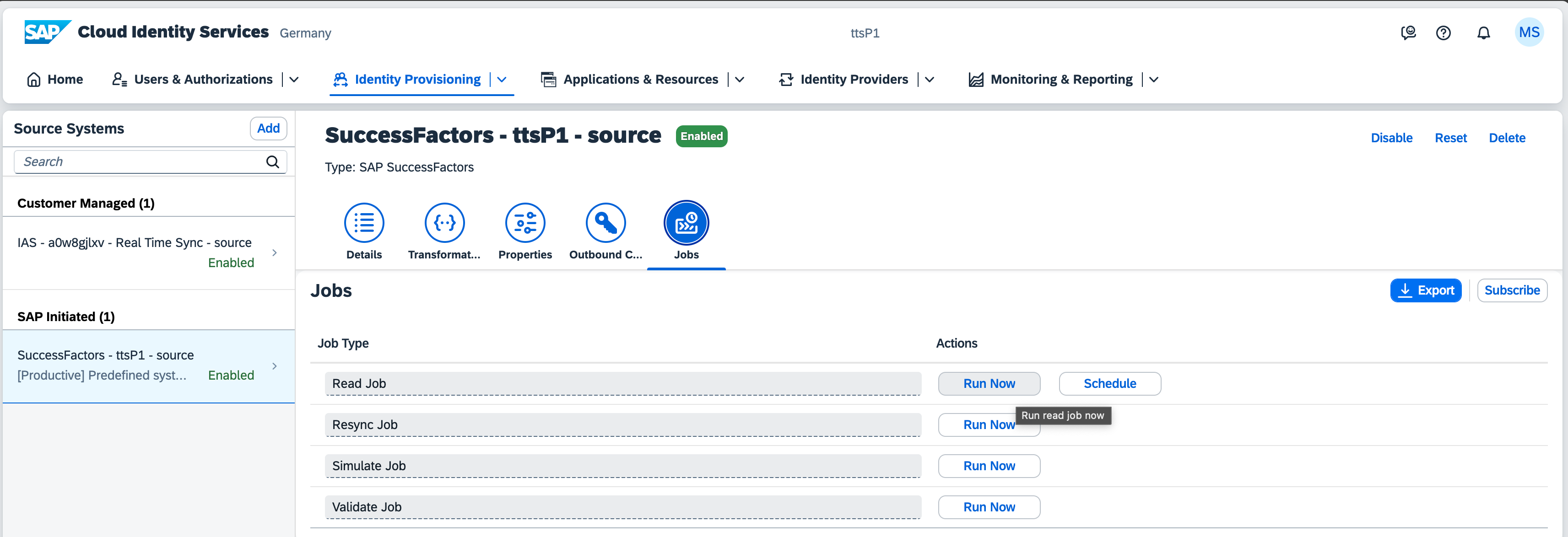
Select Jobs → Read Job → Run now
-
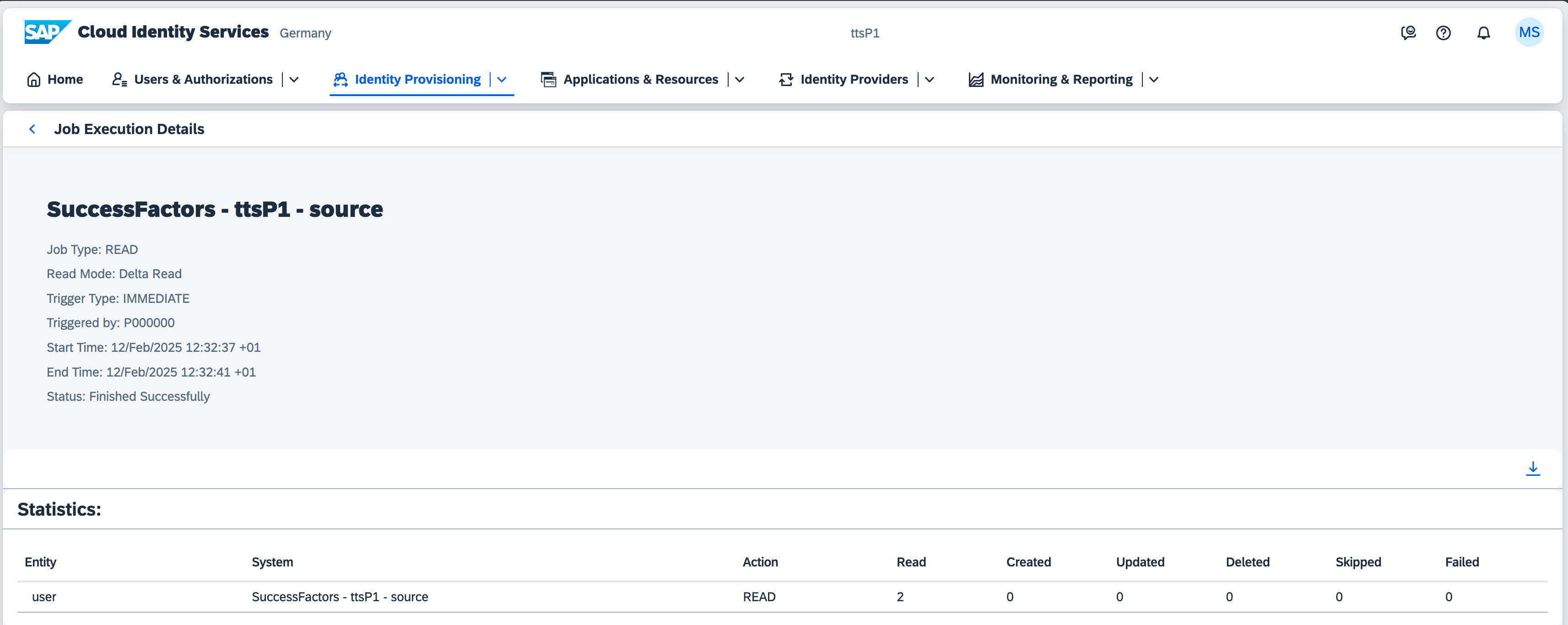
Verify that the users were synchronized

-
Two users should be synchronized
-
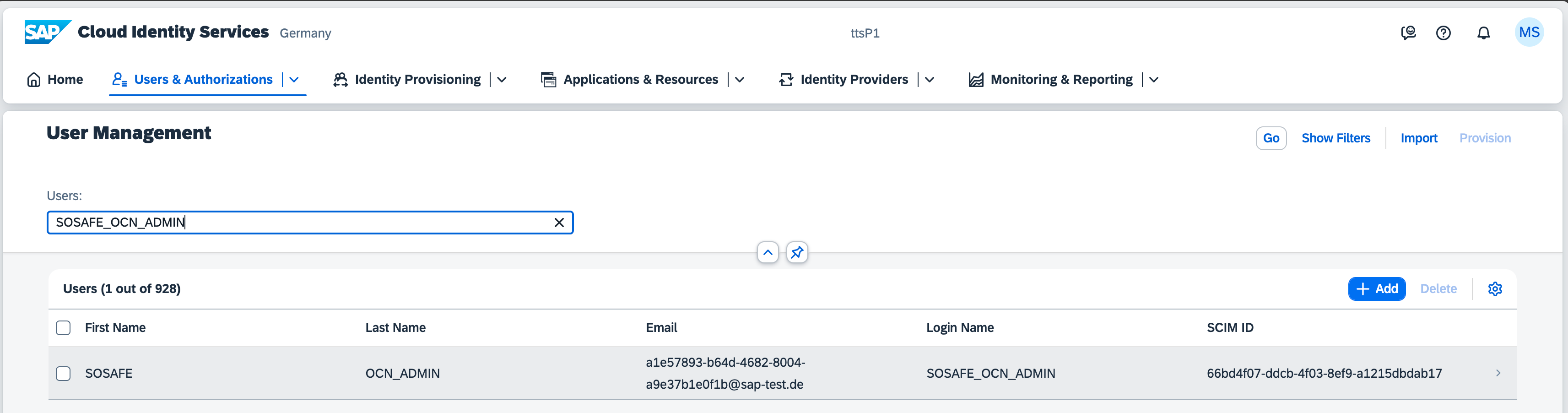
Go to User Management and search for
SOSAFE_OCN_ADMIN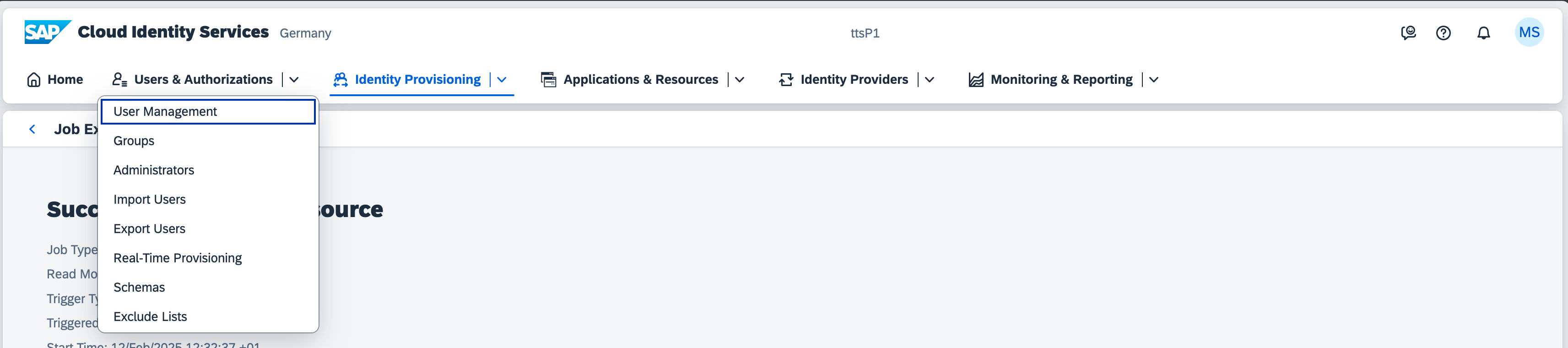
-
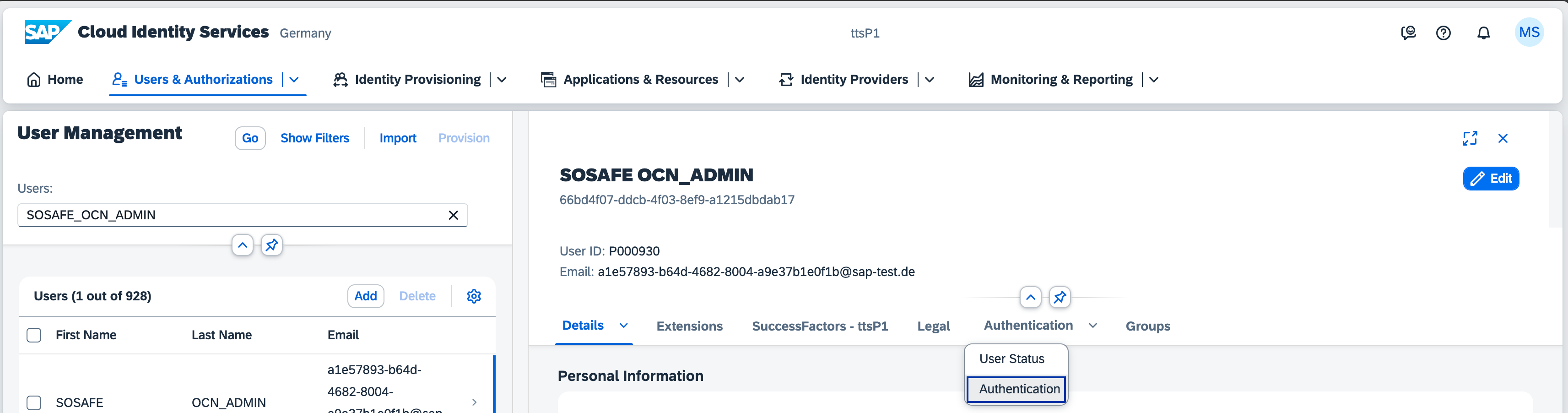
Select Authentication
-
Set an initial password for
SOSAFE_OCN_ADMIN

-
The user can now log in to SuccessFactors (BizX) and access Learning Administration.
2.2 Creating permission groups
Search for Manage Permission Groups

OCN_Admins
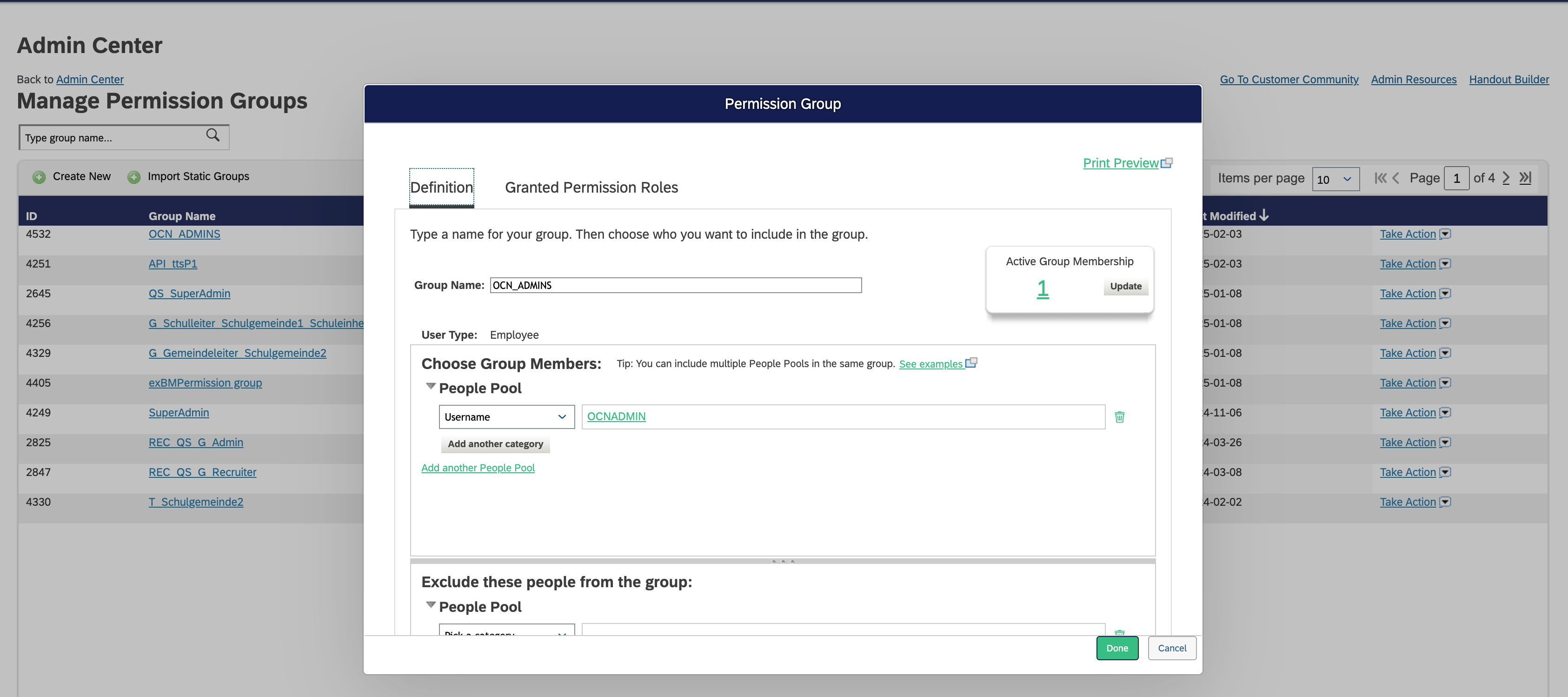
Create the following group:
-
Group name:
OCN_ADMINS -
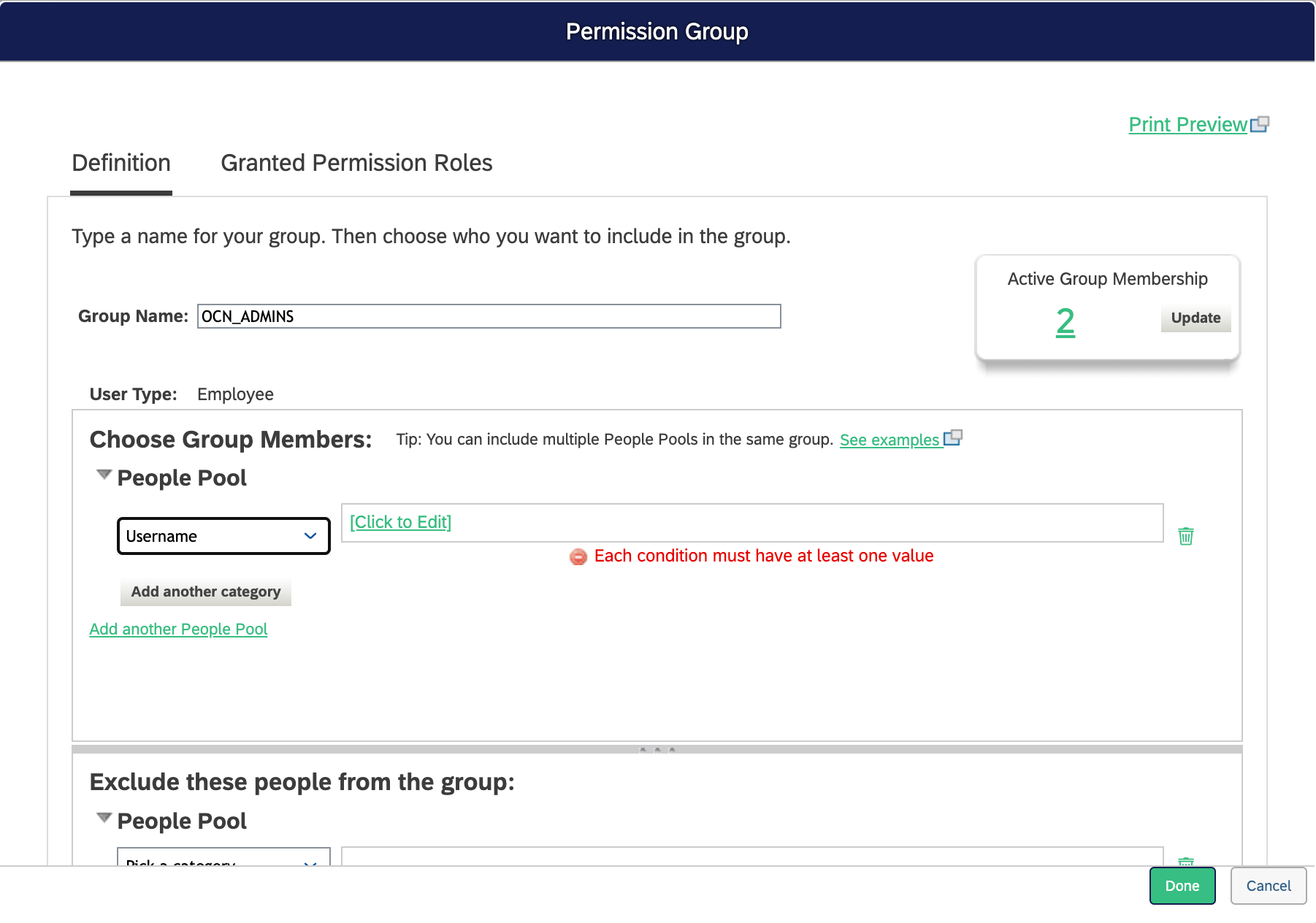
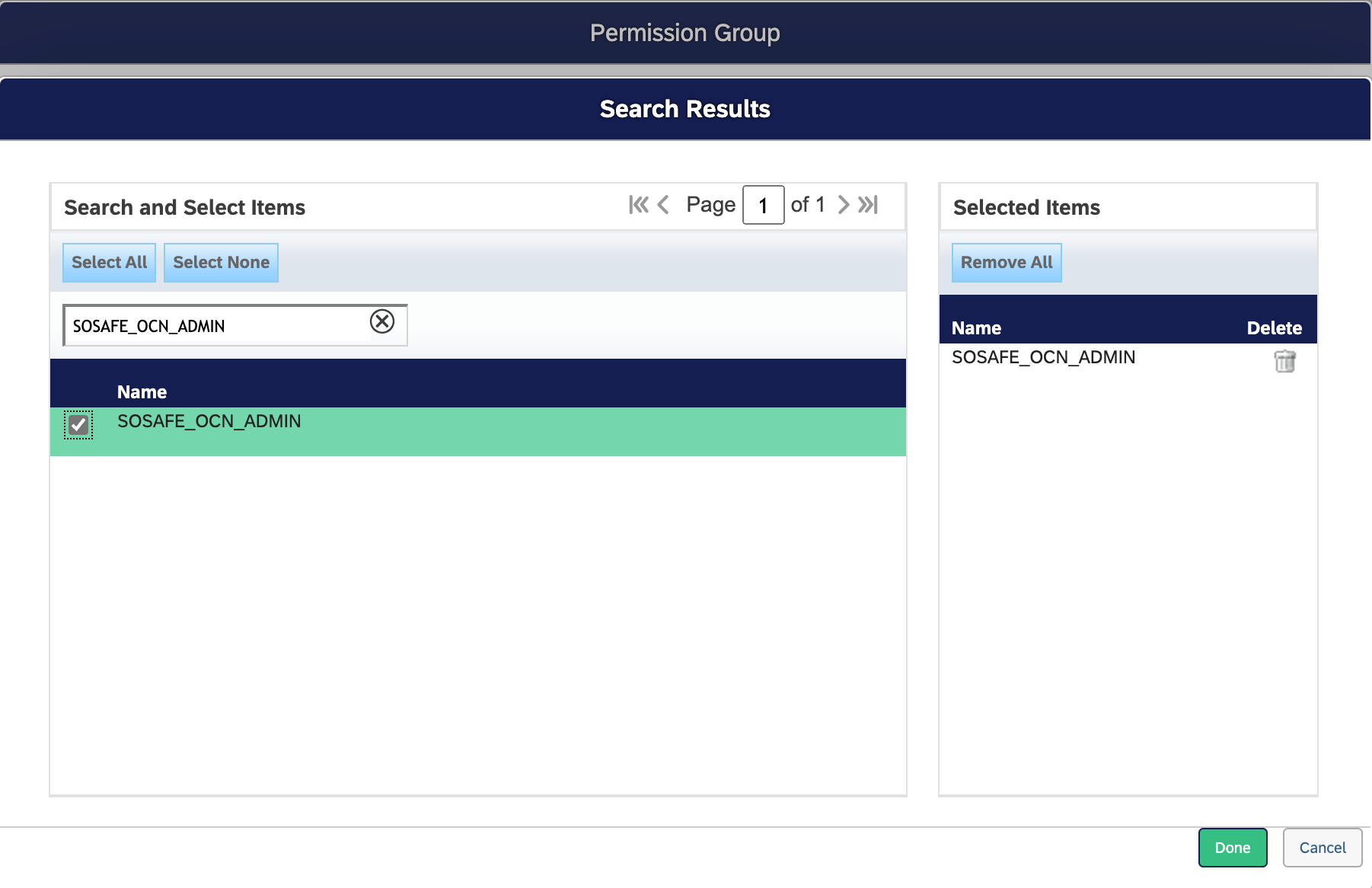
Contains User:
SOSAFE_OCN_ADMIN -
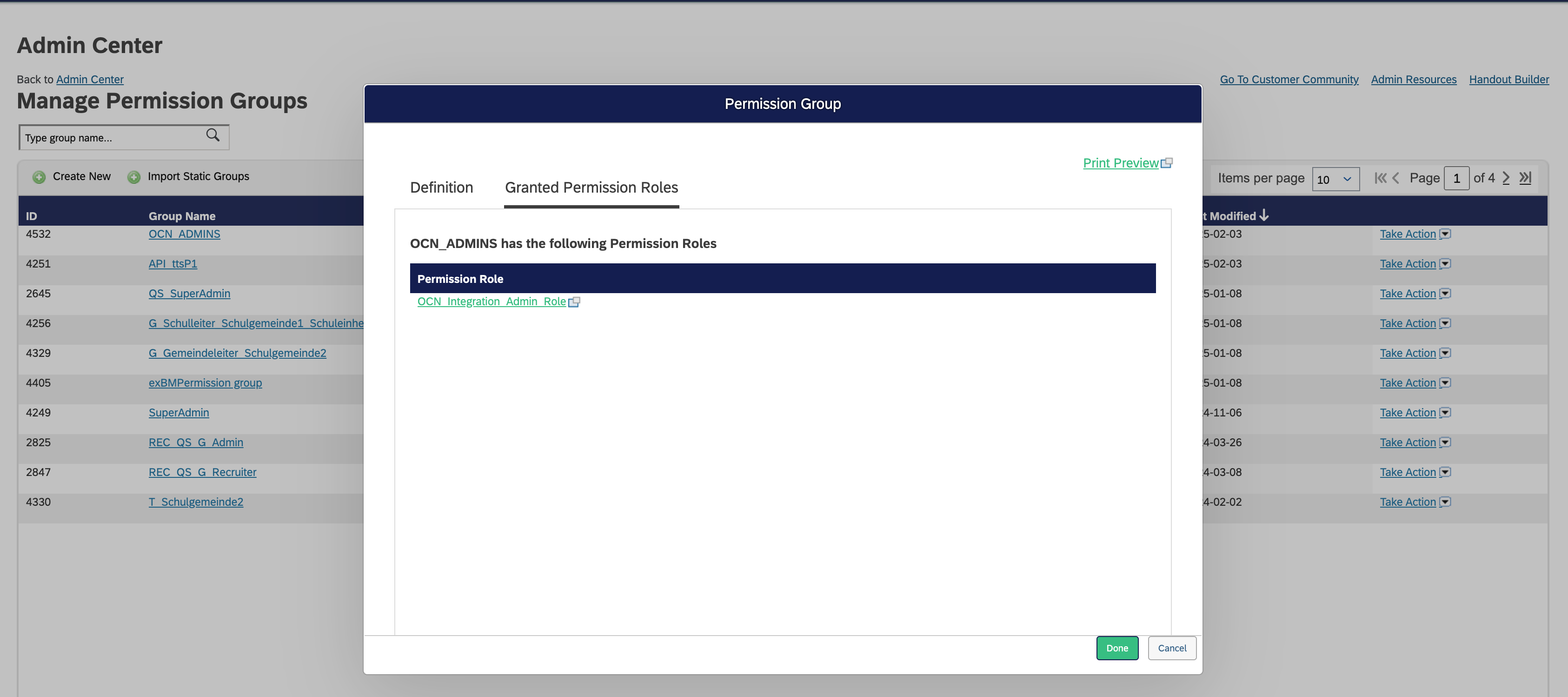
Assigned Role:
OCN_Integration_Admin_Role
-
Add the imported user to the appropriate permission group:
-
OCN-ADMINSfor administrators -
OCN-API-USERSfor API Users
-
OCN_API_USERS
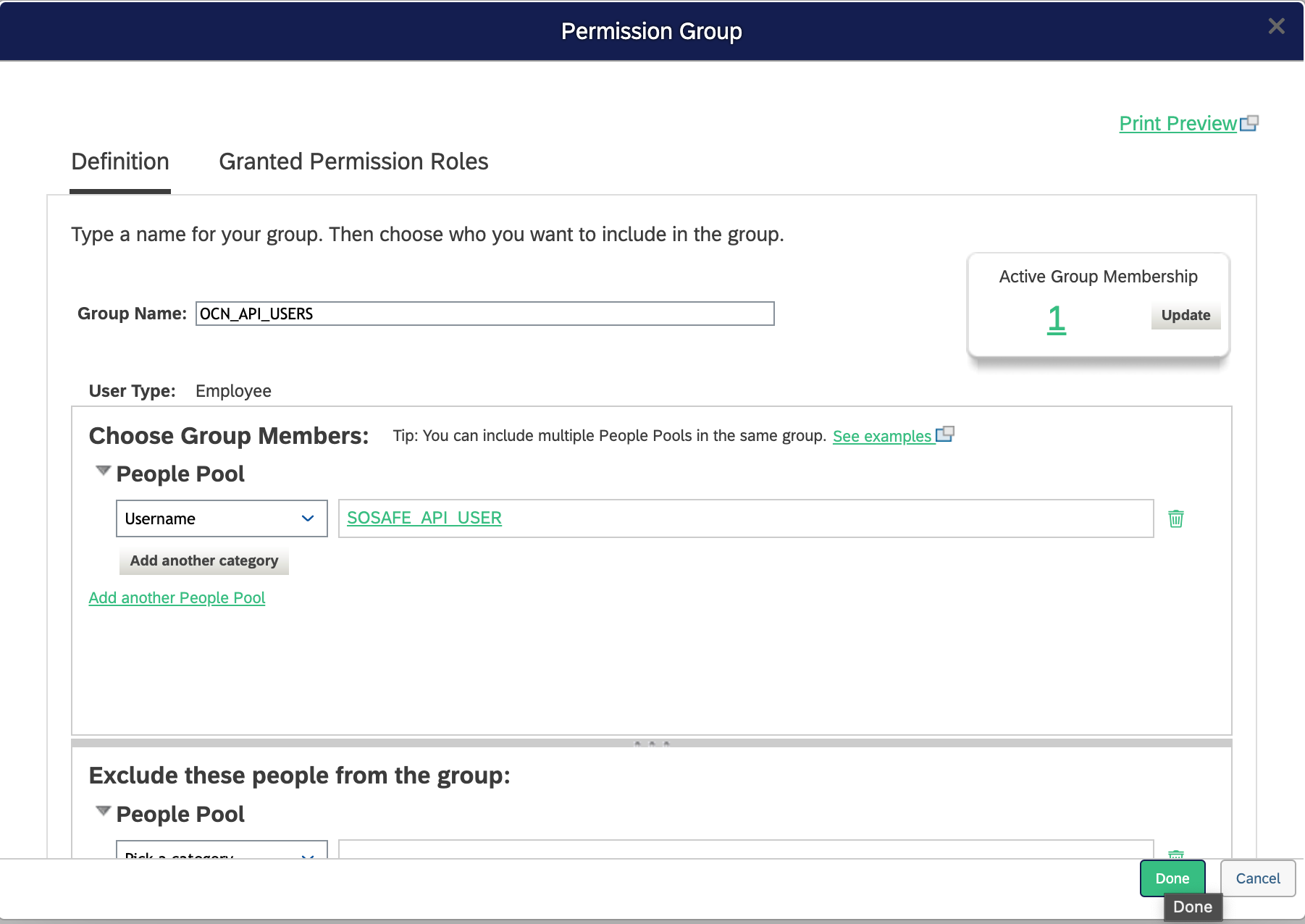
Create the following group:
-
Group name:
OCN_API_USERS -
Contains User:
SOSAFE_API_USER -
Assigned Role:
OCN_API_USER_ROLE
2.3 Creating permission roles
Search for Manage Permission Roles

OCN Integration Admin Role
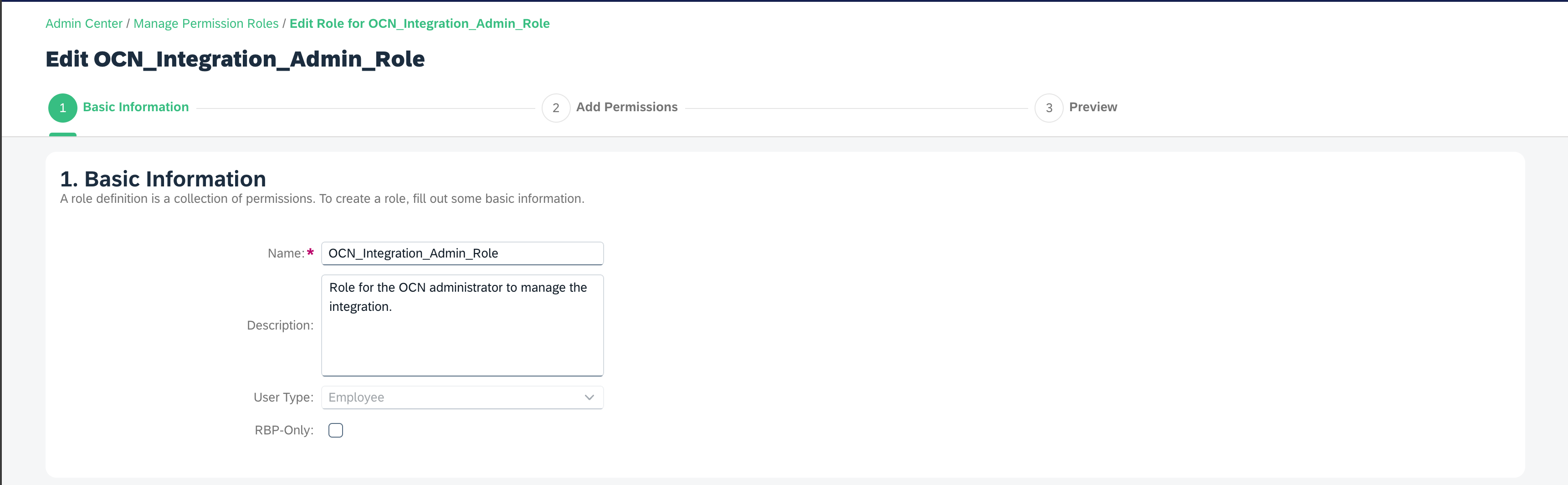
Create the following role:
-
Name:
OCN_Integration_Admin_Role -
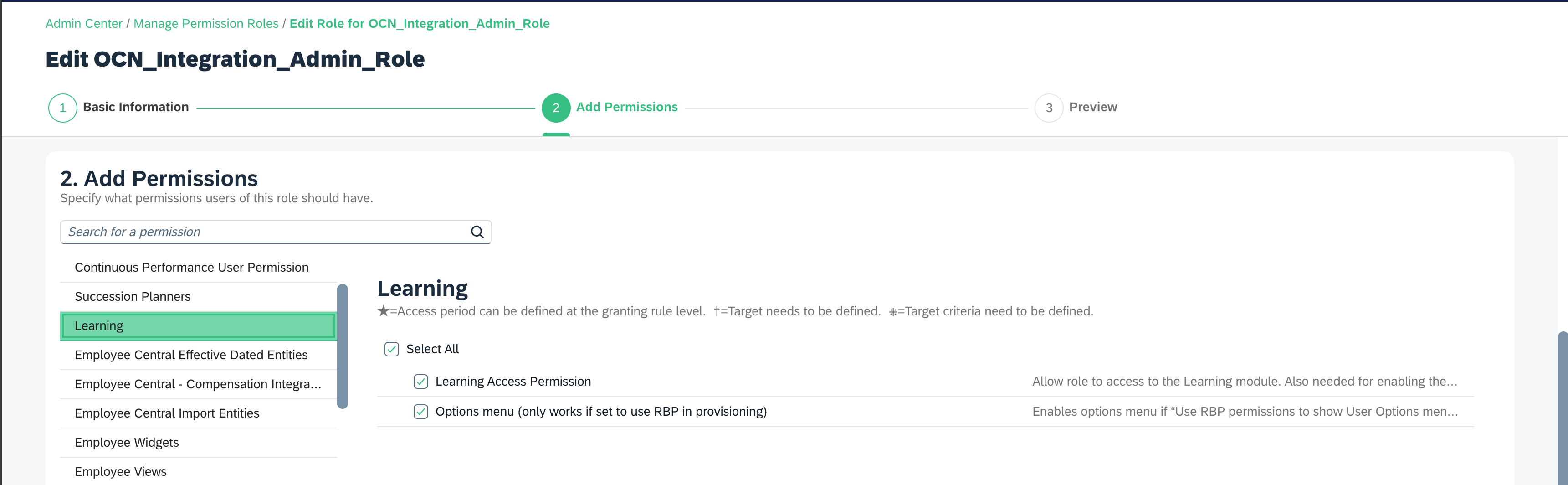
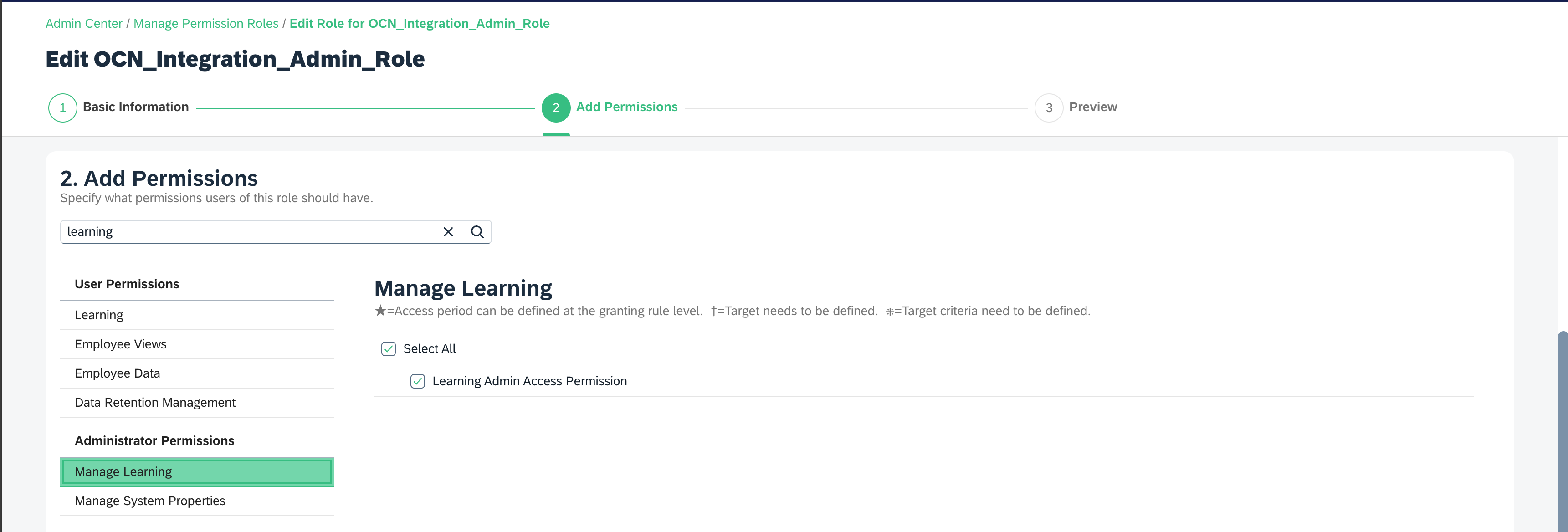
Permissions
-
Learning → Enable Learning Access Permission
-
Administrator Permissions → Enable Learning Admin Access Permission
-
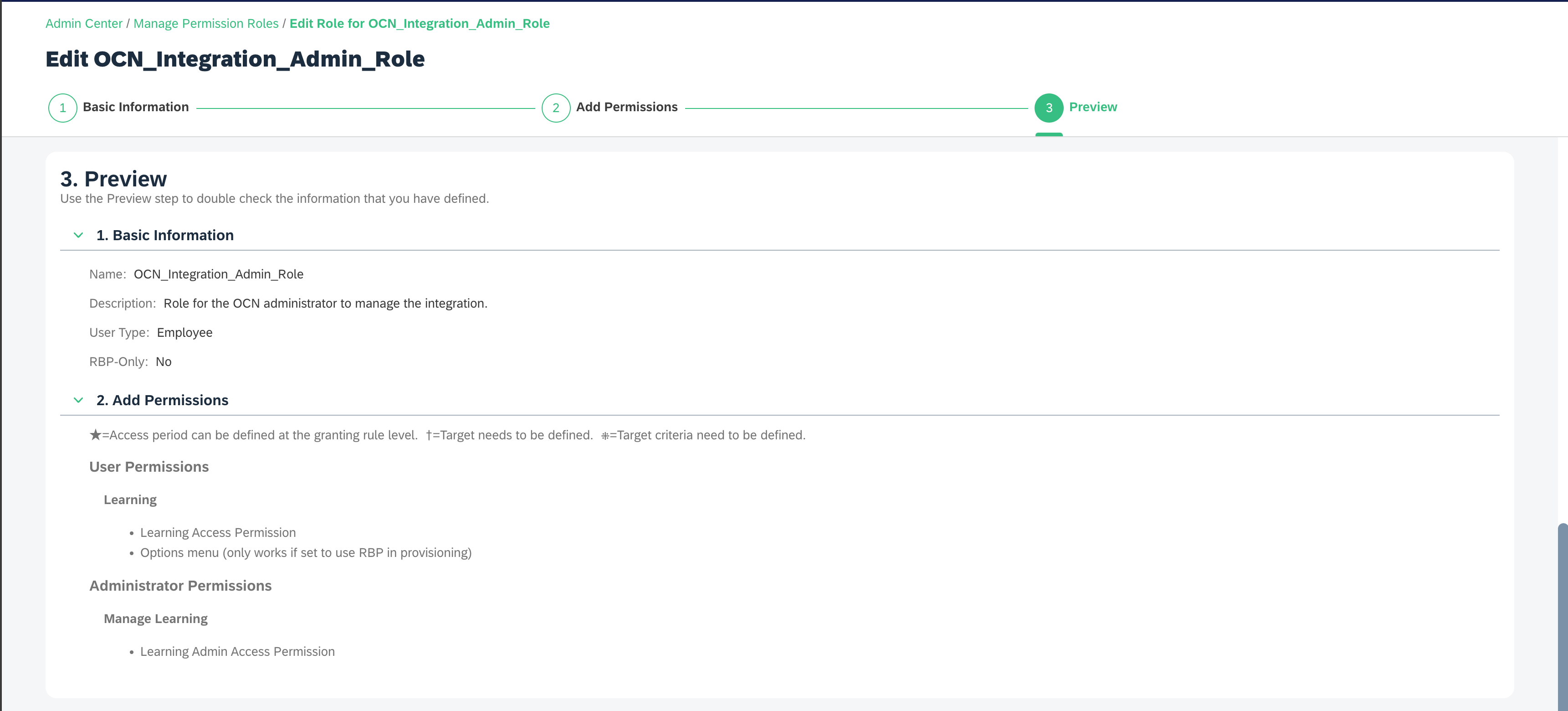
Add Role Assignment for OCN_ADMIN_USER_ROLE
-
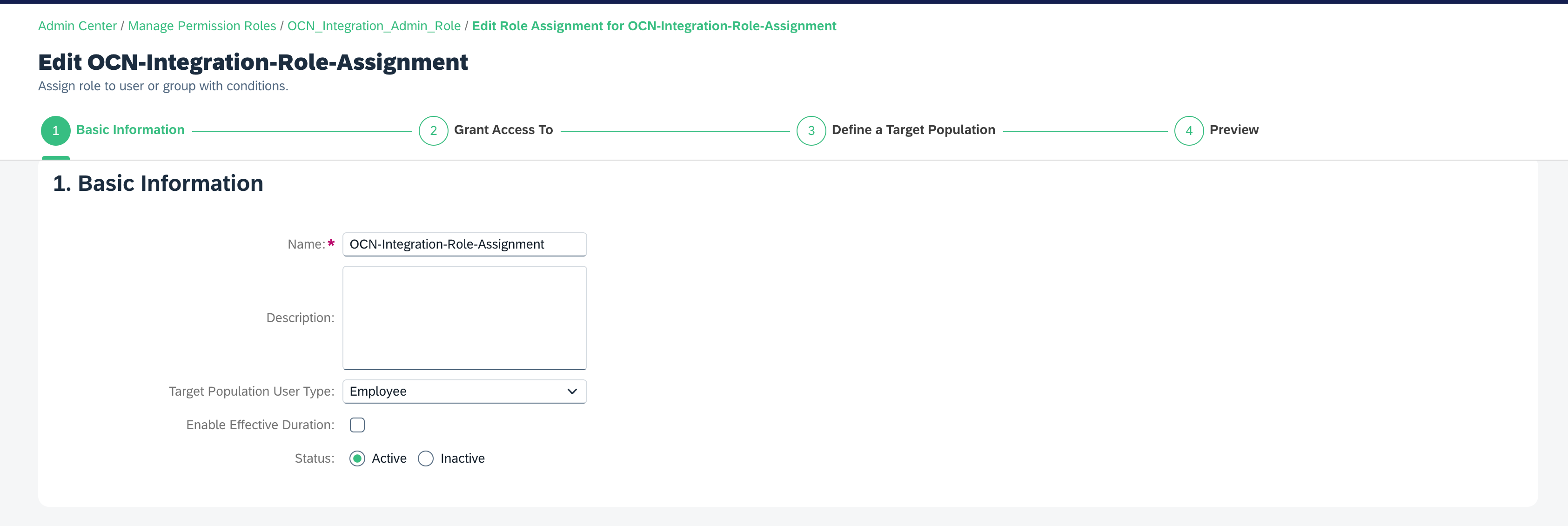
Click on Add Role Assignment

-
Add basic information
Choose from Groups, followed by Select Group
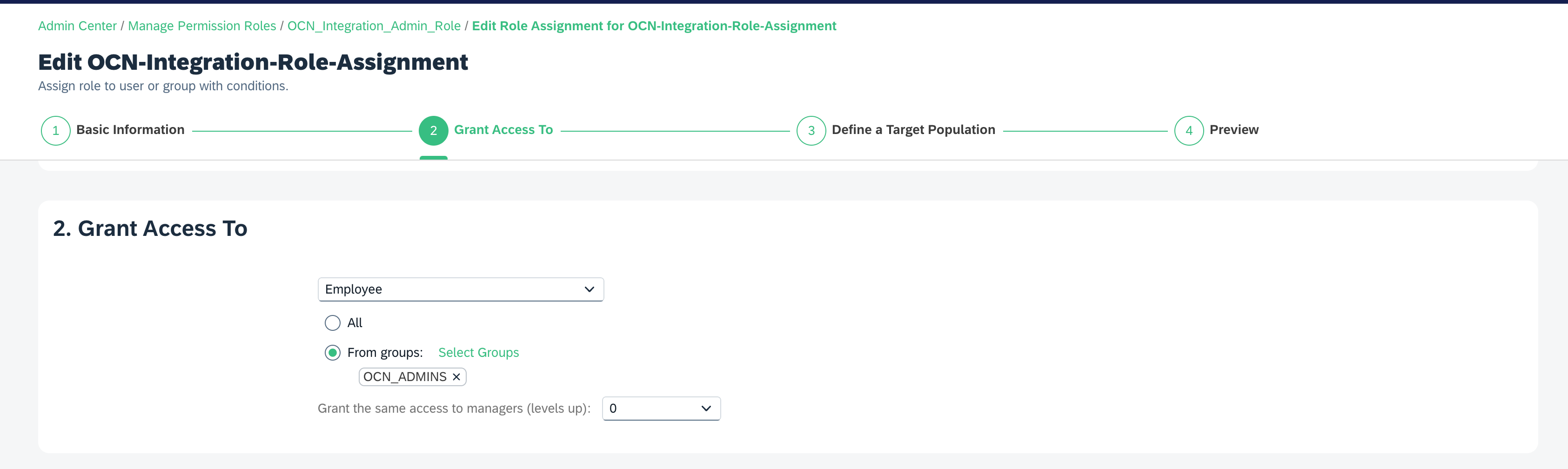
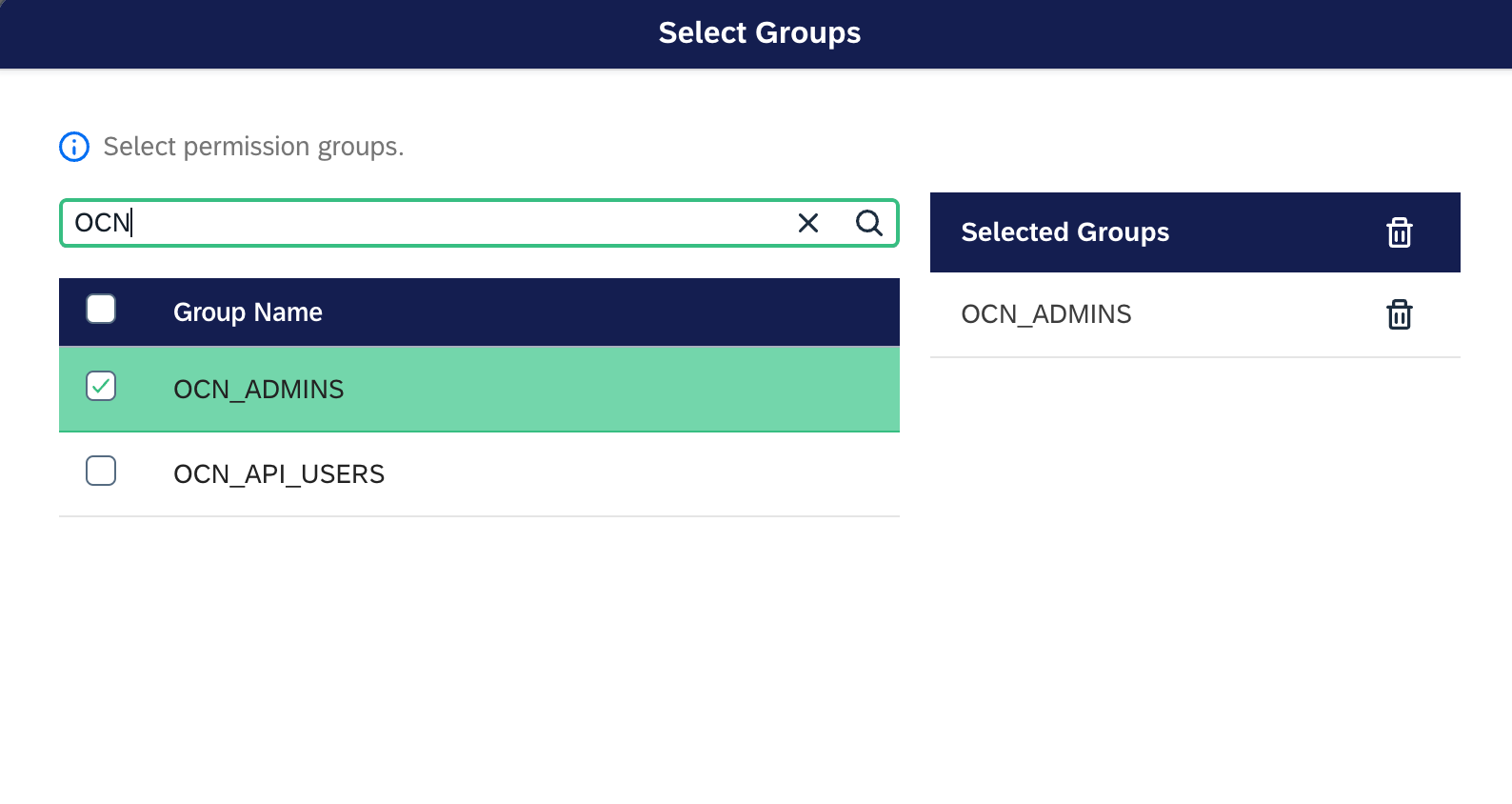
-
Add group
OCN_ADMINS -
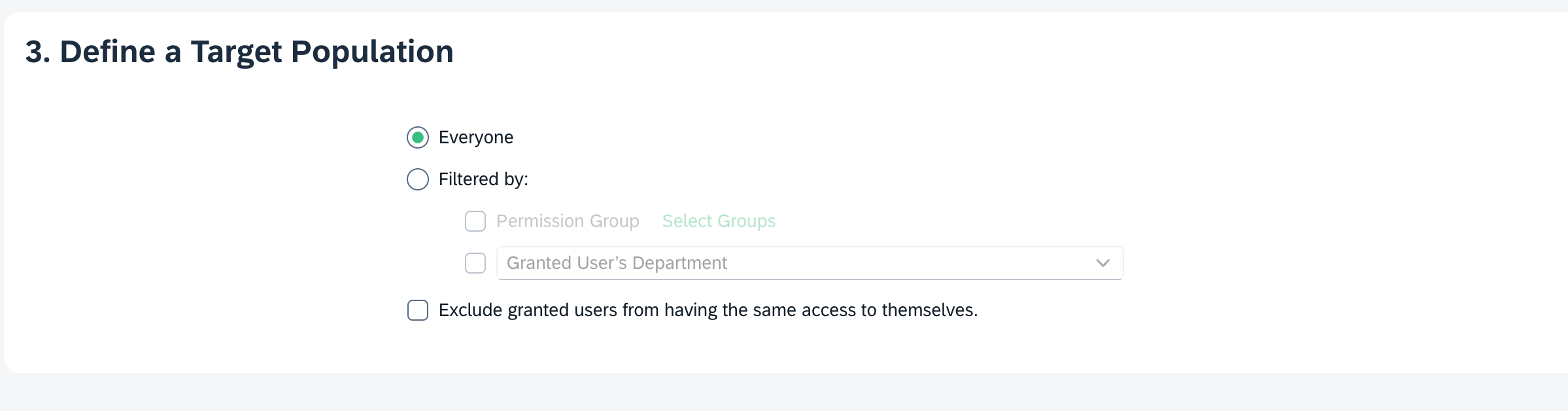
Define Target Population
SFSF (BizX) API User Role
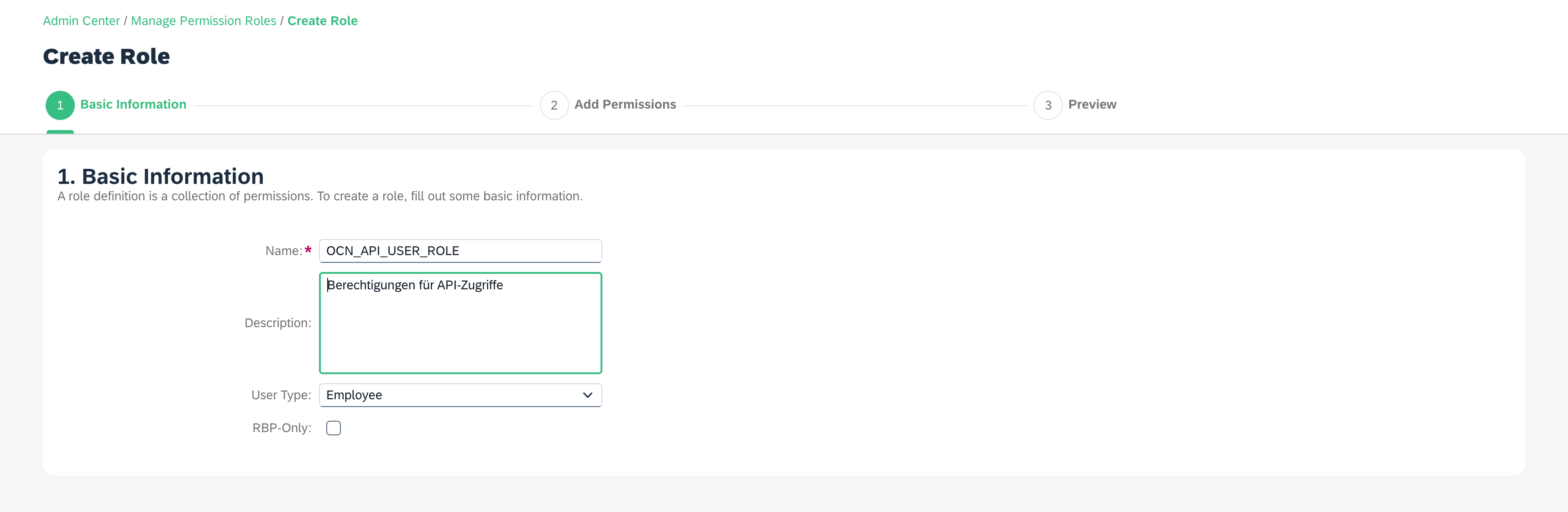
Create the following role:
-
Name:
OCN_API_USER_ROLE -
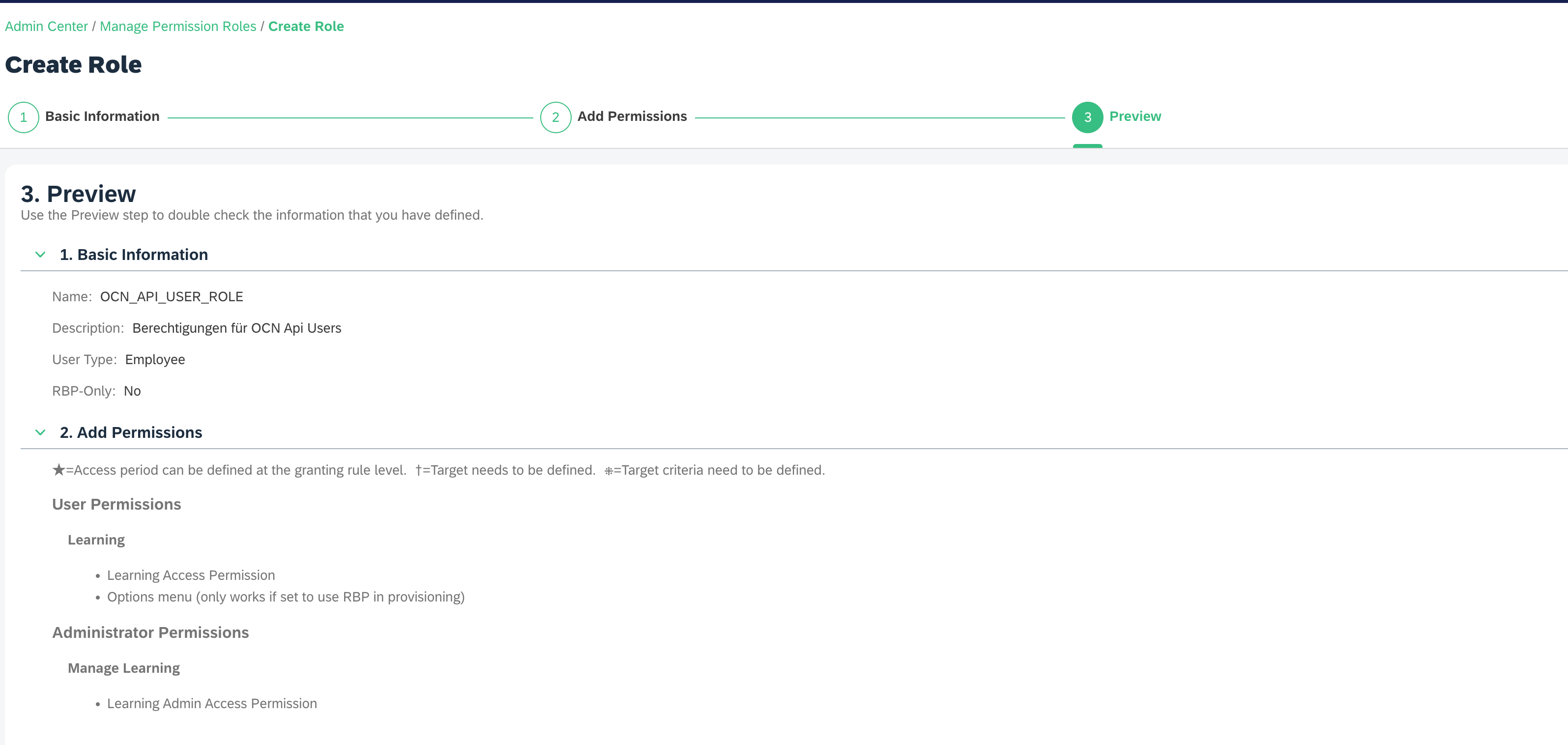
API Access Permissions
-
Recommended minimum permissions for
OCN-API-USER-
User Permissions
-
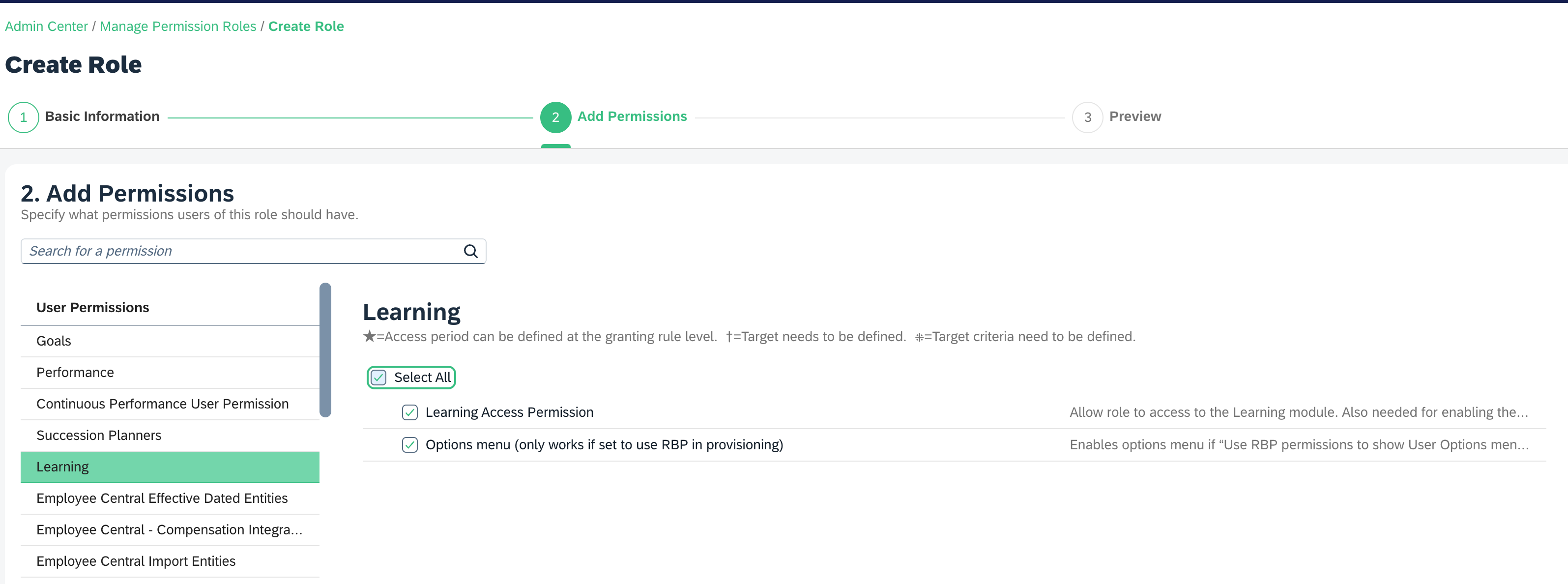
-
Learning
-
Learning Access Permission
-
Options menu (only works if set to use RBP in provisioning)
-
-
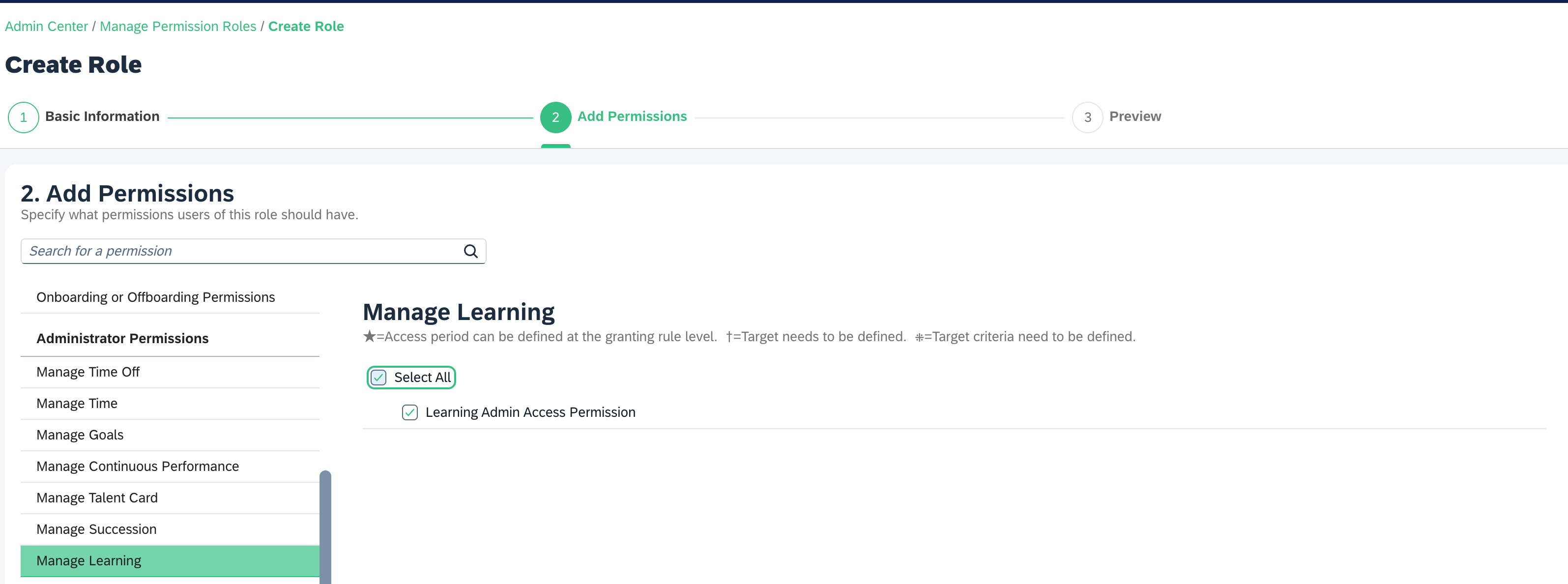
Administrator Permissions
-
Manage Learning
-
Learning Admin Access Permission
-
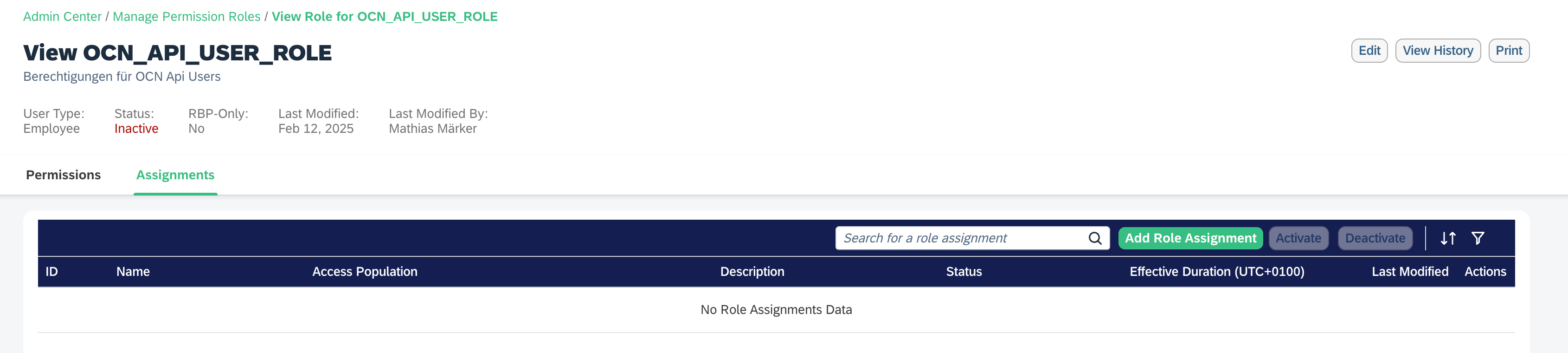
Add Role Assignment for OCN_API_USER_ROLE
-
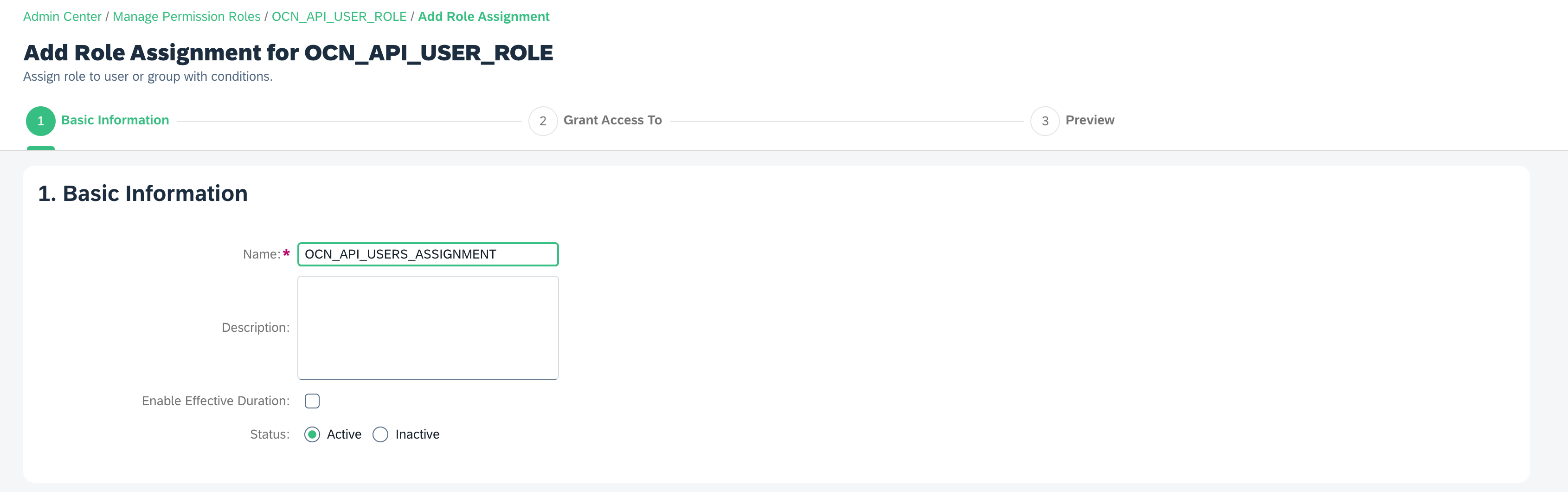
Add Role Assignment
-
Basic Information
-
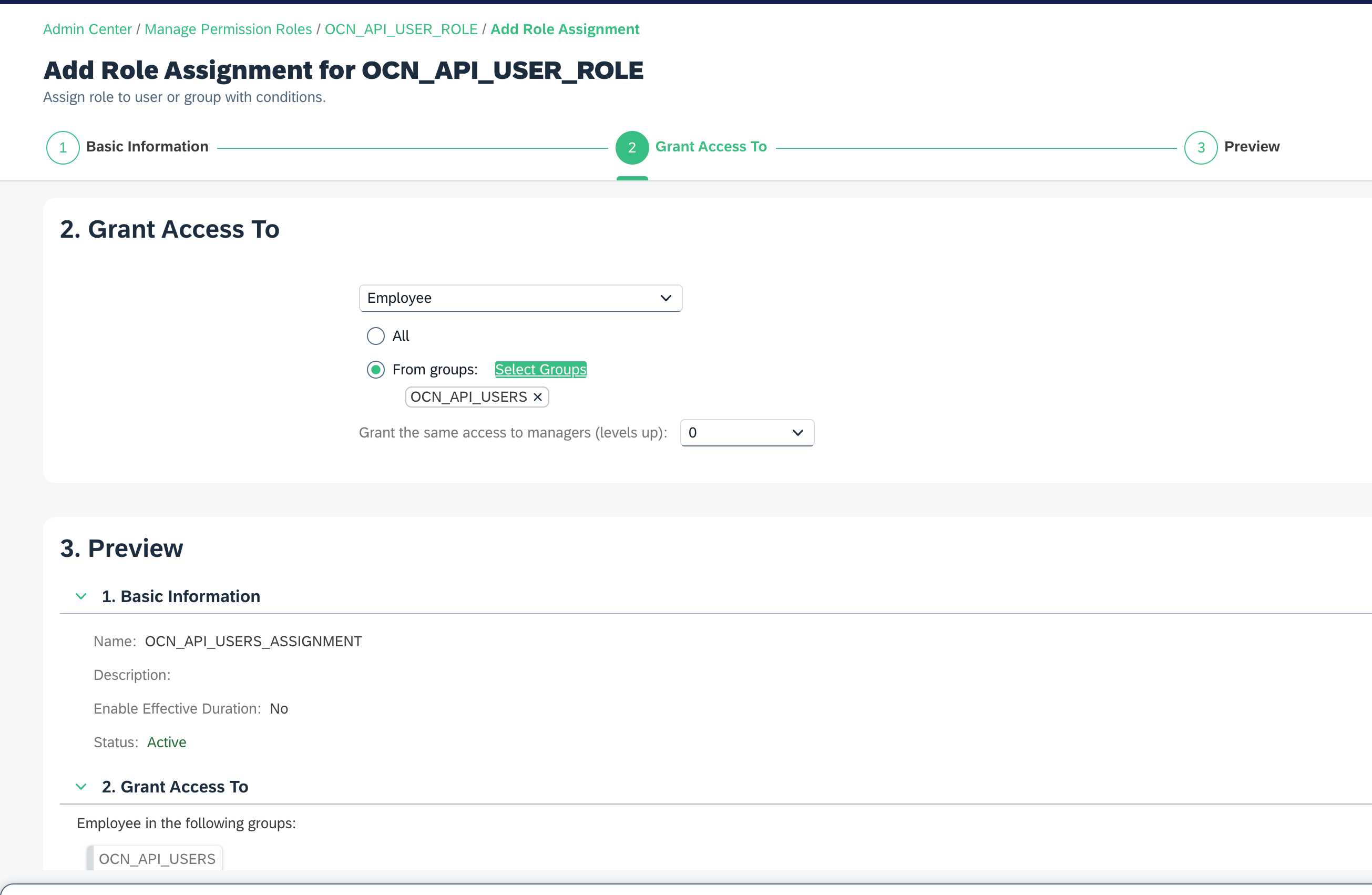
Grant Access to
-
Select Group
OCN_API_USERS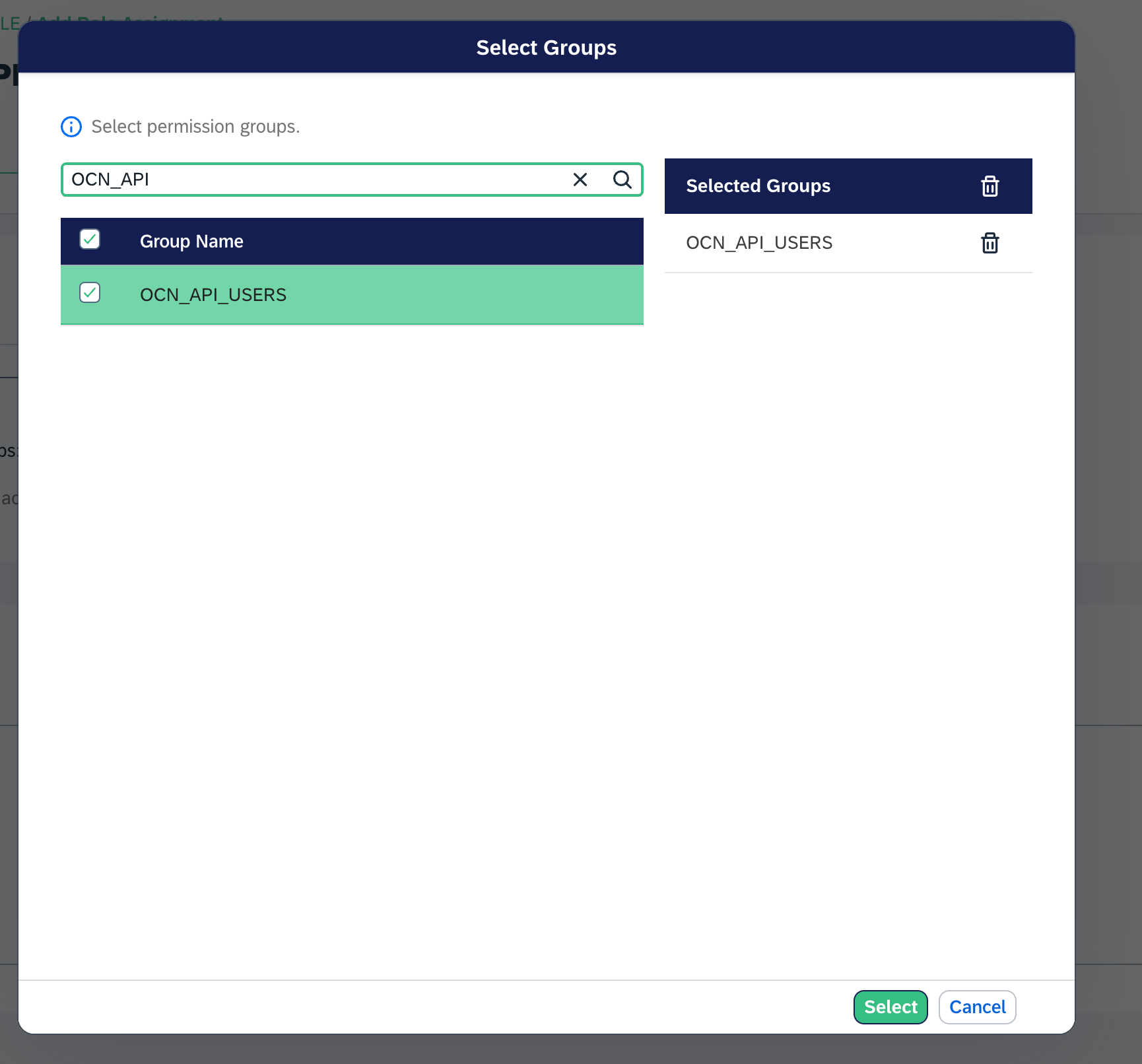
2.4 Adding OAuth2 Client Application
-
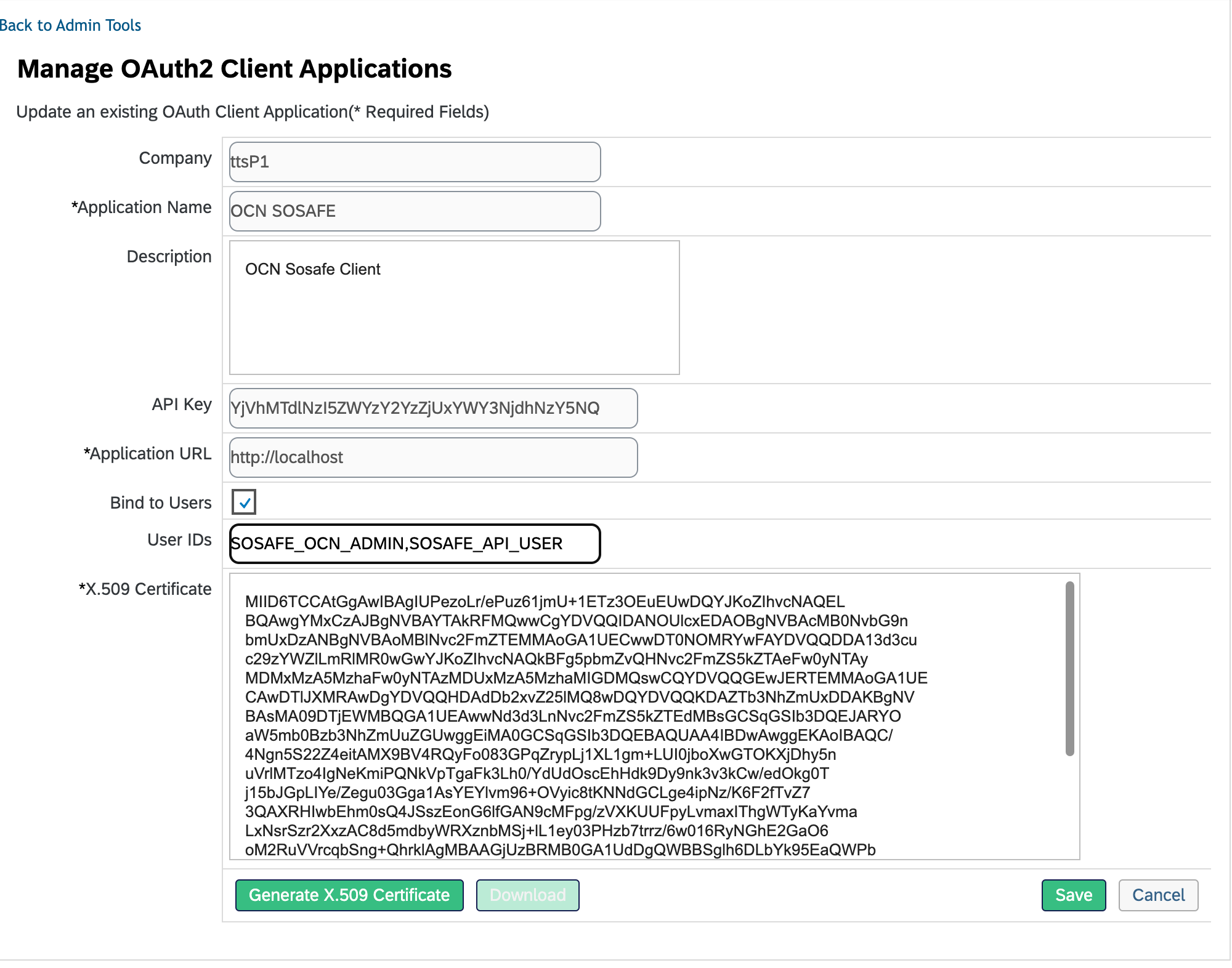
Navigate to Admin Center → Manage OAuth2 Client Applications
-
Create application:
OCN SOSAFE -
Bind to User
SOSAFE_API_USERandSOSAFE_OCN_ADMIN -
Generate a X.509 certificate using the command below and paste the public key into the X.509 Certificate field
-
openssl req -nodes -x509 -sha256 -newkey rsa:2048 -keyout private.pem -out public.pem -days 3650
-
-
Note that you will need to provide the API Key as well as the public and private keys of your certificate in the SoSafe Manager after completing your SAP SF setup.
-
Select Save.
Do not use the Generate X.509 Certificate button in SAP SF. Certificates generated that way do not work. Generate the certificate using the CLI command shown above. Refer to SAP Help Portal | Creating a X.509 Certificate Using Your Own Tools for further details.
3. Configuration of the Learning Management System (LMS)
3.1 Basic configuration
Completion status
-
ONLINE_COMPLETED: completed -
ONLINE_EXAM_PASSED: passed
ItemType / ComponentType
-
ONLINE: Online training without an exam -
ONLINE_EXAM: Online training with an exam
Define labels
-
label.u.SOSAFE→ “Sosafe OCN Learning Provider”
3.2 Configuration of the OCN provider in LMS
Register the provider by navigating to System Administration → Content → Open Content Network
New Provider: SOSAFE
Enter API credentials
Configure system properties
System Administration → Configuration → System Configuration → OPEN_CONTENT_NETWORK
Example Configuration:
providers[SOSAFE].enabled=true
providers[SOSAFE].syncCourses=true
providers[SOSAFE].name=Sosafe
providers[SOSAFE].label=label.ProviderSosafe
providers[SOSAFE].baseLaunchUrl=https://sosafe.de
providers[SOSAFE].pricingModel=SUBSCRIPTION
defaultValues.autoImportOCNCourseEnabled[SOSAFE]=true
3.3 User management in LMS
Check if the integration job has already synchronized the users. If not, run the job manually.
Creating users in LMS without synchronization
If you do not use an integration job to synchronize users between BizX and LMS, the two users SOSAFE_API_USER and SOSAFE_OCN_ADMIN must be created manually in LMS.
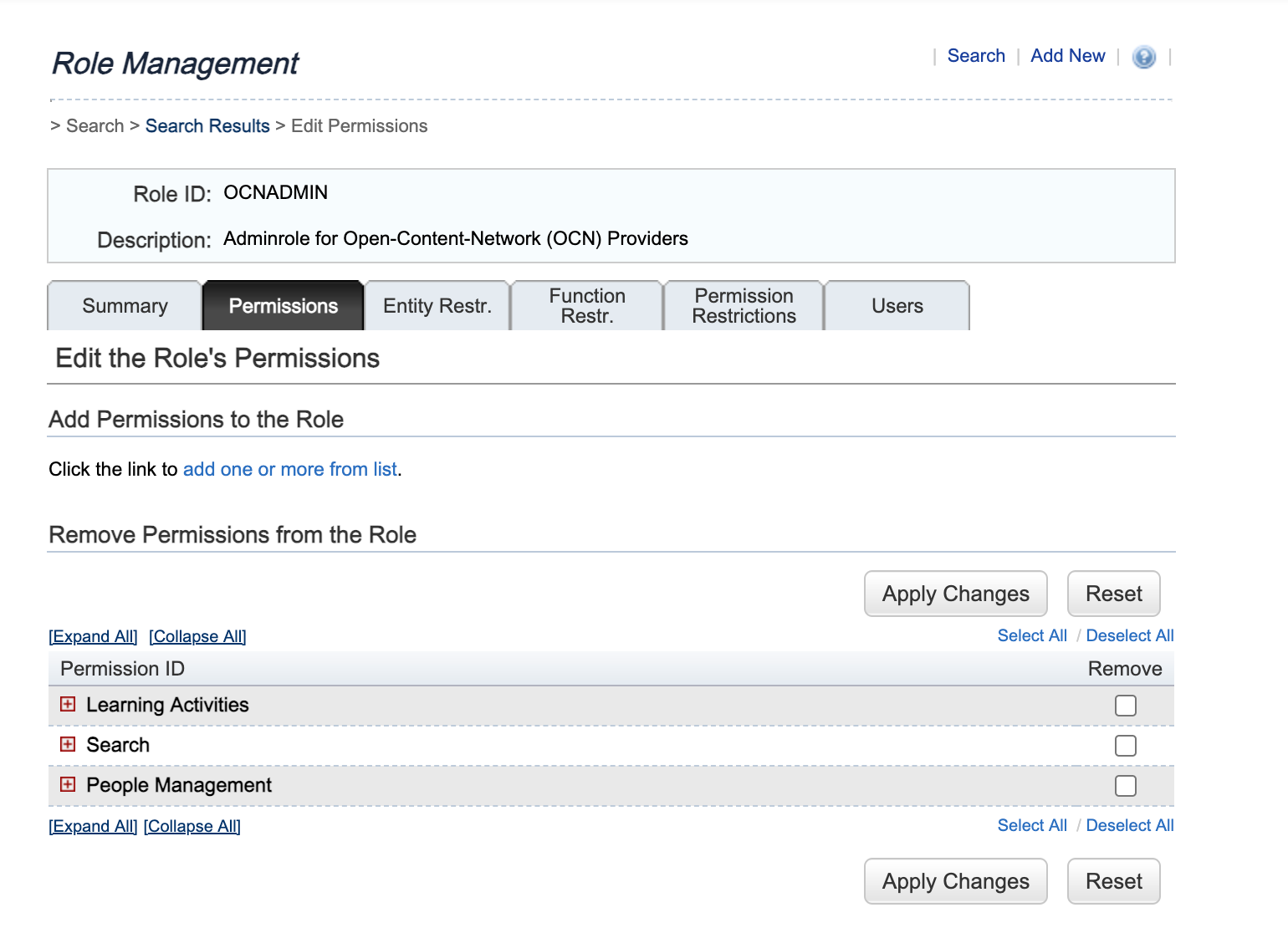
Creating the role “OCNADMIN”
-
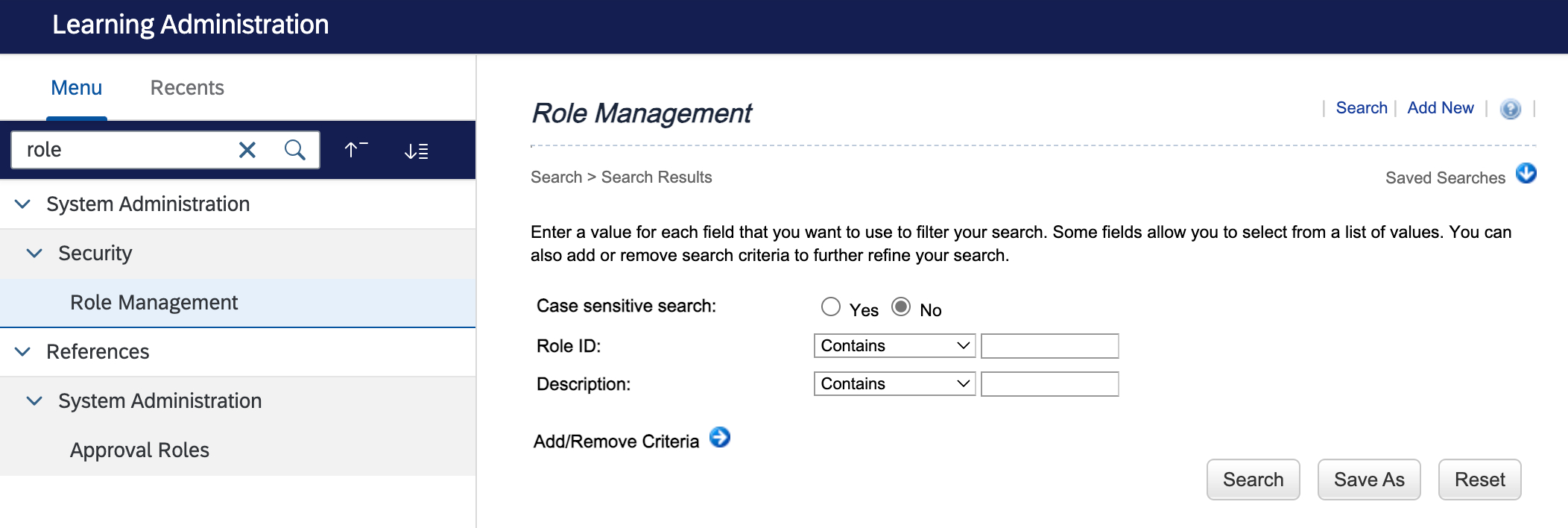
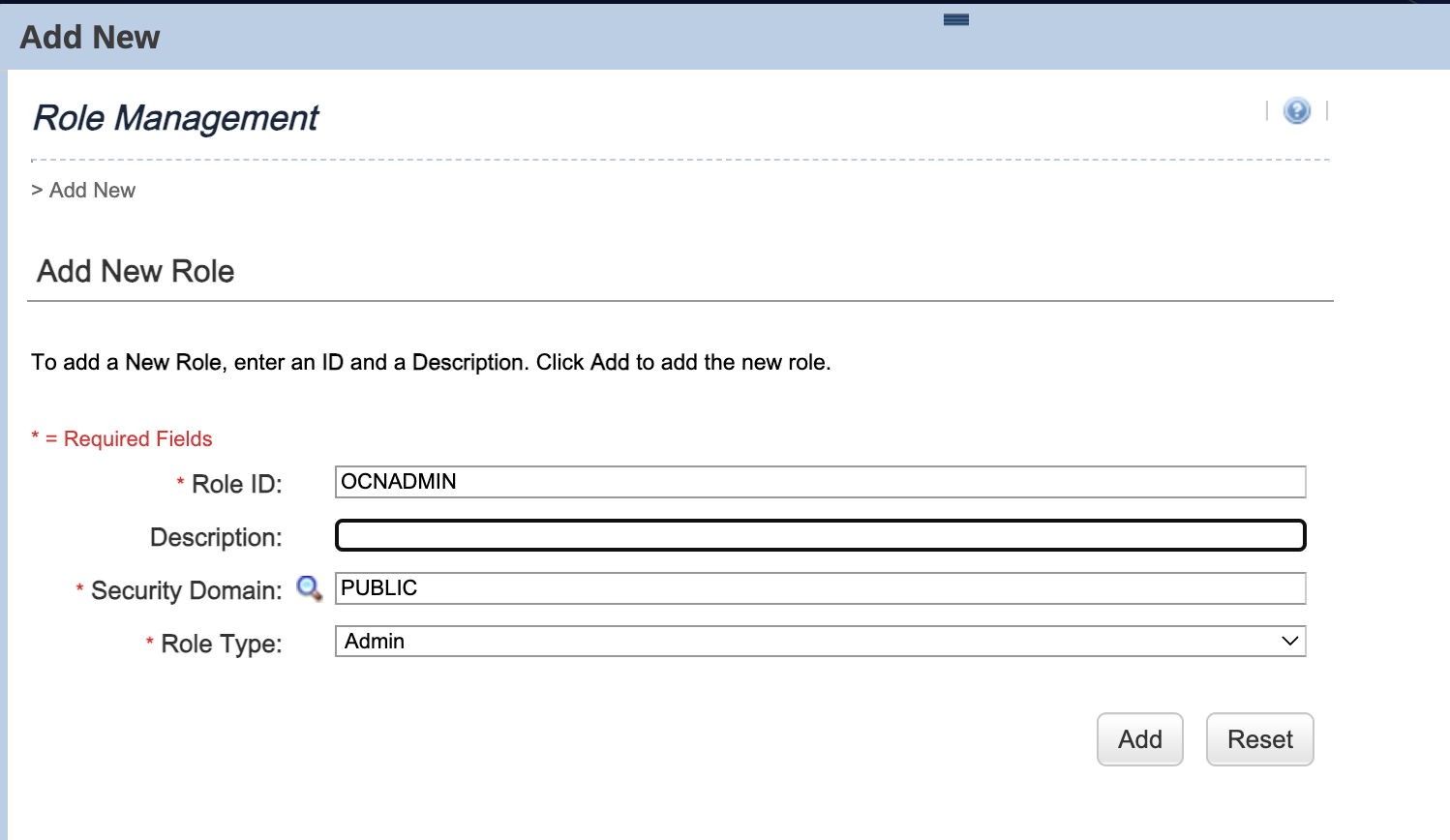
Navigate to System Administration → Security → Role Management → Add New
-
Role ID:
OCNADMIN -
Description: Admin role for Open-Content-Network (OCN) Providers
-
Select the security domain according to your security concept.
-
-
Assign permissions
Creating the OCN administrator in LMS
-
Navigate to System Administration → Security → Administrators
-
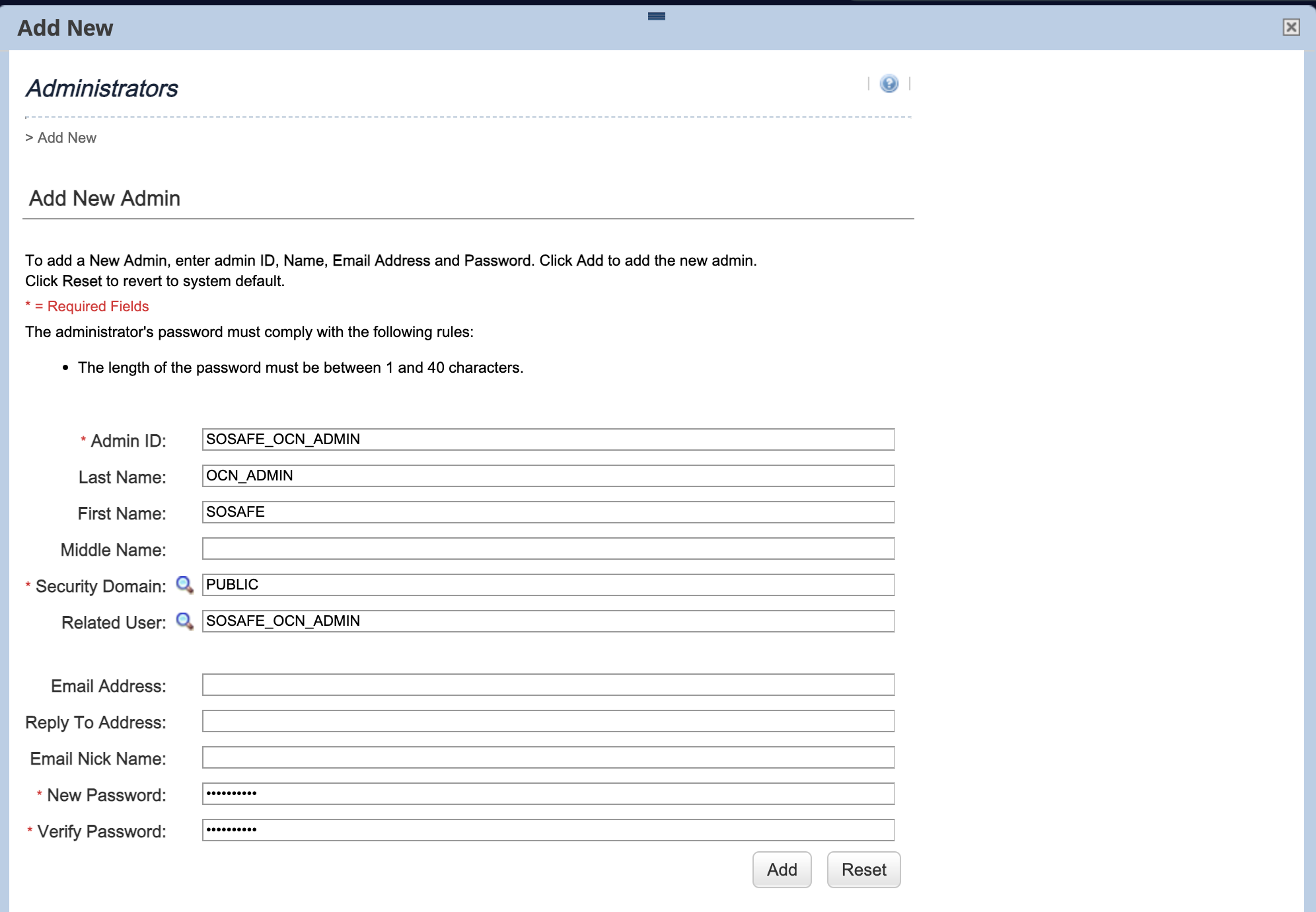
Create a new administrator
-
Admin ID:
SOSAFE_OCN_ADMIN -
Last Name:
OCN_ADMIN -
First Name:
SOSAFE -
Role: Learning Administrator: Assign the role
OCNADMIN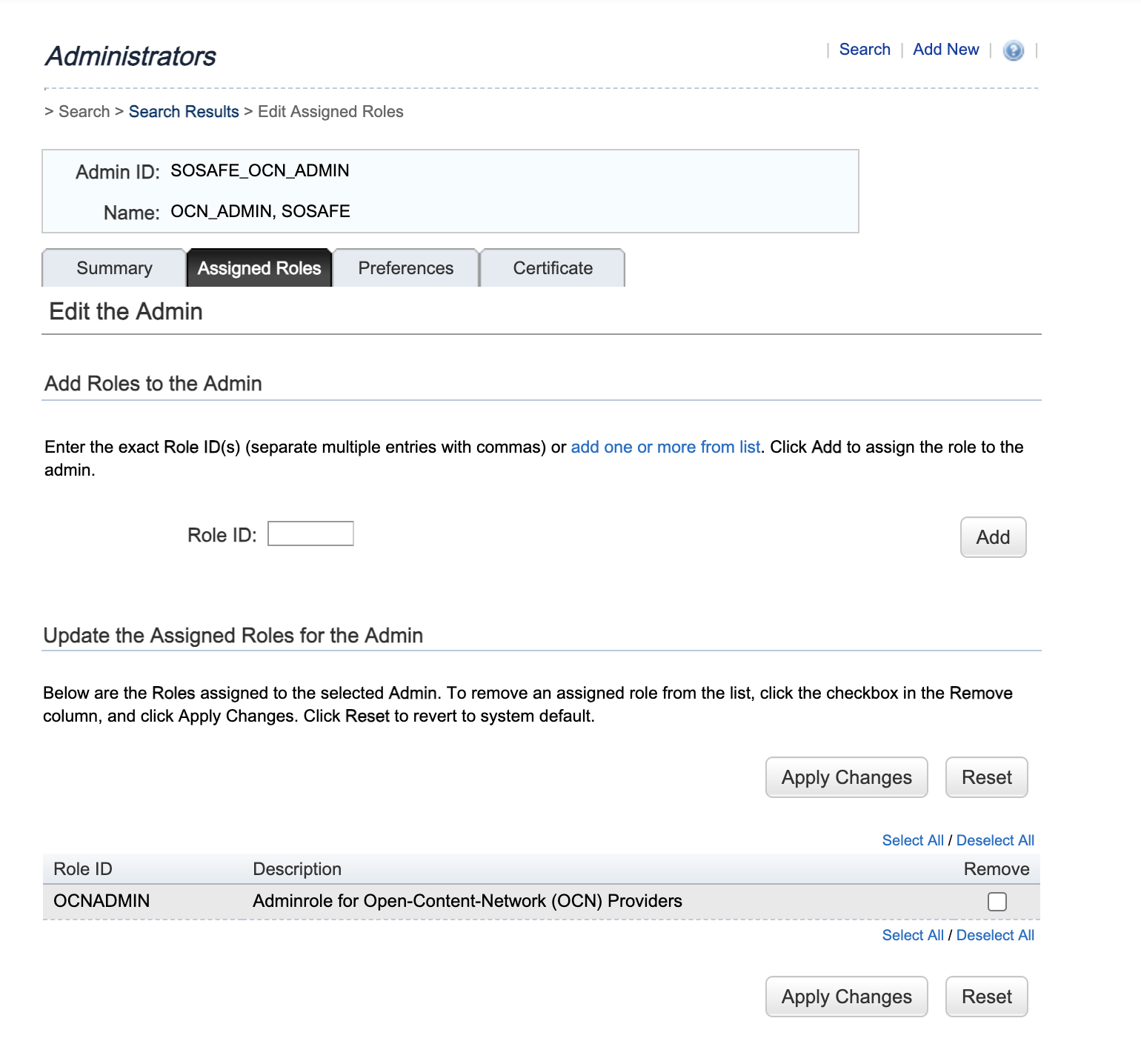
-
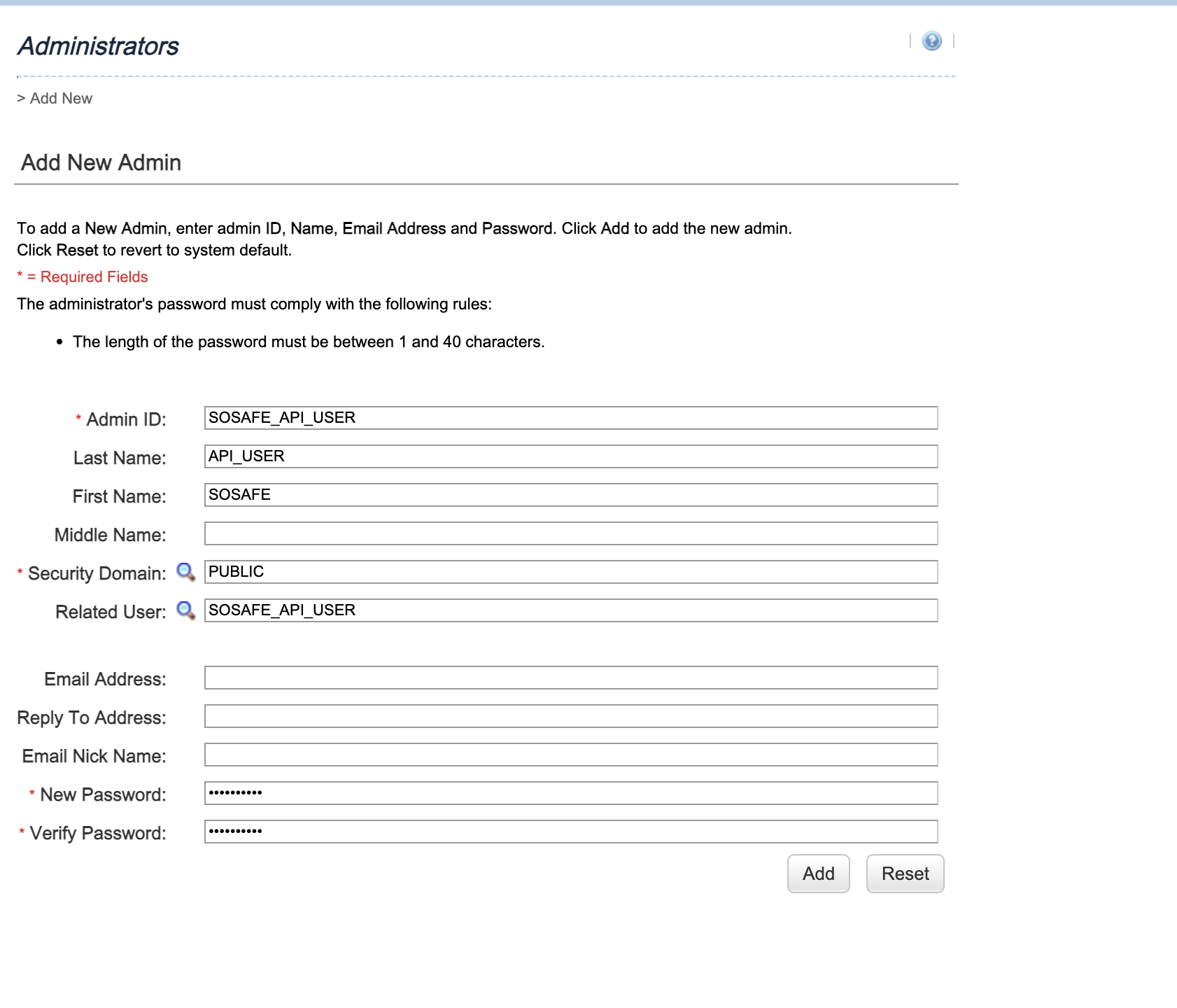
Creating the OCN API user as an administrator in LMS
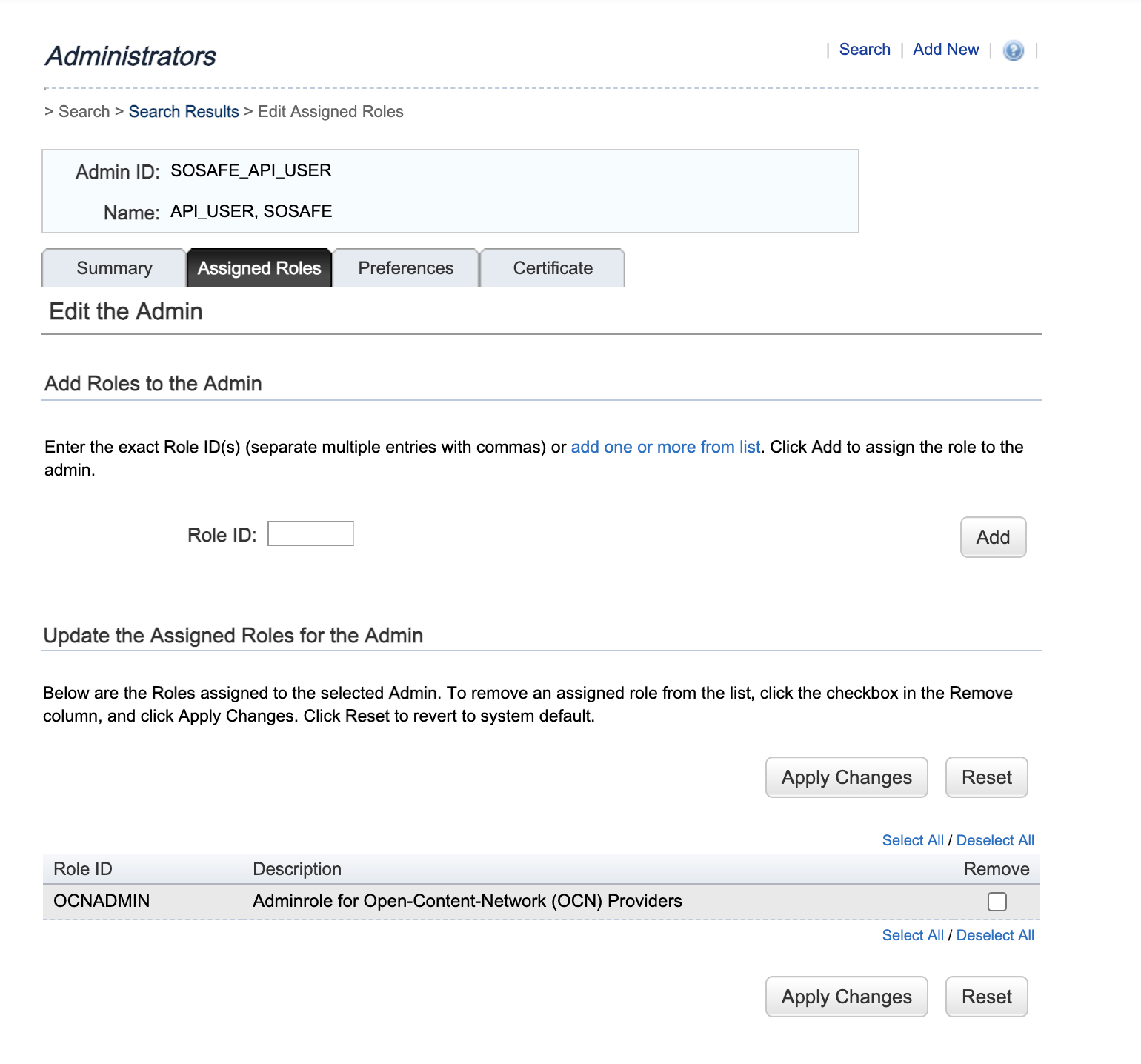
4. Implementation of Single Sign-On (SSO)
5. Important notes
API limits and performance optimization
Observe throttling limits for Learning OData APIs Recommended documentation:
-
2804267 - SAP SuccessFactors Learning Product Guidelines & Best Practices
-
2318296 - Implementing Open Content Network (OCN) with SuccessFactors Learning (LMS)
6. Glossary
|
Acronym |
Full name |
Explanation |
|---|---|---|
|
OCN |
Open Content Network |
A platform that allows integration of third-party learning content providers with SuccessFactors LMS. |
|
MODC |
Massive Online Open Course |
A type of online course aimed at unlimited participation and open access via the web. |
|
LMS |
Learning Management System which is attached to the BizX |
A system attached to BizX that manages learning content, tracking, and user training. |
|
API |
Application Programming Interface |
|
|
ODATA |
Industry standard protocol to invoke API Calls |
A RESTful API standard used to query and update data from SAP and other systems. |
|
Token |
A security artifact used for authentication and authorization |
In OAuth2 and OIDC, tokens (e.g., access tokens, ID tokens) grant secure access to resources. |
|
BizX |
The SuccessFactors System |
SAP SuccessFactors Business Execution (BizX) Suite, which includes various HR and talent management modules. |
|
OIDC |
OpenID Connect |
An authentication layer on top of OAuth2 that allows clients to verify user identity based on authentication performed by an authorization server. |
|
OAuth2 |
Open Authorization 2.0 |
A widely used authorization framework enabling secure access delegation without exposing credentials. |
|
SAML |
Security Assertion Markup Language |
An XML-based open standard for exchanging authentication and authorization data between parties, commonly used for single sign-on (SSO). |