
Microsoft Defender submission integration

Read this article in: German
You can integrate the Phishing Report Button with Microsoft Defender for report handling. This means emails reported with the PRB show up in your SOC team’s submissions dashboard in Defender. If you are on the Microsoft Defender for Office 365 Plan 2, you can also trigger an Automated Investigation and Response (AIR) for both analysis of the reported email and remediation suggestions. Learn more about this capability athttps://learn.microsoft.com/en-us/defender-office-365/air-auto-remediation.
Requirements and limitations
All APIs available for the PRB are supported. However, Exchange Web Services (EWS) limits the size of attachments to 500kB, meaning that we cannot attach the original email as an .eml file if it is too large. In these cases, while the reports are sent to the user submission inbox, they will not appear in the Microsoft Defender user submission dashboard. We therefore not recommended to use this integration with the EWS API.
Microsoft Defender submissions do not work when reports are submitted from an on-premise mailbox or from outside the organization. Reporters must be on the same Azure instance of MS Defender.
Setup
I. Setup in Microsoft Defender
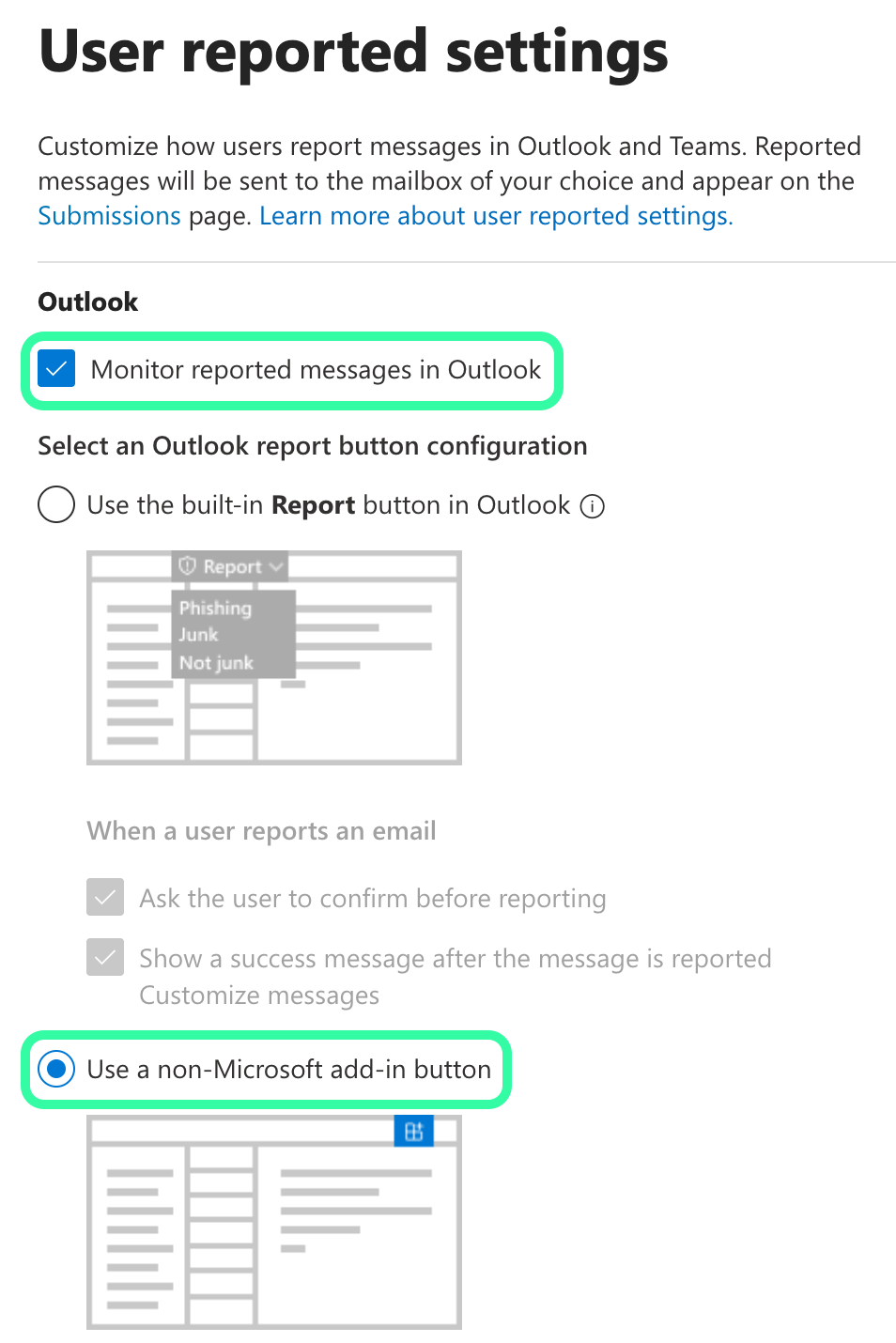
Go to the Microsoft Defender portal. Navigate to System / Settings / Email & collaboration / User reported settings. You can also go to this page directly: https://security.microsoft.com/userSubmissionsReportMessage
Make sure the checkbox for Monitor reported messages in Outlook is checked.
Select Use a non-Microsoft add-in button.

This setting also means that the integrated Microsoft Defender Report button will no longer be shown. Change this only if the PRB is rolled out to all users and is working correctly.
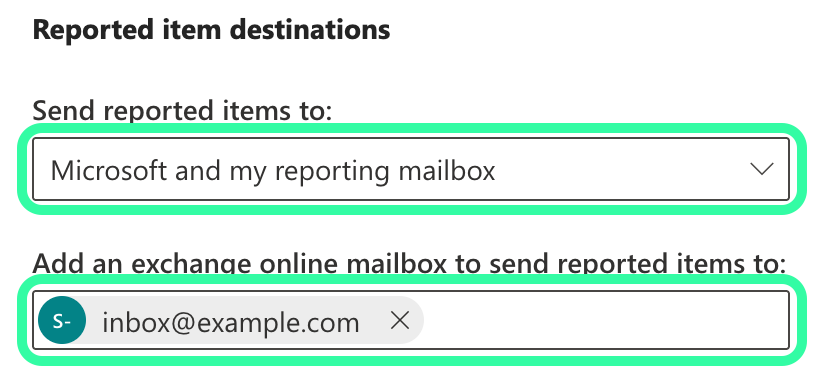
Under Reported message destinations, make sure Send reported messages to: is set to Microsoft and my reporting mailbox.
Under Add an exchange online mailbox to send reported messages to:, enter the inbox you want to use.
Note that you must use a SecOps mailbox. Learn more about how to set up such a mailbox in Microsoft’s documentation.
II. Setup in the SoSafe Manager
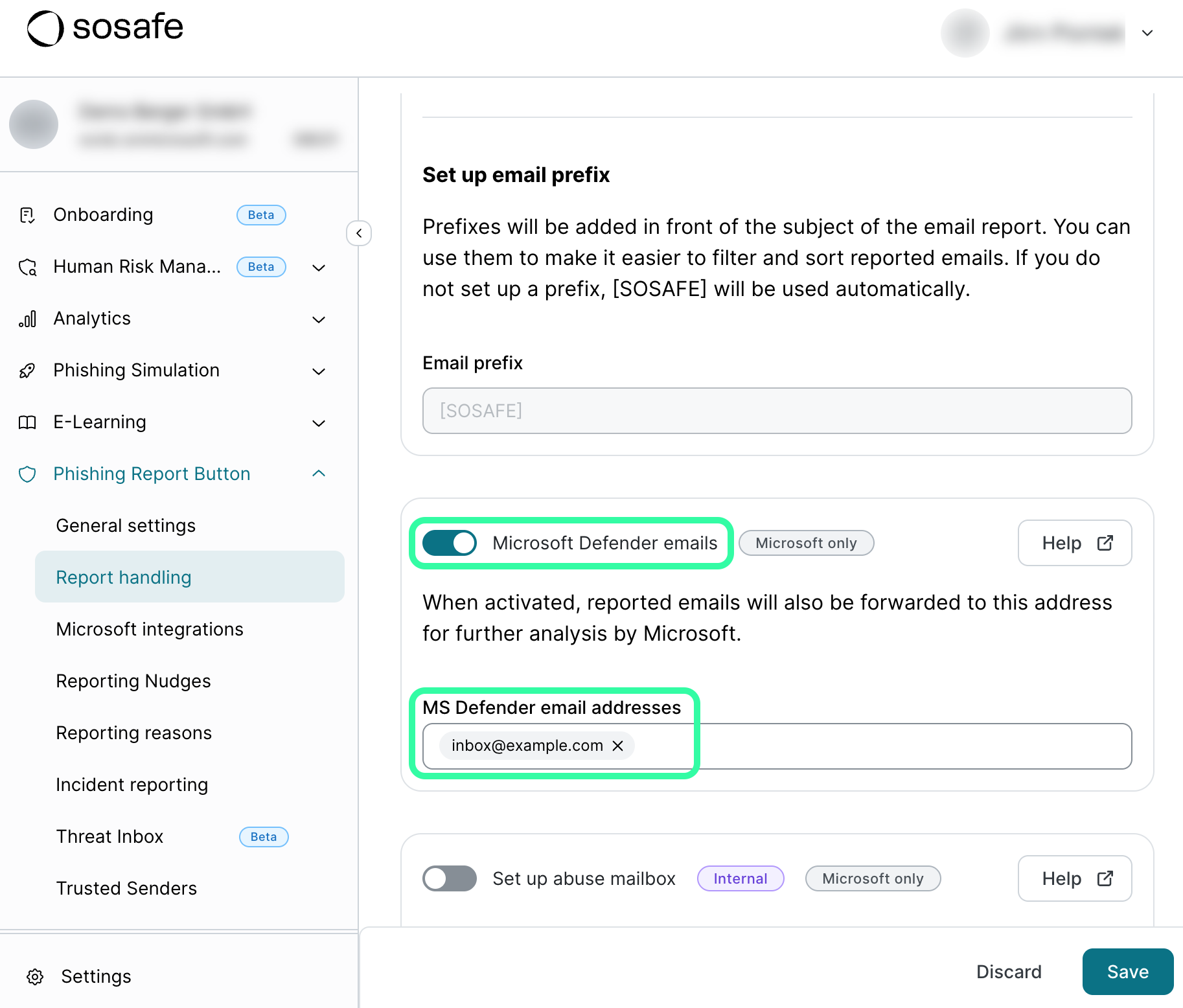
In the SoSafe Manager, navigate to Phishing Report Button / Report handling and find the section for Microsoft Defender emails. Select the toggle to activate it and enter the same inbox you specified earlier. Select Save to confirm.
Use
User-reported emails will now be forwarded to your User submissions dashboard in Defender (navigate to Investigation & response / Actions & submissions / Submissions. You can learn more about what you can do there on Microsoft’s support pages. Simulated phishing emails sent by SoSafe will not be forwarded.